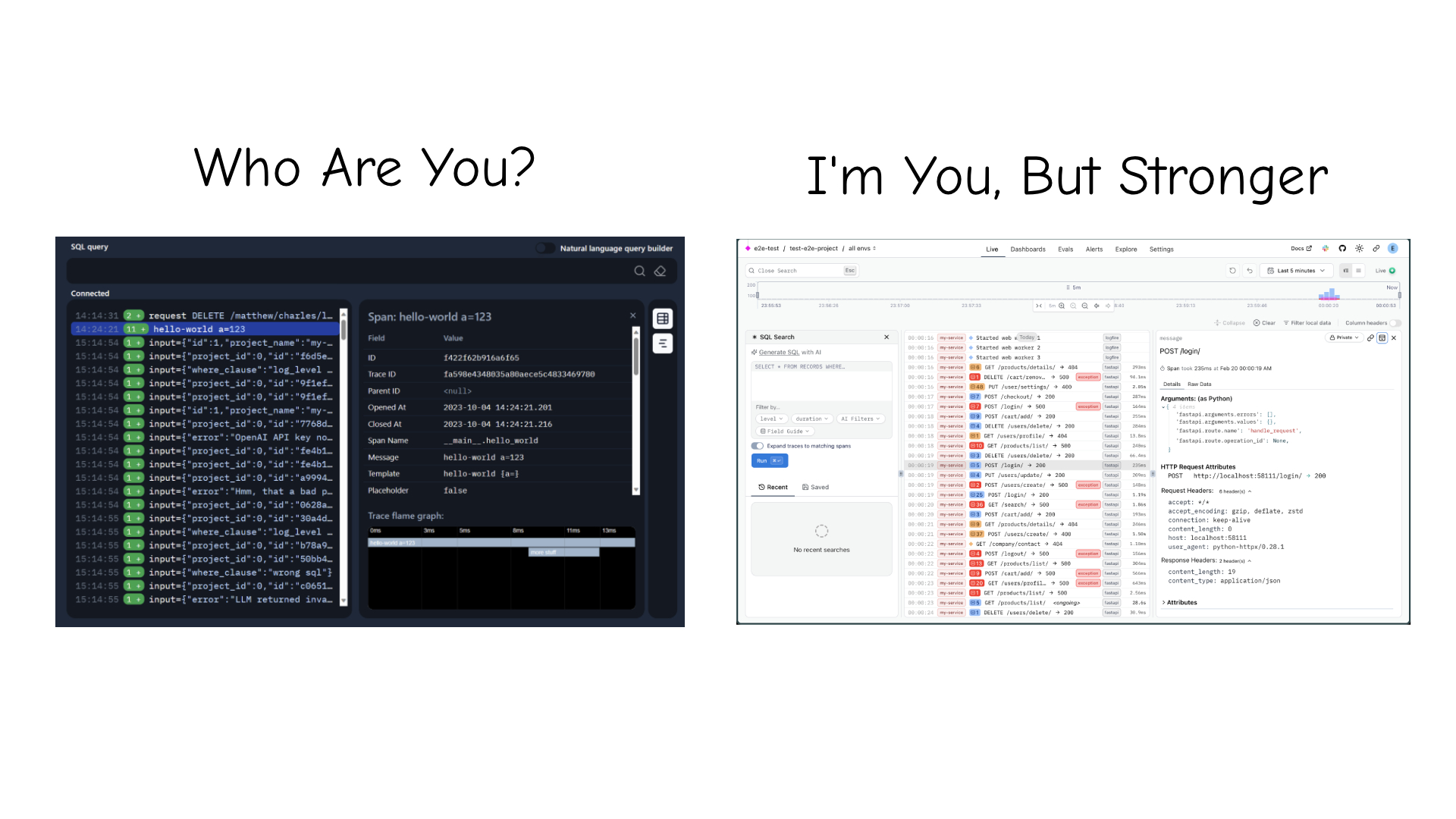
Teams using LLMs to write code are shipping faster than ever. A side effect: documentation falls behind. When your UI changes frequently, entire workflows can shift. Buttons get renamed, steps get reordered, new fields appear, and users end up following guides that no longer match what they see.
We have some significant UI refactors coming to Logfire. To avoid our docs falling behind, we built a workflow where Claude Code drives a headless browser to navigate the UI, capture screenshots, and update the documentation, all in one terminal session.
The problem
Logfire's documentation lives in a public GitHub repo as Markdown files built with MkDocs. Many of our how-to guides describe UI workflows: "click Settings, then Write Tokens, then New write token." These guides are accurate when they're written. They start drifting as soon as the next UI change lands.
What we built
We use Vercel's agent-browser, a headless Chromium browser designed for AI agents. We installed it and set it up as a Claude Code skill, which lets Claude drive the browser from the same terminal session where it edits files.
We tested it on our Write Tokens guide. We asked Claude to add screenshots to the page, and it handled the rest:
- Opened our local Logfire instance in the headless browser
- Navigated to Settings, clicked through to Write Tokens, and created a token
- Captured a screenshot at each step
- Read the existing Markdown and inserted the images at the right places
- Updated the step descriptions to match the current UI
All of this happened in one session. Claude could see both the live UI and the docs source, so it knew where to put things and how to name them. Because it's multimodal, it could also read the screenshots it captured and verify they looked correct before adding them to the page.
What surprised us is how natural the interaction felt. We didn't script a sequence of browser commands. We said "add screenshots to this docs page" and Claude figured out the navigation, decided which steps needed a screenshot, and matched the image conventions already used in the repo.
Making it reusable
After doing this once, we used the skill-creator to turn the workflow into a reusable skill called docs-updater. The skill captures the conventions specific to our docs repo so Claude doesn't have to rediscover them each time.
Our docs repo is separate from our platform monorepo. With the skill in place, someone building a feature in the platform repo can update the docs in the same session without switching projects or remembering the docs repo conventions.
You can do the same thing for your own setup. The skill-creator walks you through capturing a workflow and turning it into a skill tailored to your repo structure, image conventions, and deployment setup.
We plan to use this as our UI refactors roll out, updating the docs alongside the code changes rather than after the fact.
Try it yourself
- Install
agent-browserand set it up as a skill for your AI coding assistant - Point it at your app and ask it to capture screenshots for a docs page
- Review the generated Markdown and images, then commit
Check out the agent-browser docs for the full list of commands and options.
One thing to be careful about: if you're automating screenshots, make sure your environment doesn't contain personally identifiable information. We use a local dev instance with synthetic data for this reason. If you're capturing from staging or any environment with real user data, have a plan for redacting PII before those screenshots end up in your docs repo.
Want full trace visibility into your AI automations? Get started with Pydantic Logfire.