

Edit a dashboard by picking what to change
We've streamlined the dashboard editor with a new conversational UI. Select Edit on a dashboard and a conversation opens beside it. It starts with one question: "What do you want to do with this dashboard?" Everything you can do on a dashboard is now easy to find, just by clicking on conversation options.
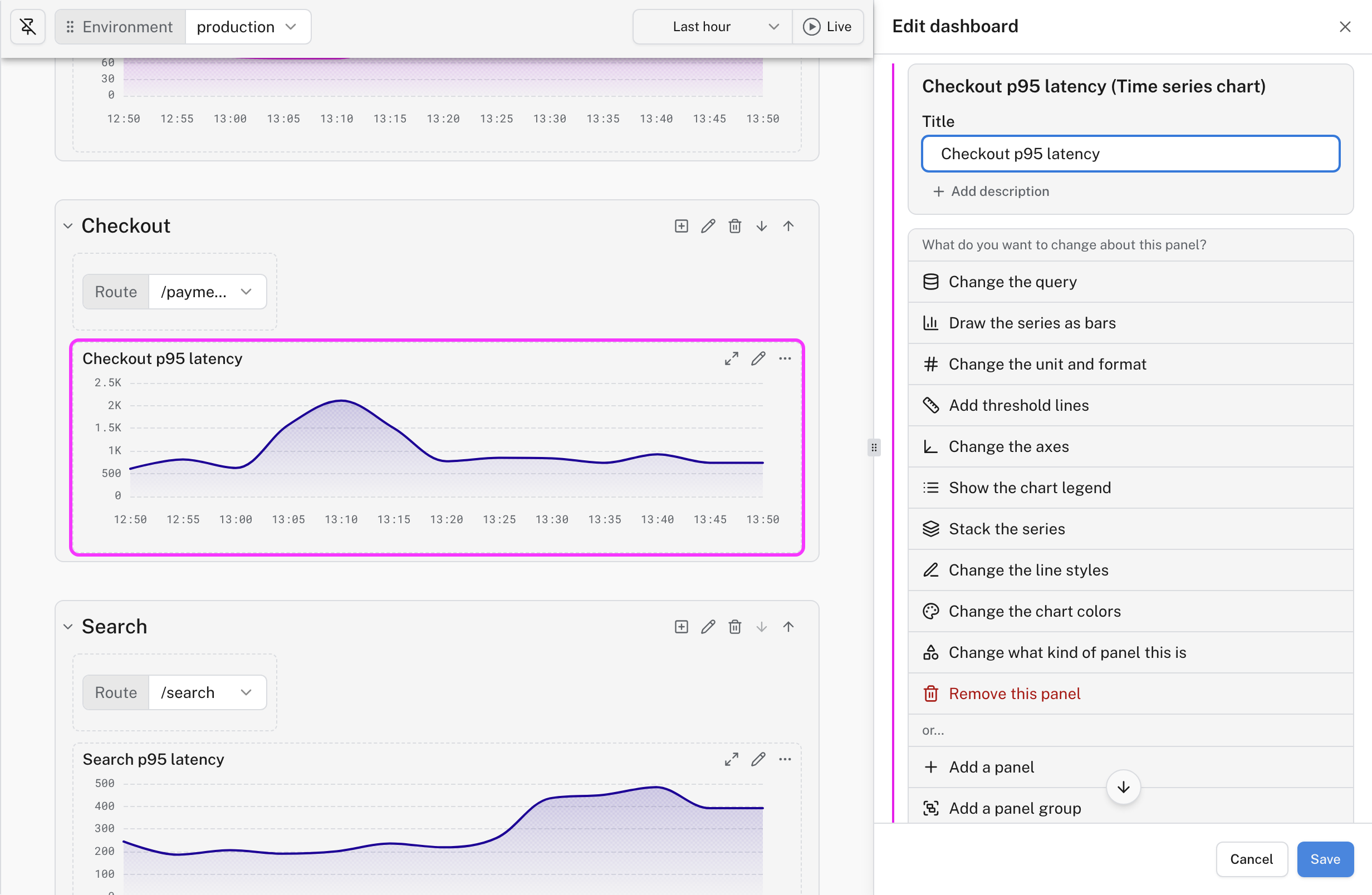
The conversation in the sidebar works in tandem with all your familiar drag-and-drop controls to move or resize panels, sections, and variables. You can click the pencil icon on a panel or variable to add it to your conversation, so you can easily work on multiple parts of your dashboard at once.
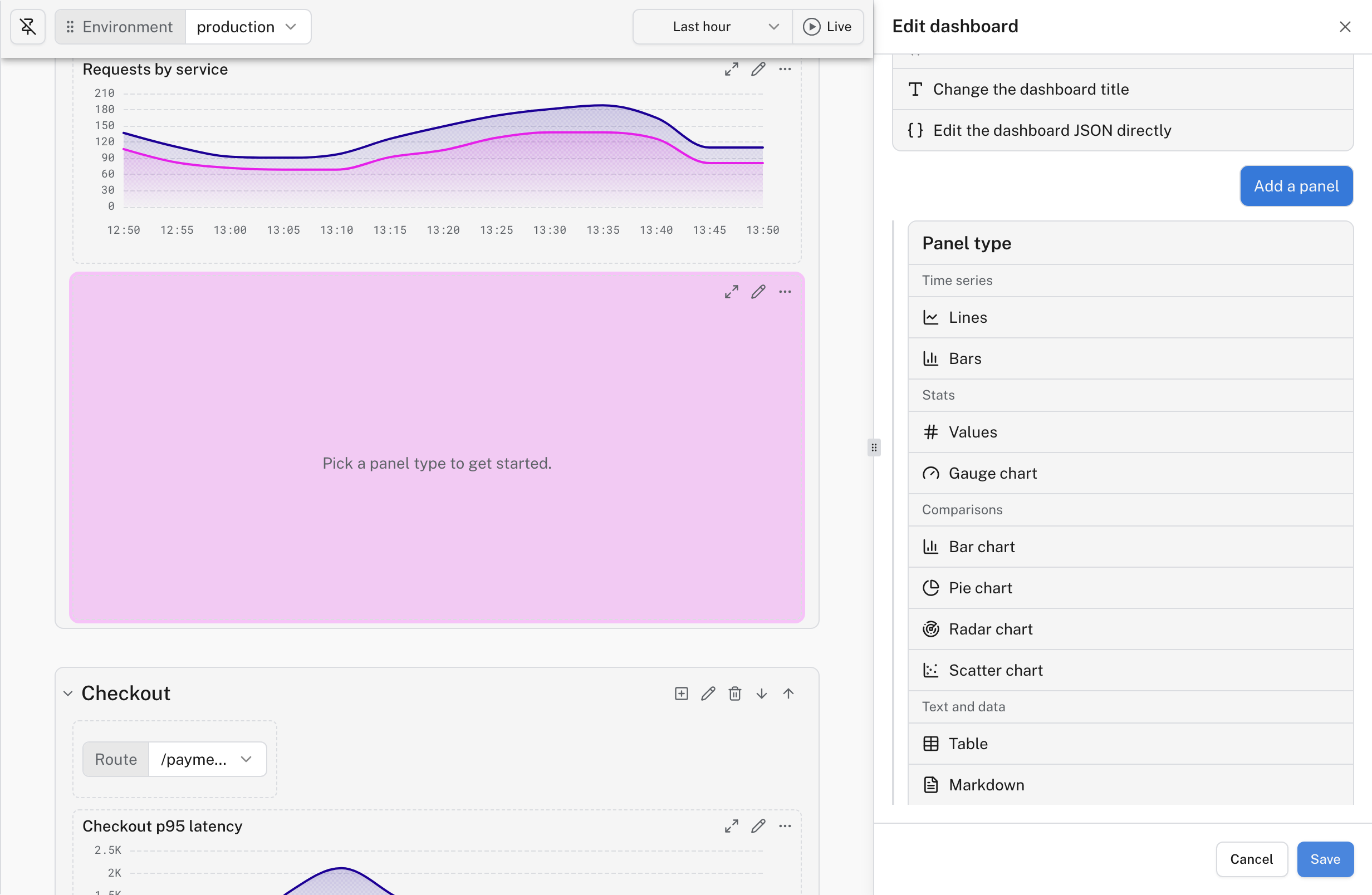
Move variables into the section they filter
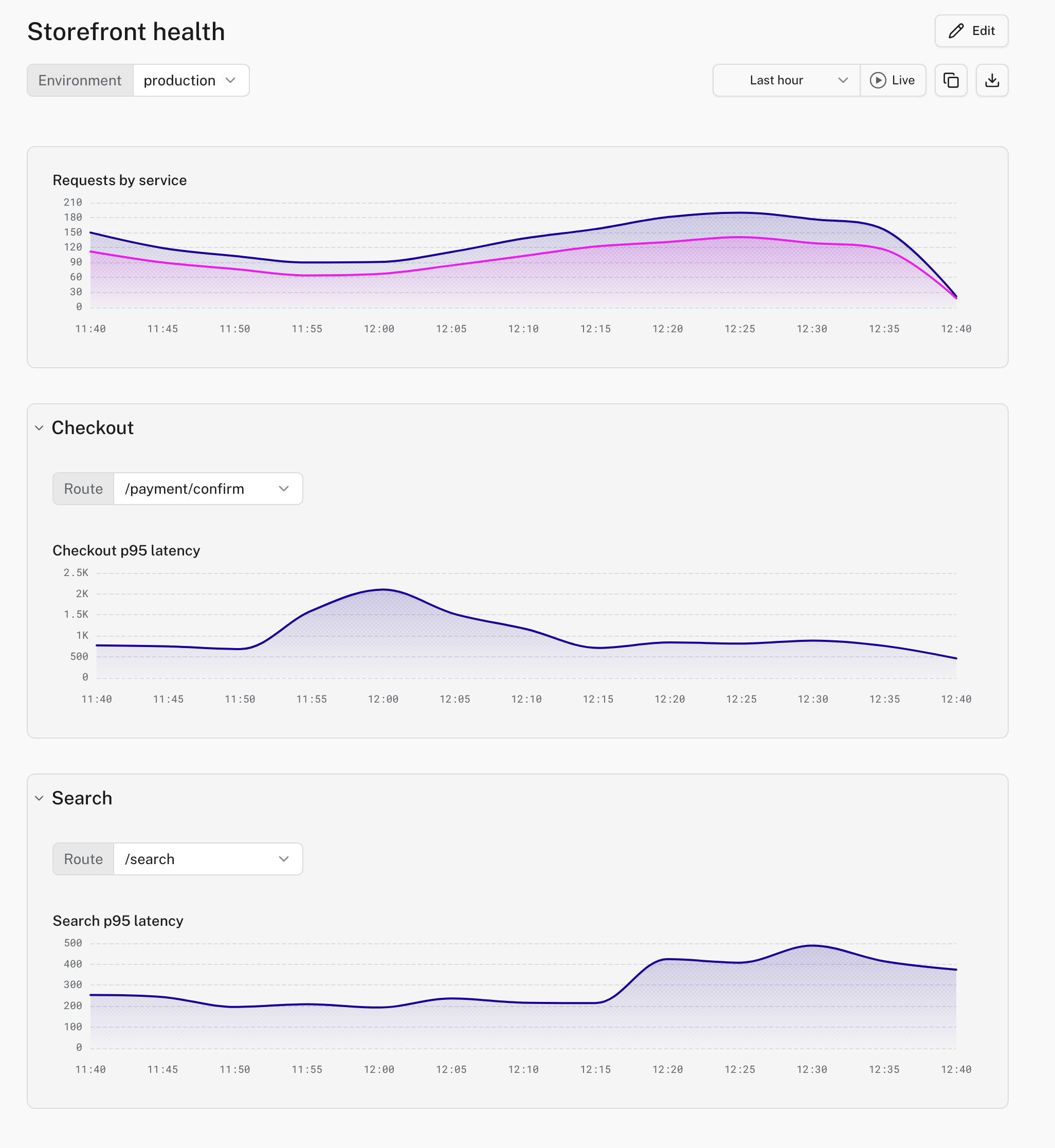
Dashboard variables no longer have to sit in the toolbar. Move one into the grid and it becomes a control next to the panels it drives, and where you put it decides what it filters. A control in a titled section applies only to the panels in that section. For example, this Checkout section and a Search section each carry their own Route picker, with different options and different selections. Variables in the toolbar, and controls in the untitled group at the top of the dashboard, still apply everywhere.
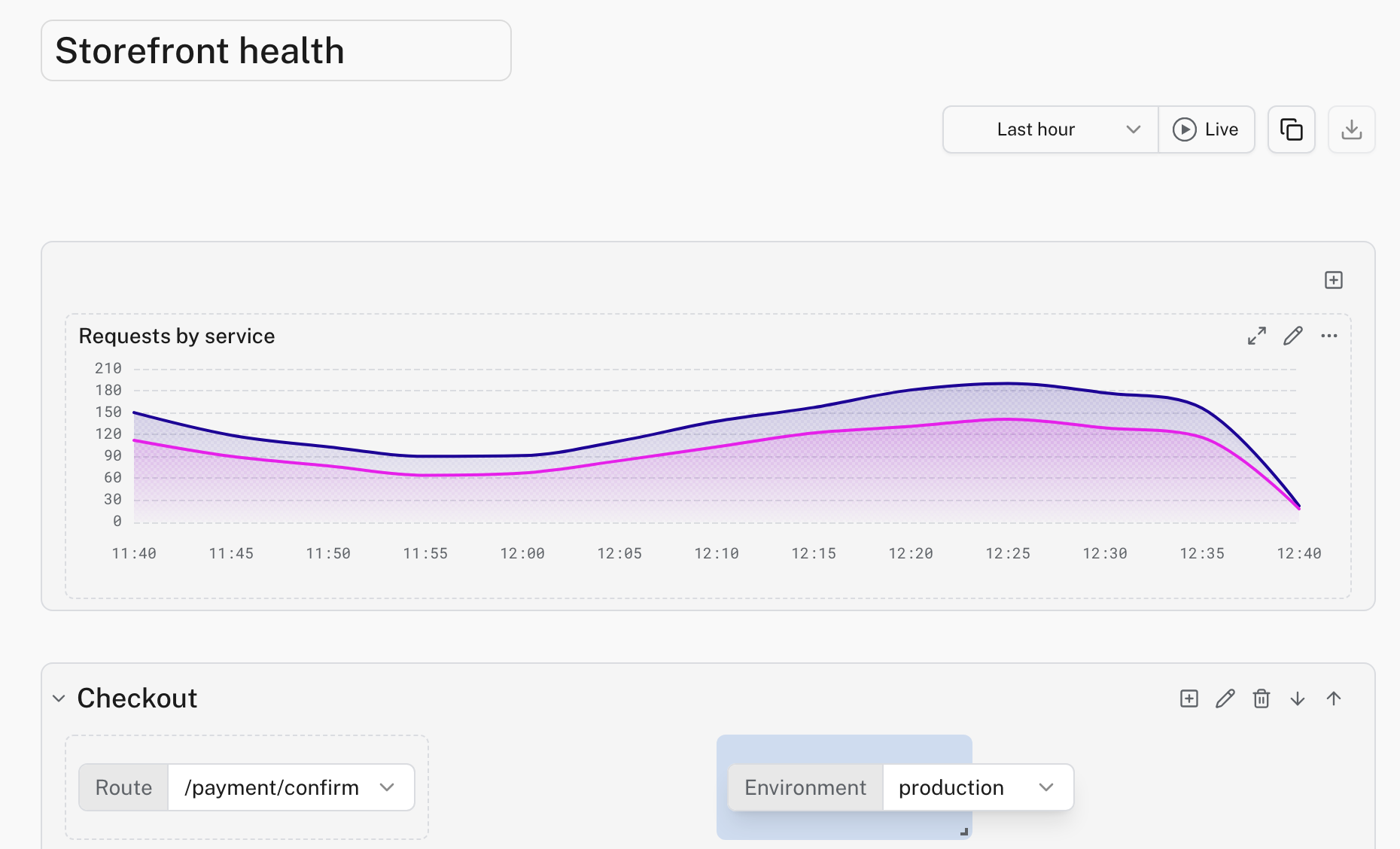
In edit mode, drag a variable by its label out of the toolbar and onto the dashboard. The grid opens a space under the pointer and pushes neighboring panels aside the way a panel move does, so the control lands where the preview showed it. To send a control back, drag it by the handle along its top edge into the toolbar. If you prefer buttons, hover a toolbar variable and select Move to dashboard, or hover a control and select Pin to toolbar.
Where to find it: open a custom dashboard and select Edit. Open Dashboards in Logfire. See the dashboards guide.