Issues
Issues provide automatic exception tracking and grouping. Enable issues to identify, prioritize, and resolve problems in your application.
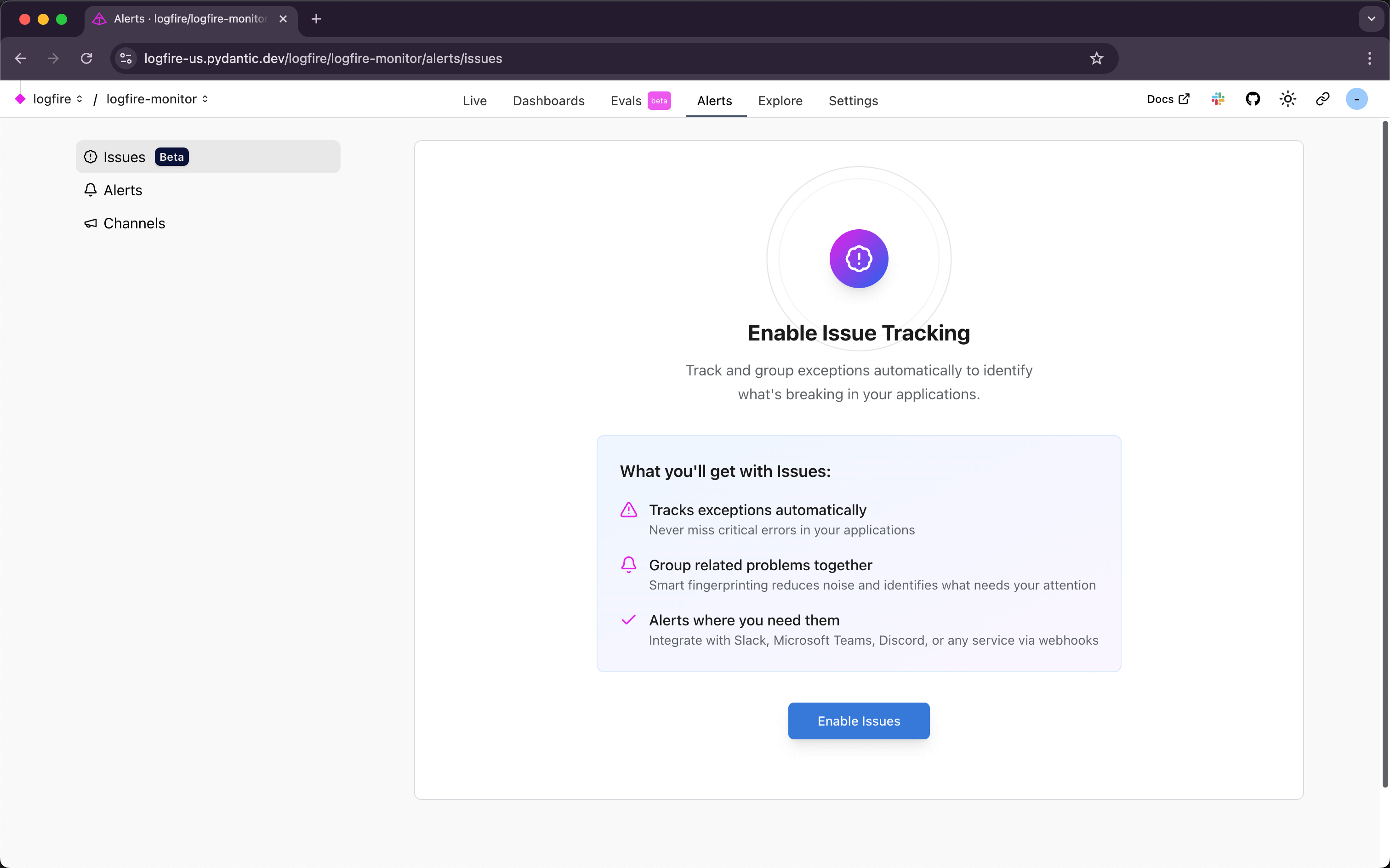
Issues are automatically created when Logfire detects exceptions in your application. Instead of manually searching through individual exception logs, Logfire groups similar exceptions together based on their fingerprint, giving you a clear overview of problems affecting your application.
Each issue shows:
- Exception type and message - What went wrong
- Hits - How many times this exception occurred
- Last seen and Age - When the issue was last seen and how long since it first appeared
- Affected services and environments - Where the problem is happening
- Stack trace - Technical details for debugging
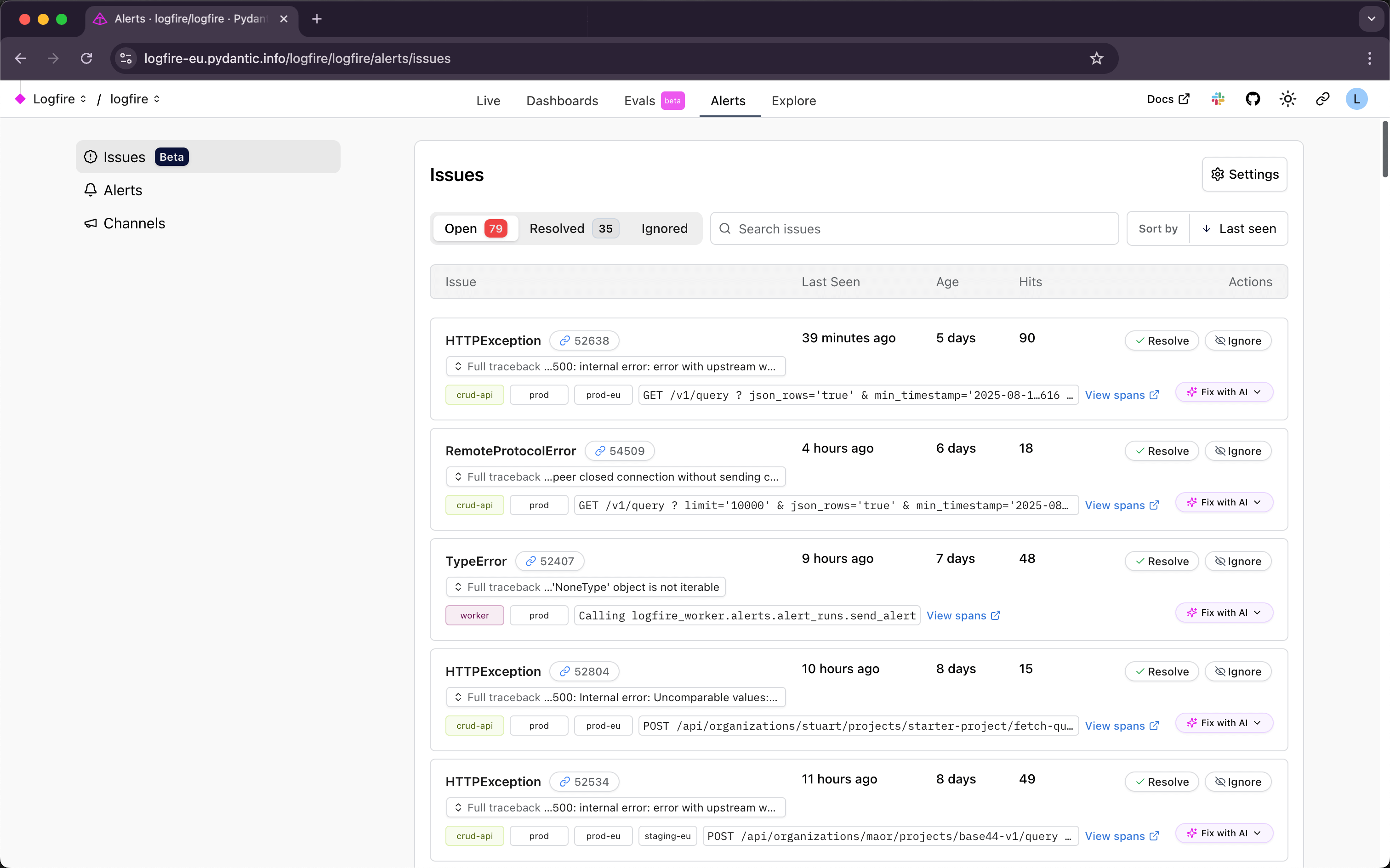
Issues can be in one of three states:
Active issues that need attention. New exceptions automatically create open issues.
Issues you’ve marked as fixed. Resolved issues will automatically reopen if the same exception occurs again in the future.
Issues you want to permanently ignore. Ignored issues never reopen and won’t send notifications, even if the same exception continues to occur.
For each issue, you can:
- Resolve - Mark as fixed (will reopen if exception occurs again)
- Ignore - Silence permanently (no alerts even if exception recurs)
- Re-open - Mark a resolved or ignored issue as active again
- Delete - Permanently delete resolved issues
By default, Issues are only visible in the Logfire web interface. To be notified when Issues occur in your other tools, you can select external channels.
You can:
- Create a new channel - Add a webhook URL for services like Slack, Discord, Microsoft Teams, or any service that accepts webhooks
- Use an existing channel - Select from previously configured notification channels.
- Go to Settings on the Issues page
- Click Add another channel
- Enter a channel name and webhook URL
- Test the channel before saving
- Select one or many channels where you want to receive issue notifications
- Edit existing channels using the edit icon
Notifications are sent when new issues open and when resolved issues reopen. Ignored issues never send notifications.
To select multiple issues at once, hold down shift or cmd (macOS) / ctrl (windows).
After selecting more than one issue you can:
- Ignore all selected issues
- Resolve all selected issues
Use this feature to debug your exceptions using your local LLM coding tool plus the Logfire MCP server.
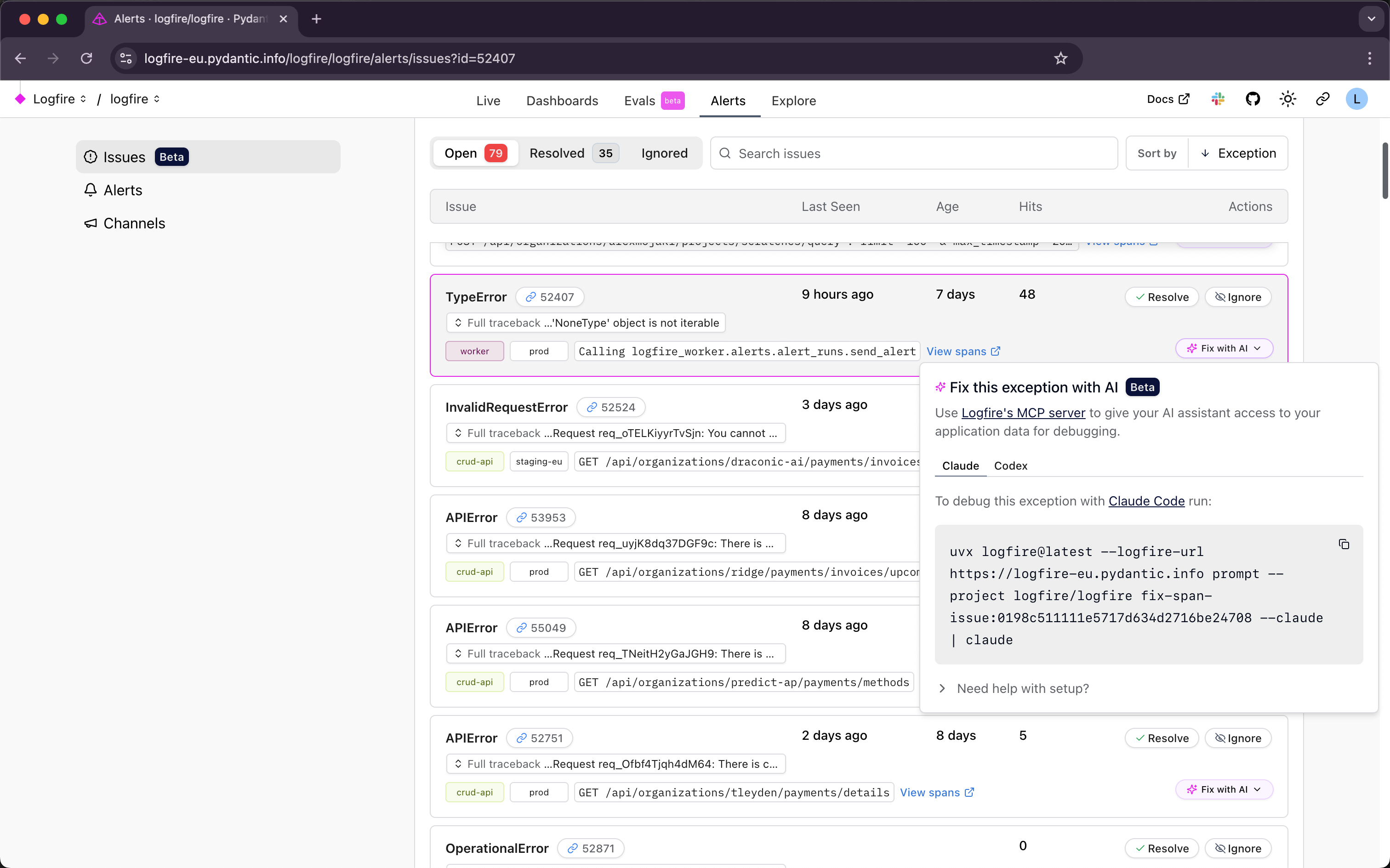
The Fix with AI button uses Logfire’s MCP server to give your AI assistant access to your application data for debugging. You can choose between:
- Claude Code - Debug with Claude Code
- OpenAI Codex - Debug with OpenAI Codex
Run the command provided to retrieve the exception information from the Logfire MCP server so your AI assistant can analyze that specific exception and provide debugging suggestions based on your application context.
Want us to integrate more AI Code assistants? Let us know
Search for exception message text using the Search field.
Use the sort options to find specific issues: Click twice on any sort to reverse the order
- Sort by Last Seen - most <> least recent issues
- Sort by First Seen - youngest <> oldest issues
- Sort by Message - sort exception message alphabetically (A-Z) / (Z-A)
- Sort by Hits - most <> least hits
- Sort by Exception - sort exception alphabetically (A-Z) / (Z-A)
- Monitor open issues regularly - Check for new exceptions affecting your application
- Investigate high-frequency issues first - Focus on problems impacting the most users
- Resolve issues after fixing - Mark issues as resolved once you’ve deployed a fix
- Ignore noise, not problems - Only ignore issues that are truly safe to disregard
Resolve when:
- You’ve fixed the underlying problem
- You want to be notified if the issue returns
- The exception indicates a real bug or problem
Ignore when:
- The exception is expected behavior (e.g., user input validation errors)
- Third-party service errors you can’t control
- Legacy code issues you’ve decided not to fix
Periodically delete resolved issues that haven’t reoccurred to keep your issues list manageable. Remember that deleting an issue is permanent - if the same exception occurs later, it will create a new issue.
If you want to stop tracking issues for a project:
- Go to Alerts menu for the project
- Click Settings on the Issues page
- Click Disable issues