Instrument Google Gen AI: see every Gemini call your app makes
See every call your app makes to Google’s Gemini models through the
Google Gen AI SDK (google-genai): the full
conversation, how many tokens (the units a model reads and bills by, a few characters of text
each) it used, how long it took, and any errors, as a trace (the full journey of one request or agent run,
made of nested spans, where each span is one unit of work with a name, a start, and a duration)
in Logfire.
- Each model call as a span, with its duration and any exceptions
- The full conversation between your app and the model
- Response details, including the number of tokens used
You’ll need a Logfire project. Open Add data in your project (top navigation) and follow the
setup for your language: it signs your machine in with logfire auth (a browser sign-in, no token
to copy) and, for production or other languages, creates a write token (the credential your app
uses to send data). New to Logfire? Start with Getting Started.
You’ll also need a Google Gemini API key, from Google AI Studio. The Google Gen AI SDK reads it from the GEMINI_API_KEY (or GOOGLE_API_KEY) environment variable.
Install logfire with the google-genai extra:
pip install 'logfire[google-genai]'
uv add 'logfire[google-genai]'
Add two lines to your app: logfire.configure() to connect to your project, and
logfire.instrument_google_genai() to record every
Gemini call.
By default, the prompts and completions are hidden: the spans show <elided> in their place. To
capture the actual message content (so you can read the conversation in Logfire), set the
OTEL_INSTRUMENTATION_GENAI_CAPTURE_MESSAGE_CONTENT environment variable to SPAN_ONLY. This sends
the prompt and response text to Logfire, so leave it off if that content is sensitive. Logfire also
accepts the earlier values true and false, mapping them to SPAN_ONLY and NO_CONTENT. Other
instrumentors can interpret this OpenTelemetry environment variable differently; for Google Agent
Development Kit (ADK), see its content-capture modes.
import os

from google.genai import Client

import logfire

# Set this to SPAN_ONLY to capture the actual prompts and completions in the spans.
os.environ['OTEL_INSTRUMENTATION_GENAI_CAPTURE_MESSAGE_CONTENT'] = 'SPAN_ONLY'

logfire.configure()
logfire.instrument_google_genai()

client = Client()
response = client.models.generate_content(model='gemini-2.5-flash', contents=['Hi'])
print(response.text)
# Hello! How can I help you today?
This creates a span which shows the conversation in the Logfire UI:
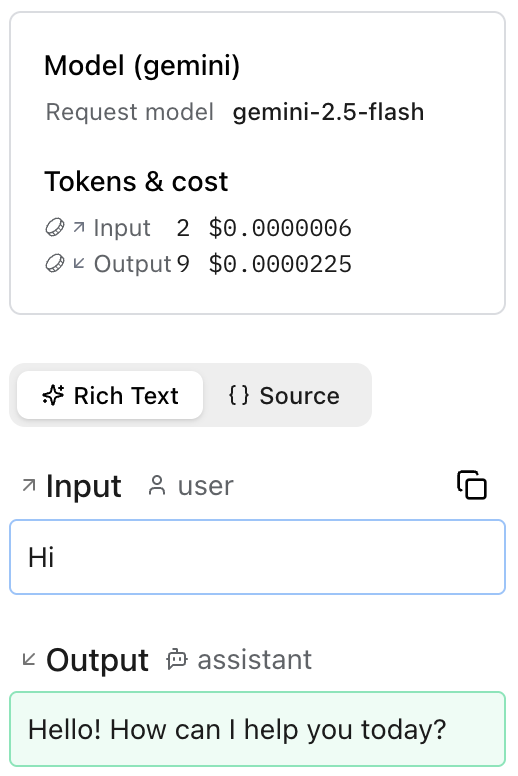
Run your program, then open your project in the Logfire web app and go to the Live view. Within a few seconds you should see a span for the Gemini call. Click it to read the conversation and see the token count and duration.
Not seeing your model calls in Logfire? Check these first:
logfire.configure()runs beforelogfire.instrument_google_genai(). Configure the connection first, then instrument.- You called
instrument_google_genai()exactly once. - Your Logfire write token is set. In local development, run
logfire projects use <your-project>; in production, set theLOGFIRE_TOKENenvironment variable. See Getting Started. - Prompts and completions show as
<elided>? SetOTEL_INSTRUMENTATION_GENAI_CAPTURE_MESSAGE_CONTENT=SPAN_ONLYbefore your app runs, as shown above.
- API reference:
logfire.instrument_google_genai() - Underlying OpenTelemetry package:
opentelemetry-instrumentation-google-genai