Review experiments
Turn an experiment result into a specific decision: keep a change, revise it, or investigate the evaluator.
An experiment is one run of your AI system over a dataset. An evaluator judges each output and records an assertion or score.
Open a project, then select AI Evaluations > Datasets & experiments > Experiments.
The Experiments page lists runs in the selected time range. Search by experiment name, group runs by dataset, and select Review results on the run you want to investigate.
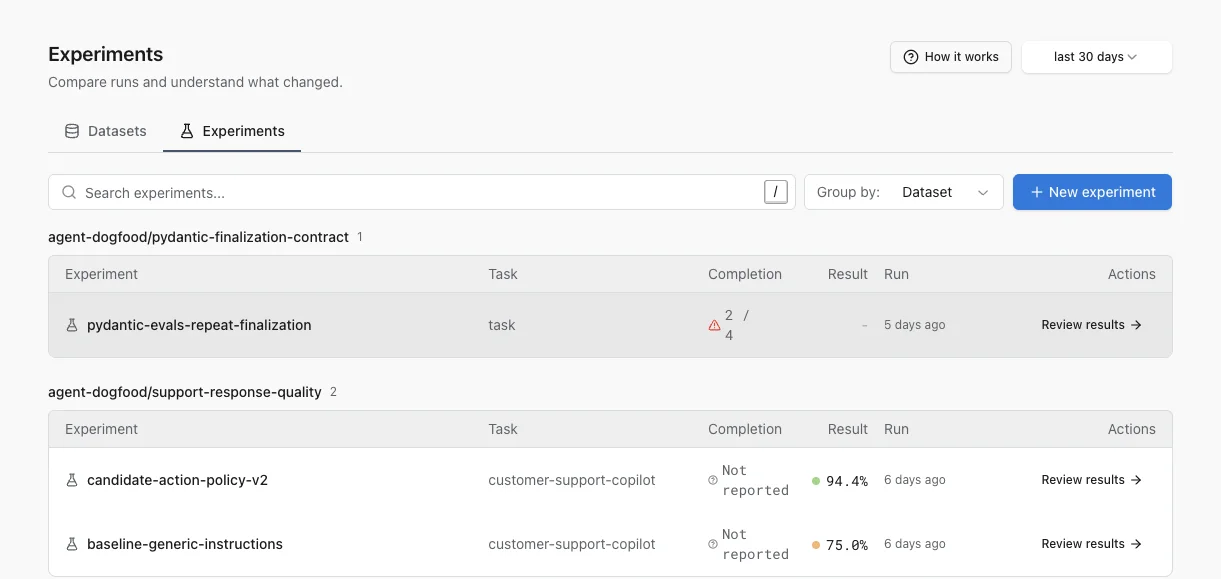
Use a descriptive experiment name for the change under test, such as candidate-routing-prompt-v2. The dataset identifies what you tested; the experiment name identifies the version or hypothesis you tested.
To start another run, select New experiment. Logfire shows setup instructions and example code because the task itself runs in your application or eval suite. The new result appears on this page after the run sends its data to Logfire.
The Overview tab answers whether the run completed and where to investigate:
- Results show how many dataset cases produced results.
- Assertions summarize boolean evaluator outcomes.
- Task errors count cases where the task under test raised an error.
- Average task duration helps identify a latency change.
- Evaluator analysis shows each evaluator separately. Assertion evaluators show their pass and fail mix; numeric evaluators show an average and score distribution.
- Operational metrics report task duration, tokens, and cost when the run provides them.
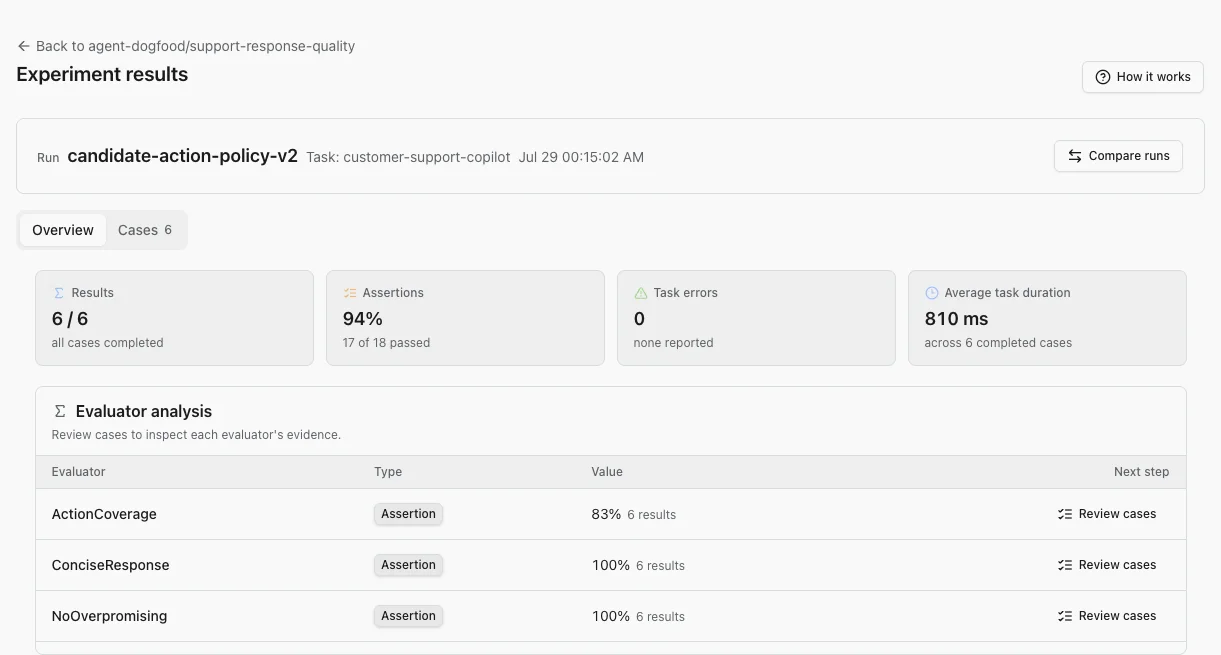
Aggregate results are a triage tool, not the final decision. For a numeric evaluator, use the average to understand the center of the run and the histogram to see its spread. An improved average can still hide a low-scoring tail.
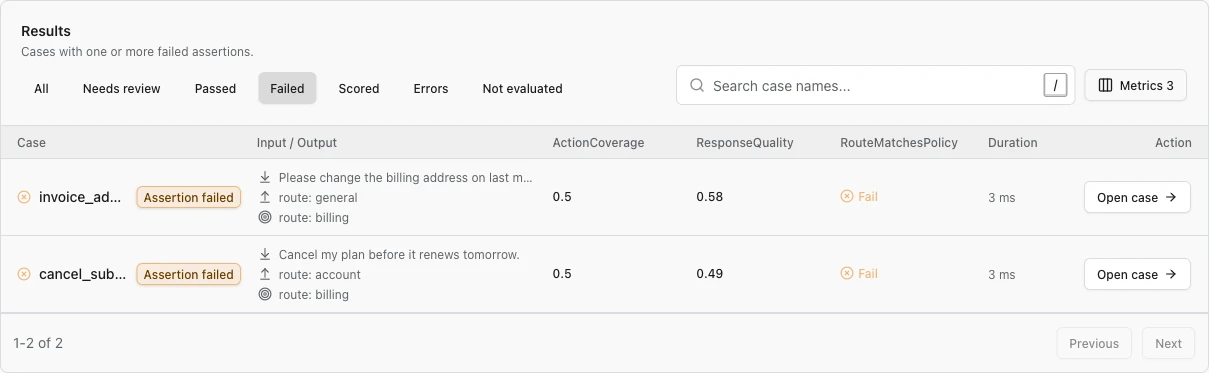
Open the Cases tab, then start with Needs review, Failed, or Errors. Search by case name when you know the scenario.
Before opening a case, scan its input and output preview alongside the selected evaluator values. Use Metrics to choose the evaluator columns that matter to the decision, then select Open case for the full evidence. Hover an evaluator value to see its name and exact value. Numeric scores also show the run-wide distribution with the current case marked.
Read each case in this order:
- Input: confirm what the task received.
- Output: inspect what the task returned.
- Evaluator results: check which assertion or score changed and read its reason when available.
- Technical details: inspect expected output, metadata, duration, tokens, and cost.
- Open trace in Live view: follow model calls, tool calls, and exceptions when the output does not explain the result.
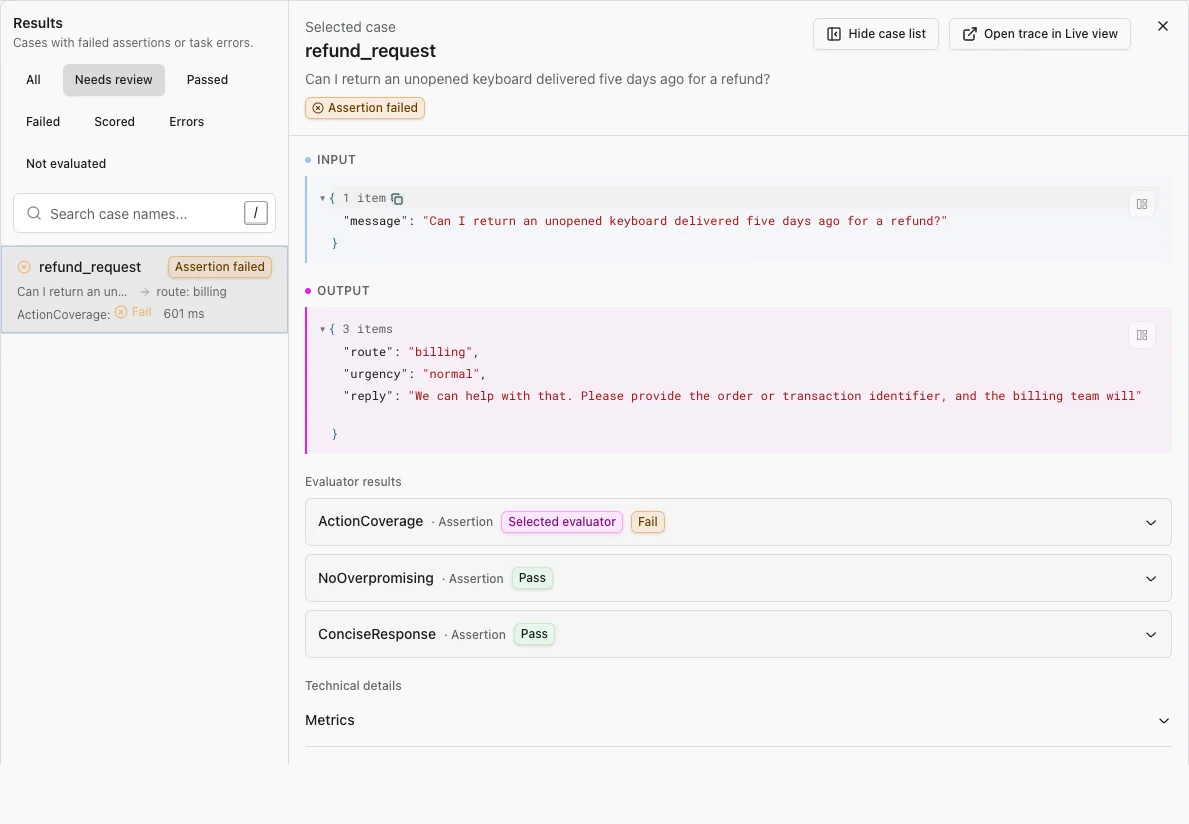
Use Prev and Next, or the displayed keyboard shortcuts, to work through the current filtered list without returning to the table.
From an experiment result, select Compare runs. The current run remains the candidate. Choose a baseline from another run of the same dataset.
Start on Overview to compare completion, assertions, task errors, evaluator aggregates, and operational metrics. Assertion bars make changes in the pass and fail mix visible. Numeric histograms show whether an average-score change came from broad improvement, a shifted cluster, or a few outliers.
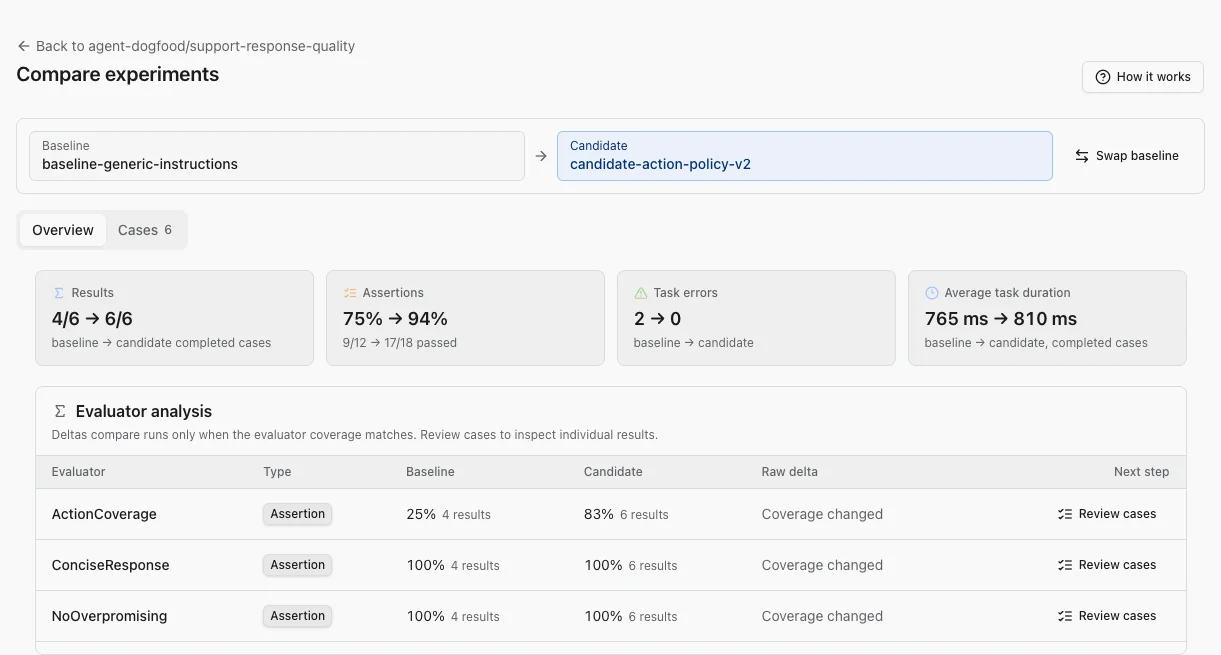
Then open Cases:
- Set Primary metric to the evaluator that should determine improved, regressed, and unchanged groups.
- For a numeric primary metric, set Better score to Higher or Lower. Leave it at Not set to group cases by raw score movement.
- Add other Metrics as supporting columns. The table can show up to seven.
- Set Group by to Outcome to put regressions and errors ahead of unchanged cases.
- Scan each case’s input preview and evaluator deltas, then open it to compare baseline and candidate outputs with the full evidence.
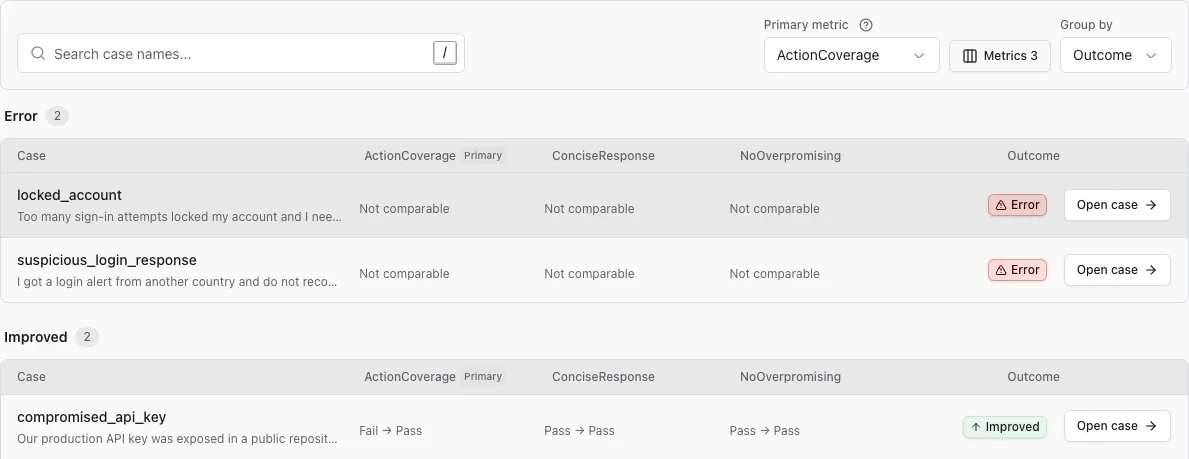
Metric direction matters. A positive raw delta is not always an improvement: higher latency, token use, or cost can be worse. Set Better score to match the metric’s meaning, then use the outcome group rather than interpreting the sign alone.
Use the aggregate view to find a signal, then use cases to explain it:
- Inspect every regression, task error, and changed evaluator result that matters to the product.
- Decide whether the task or the evaluator is wrong.
- Change one meaningful variable, such as a system prompt instruction, tool description, or model.
- Run the same dataset again and compare the new candidate with the previous run.
Keeping the dataset and evaluators stable makes the comparison interpretable. If you change them, treat coverage changes and newly evaluated cases separately from task-quality changes.
Before accepting a candidate, confirm that:
- the baseline and candidate use the intended dataset;
- both runs cover the cases and evaluators you expected;
- task errors did not move into a different outcome group;
- important regressions have been inspected at case level;
- duration, token, and cost changes are acceptable;
- the evaluator’s direction matches the meaning of its score.
Widen the time range, clear the search, and confirm that the eval sent data to the same Logfire project you are viewing.
The eval producer did not report that the run finished. You can still review the case results Logfire received, but Logfire cannot confirm that they represent the complete run.
One run may be missing the case or evaluator. Treat this as a coverage change. Do not classify it as a quality regression without inspecting what changed.
Open its trace in Live view. The trace shows model calls, tool calls, evaluator spans, and exceptions that may not fit in the result summary.
Add newly discovered failures to a hosted dataset, refine the task or evaluator, and run the next experiment.