Change and roll out Fleet policies | Logfire
Change what your Collectors and applications collect, review the exact change, then send it to every client that uses the policy, or to a few first. Every published version stays in the policy’s history, so you can go back.
A policy is a versioned set of settings in Logfire. There are two types:
- A Collector policy holds a Collector’s whole pipeline: what it receives, how it processes data, and where it sends it. Host and Kubernetes Collectors each use their own Collector policies.
- An SDK policy sets chosen SDK settings in your applications: sampling, exports, log levels, redaction and scrubbing. A setting the policy leaves as Application controlled keeps the application’s own value.
Each client runs the policy it was connected with: the one you chose or created when you added the Collector or connected the application. The Policies tab lists every policy, its type, its published version, and how many instances use it.
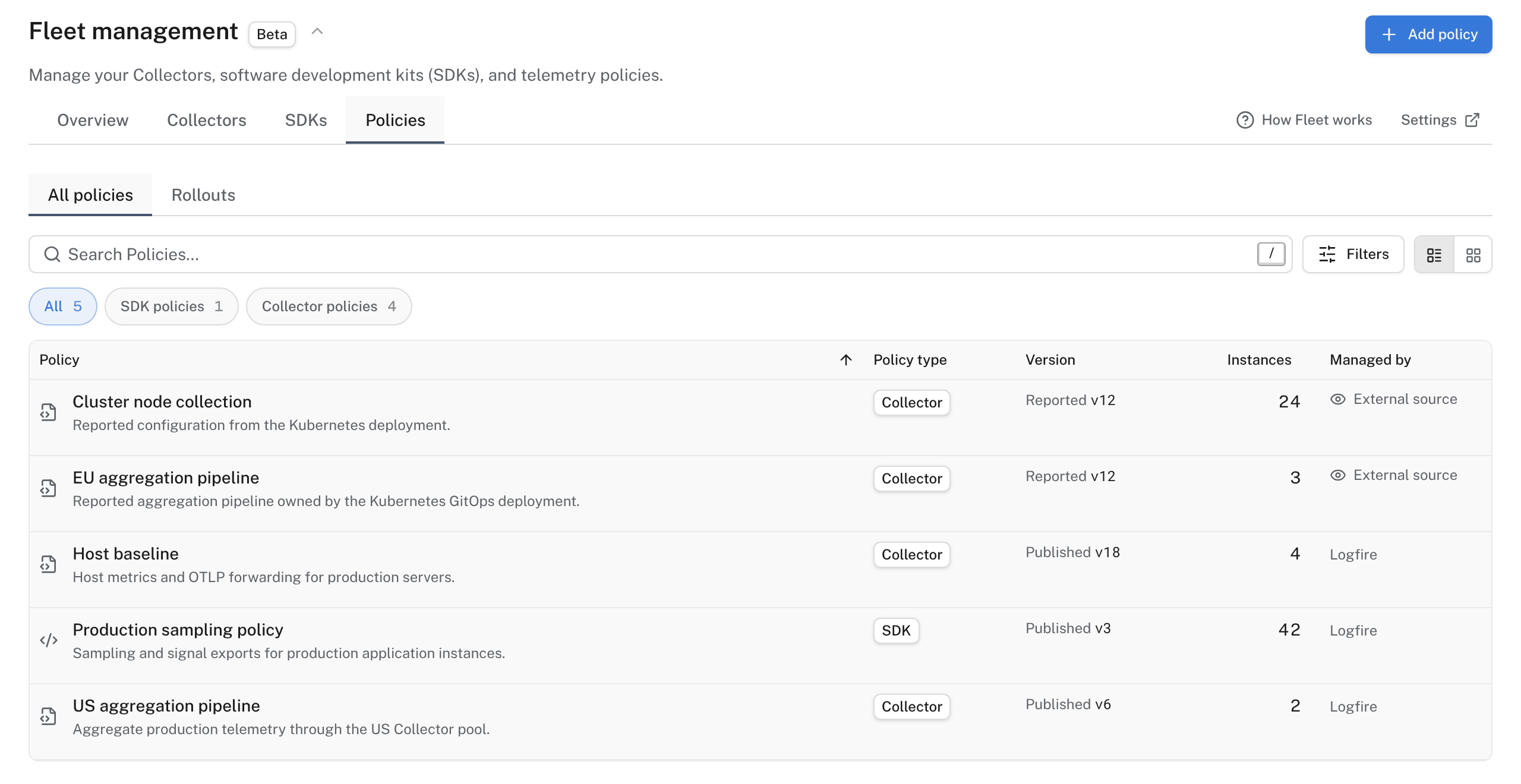
A Collector that reports a configuration managed elsewhere, such as by Helm or GitOps, shows External source under Managed by. Fleet shows that configuration but doesn’t change it.
- In Fleet management, open Policies and select Add policy.
- Choose Host Collector, Kubernetes Collector or SDK policy.
- Start from a template, import an existing Collector configuration, or build a custom policy.
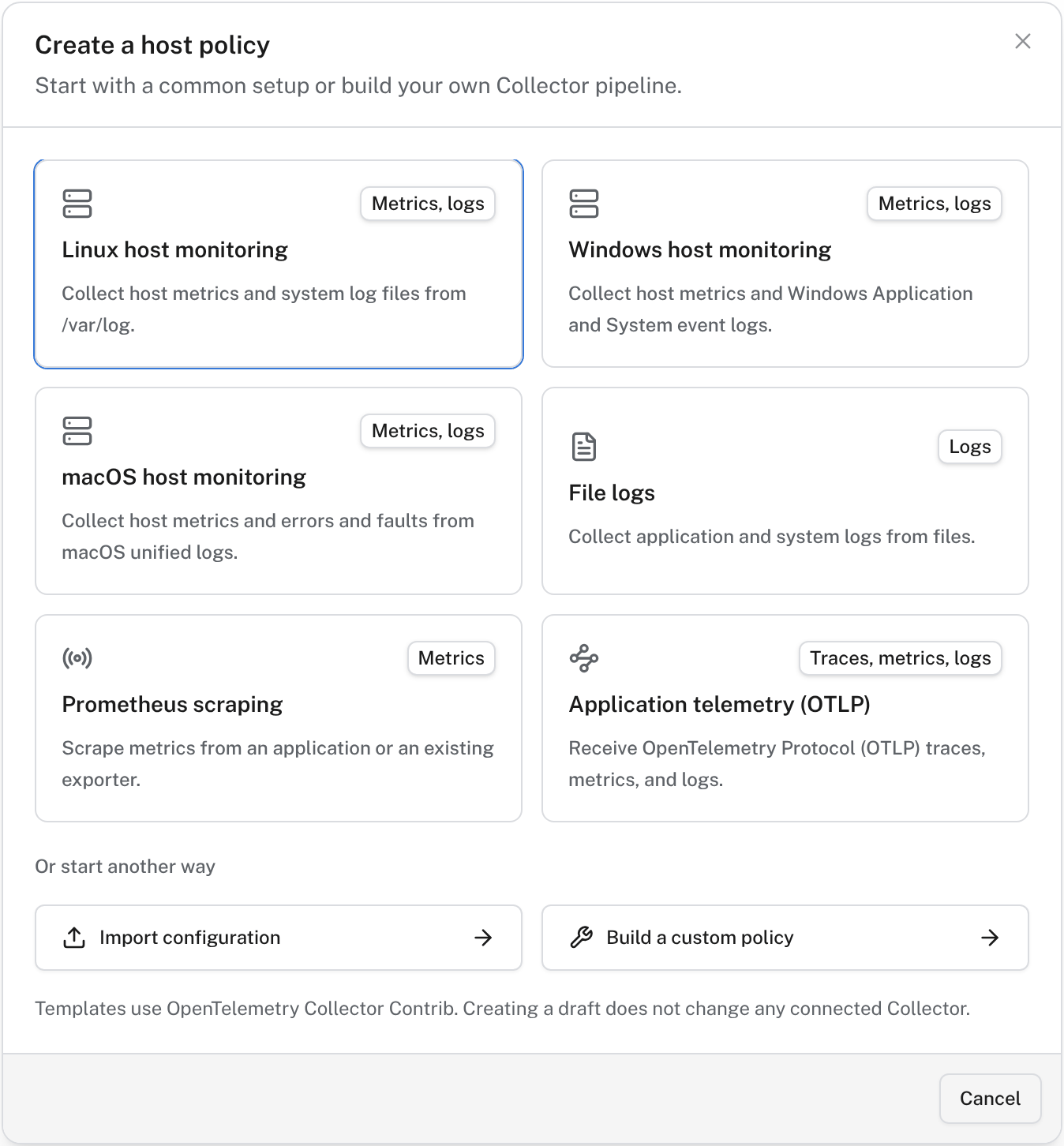
A new policy is a draft. Creating or saving a draft doesn’t change any connected client.
Open a Collector policy to edit its pipeline. Visual shows each pipeline as sources, processing and destinations. YAML shows the same Collector configuration as text, and Split shows both. Add components from the library on the left, and select one to edit its settings.
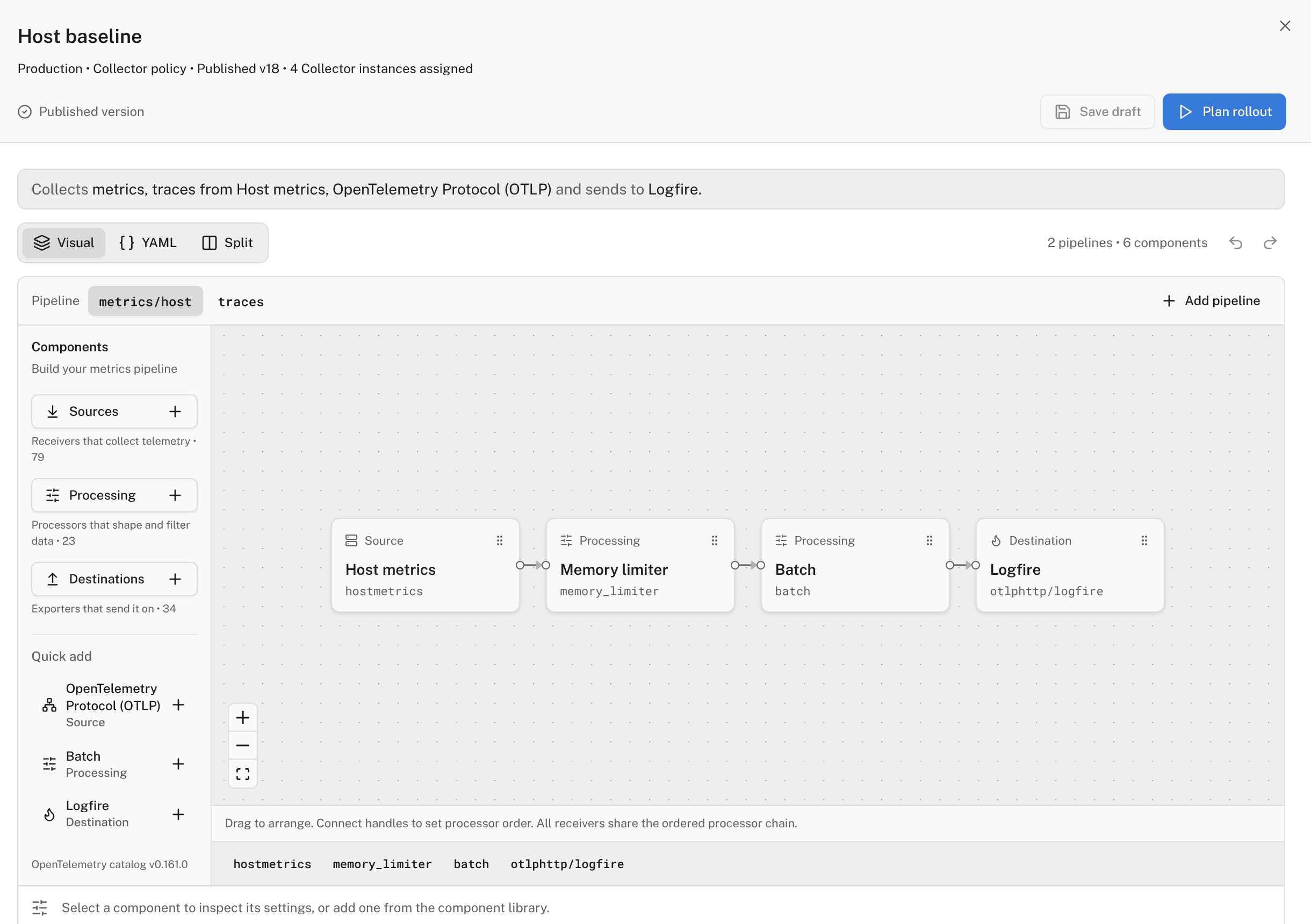
The editor checks the configuration’s structure and pipeline references. It can’t prove that every Collector has every component you use: the review shows which Collectors would refuse a version, and why.
Open an SDK policy to change its sections: Trace sampling, Sampling rules, Signal exports, Volume controls (including Minimum log level), Attribute redaction and Scrubbing. Each section shows Set by policy or Application controlled.
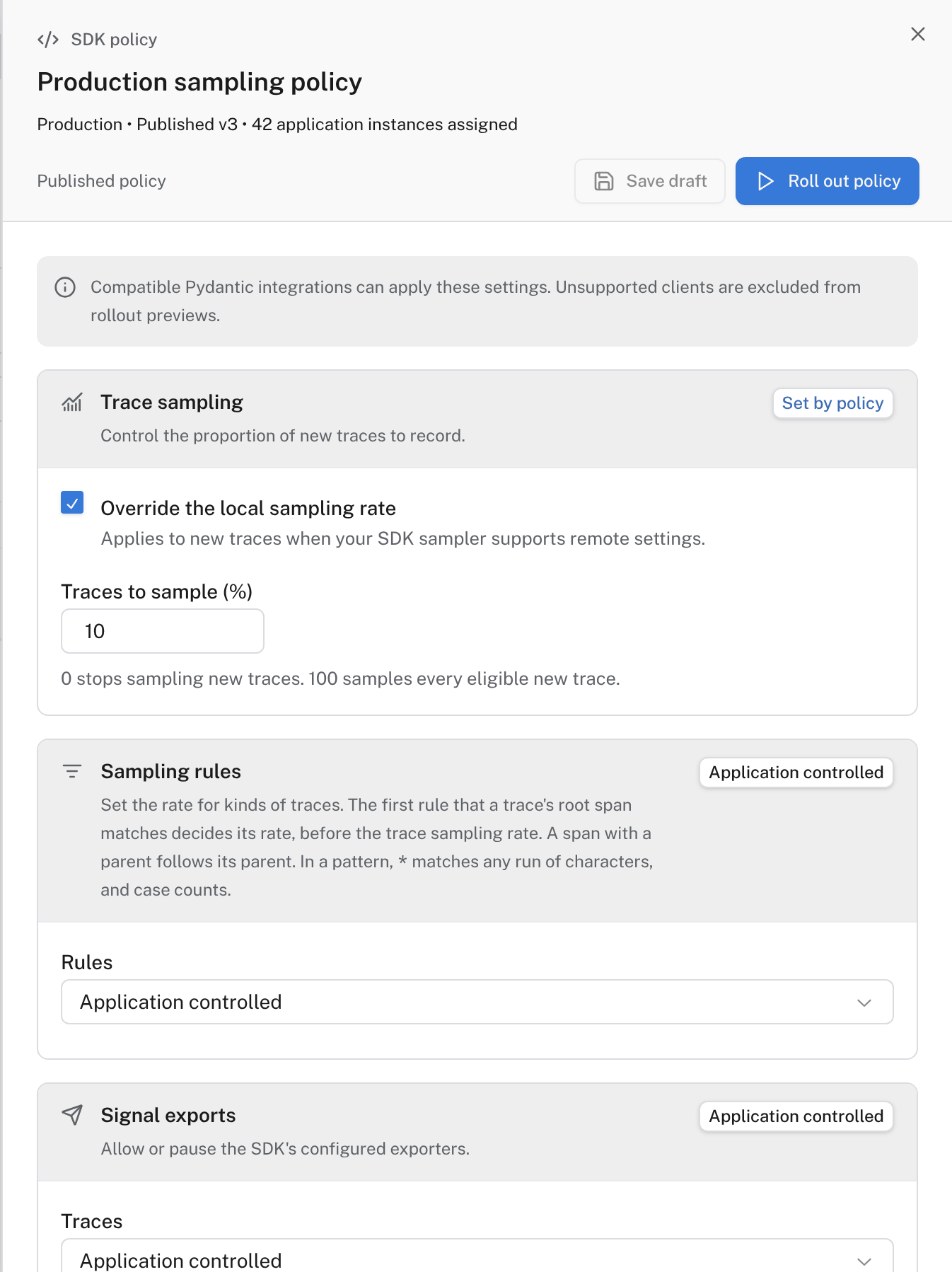
Sampling (recording only a share of new traces) and exports change what reaches Logfire. Redaction and scrubbing (removing sensitive values before data leaves the application) change what Logfire stores.
- Select Save draft to keep your changes without sending them.
- Select Review version for a Collector policy, or Review policy for an SDK policy. The review shows the change against the published version.
- Select Publish and apply.
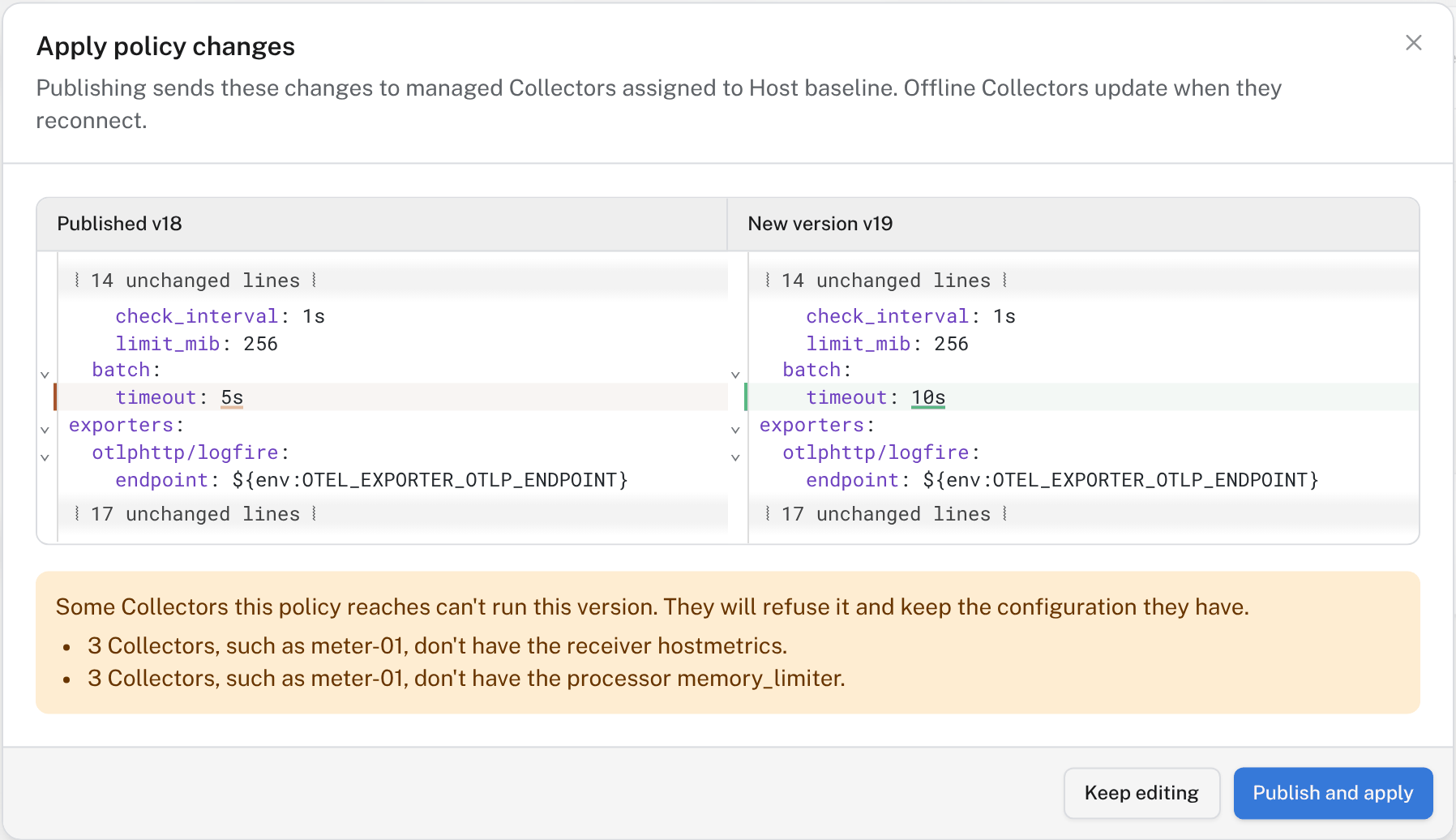
A client that can’t run a version refuses it and keeps the configuration it has. Its Policy status shows Failed on the Collectors or SDKs tab.
To try a version on a pilot group before every client gets it, turn on Use rollouts: select Settings in Fleet management, then Policy delivery. You can change this setting only when no rollout is running.
With rollouts on, publishing doesn’t send the version to anyone:
- Review the change and select Publish version (Collector policy) or Publish policy (SDK policy).
- Select Plan rollout or Roll out policy, choose how many instances join the pilot, and start it.
- Watch the pilot under Policies → Rollouts. A rollout shows how many instances applied the version and how many failed. Pause rollout stops new offers, and Cancel rollout stops it.
A pilot doesn’t expand on its own. When its results look right, start another rollout with more instances. Clients that aren’t in a rollout keep the version they have, and new instances of an application or host start on the policy’s stable version.
Each policy lists its newest published versions. Open one to see it as a change against the published version, then select Restore into editor to load it as unsaved changes. To roll back, publish that content as a new version.
Overview → Flows draws where your published Collector policies receive data and where they send it, with the rate each Collector reported. Overview → Traffic totals what the Collectors sent per signal and compares it with the period before.
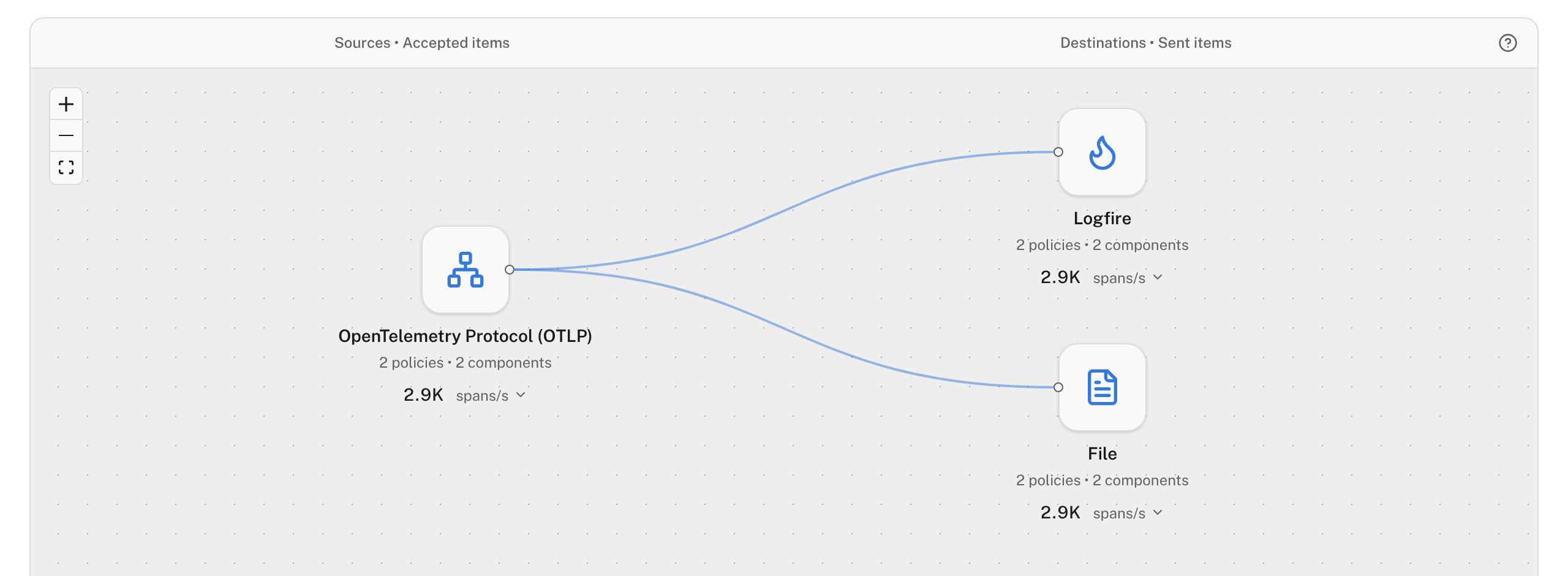
Flows and Traffic read the Collectors’ own metrics, which Fleet’s Collector templates send to Logfire. A Collector policy that doesn’t send them shows as Not reported.
| Symptom | Check |
|---|---|
| No Add policy button, or it is disabled | Your role needs permission to manage Fleet, or your organization reached its plan’s Collector policy limit. Fleet shows which. |
| Clients still run the old version | With Use rollouts on, publishing reaches no one until you start a rollout. Otherwise, check the client’s connection on the Collectors or SDKs tab. |
| Policy status shows Failed after publishing | Open the client. It names the component or setting it couldn’t apply. Fix the policy and publish again. |
| Flows shows Not reported | The Collectors in that policy don’t send their own metrics to Logfire. |
- Manage Collectors and Manage applications: connect more clients to a policy.
- Live view: watch the effect of a change as data arrives.