Instrument OpenAI: see every model call your app makes
See every call your app makes to OpenAI: the full conversation, each tool call, how many tokens it used, how long it took, and any errors, as a trace (the full journey of one request or agent run, made of nested spans, where each span is one unit of work with a name, a start, and a duration) in Logfire.
This page covers both the standard OpenAI SDK and the OpenAI “agents” framework.
- Each model call as a span, with its duration and any exceptions
- The full conversation, rendered so you can read it like a transcript
- Response details, including the number of tokens used
- For agents: tool calls and nested work, shown as child spans in the trace
You’ll need a Logfire project. Open Add data in your project (top navigation) and follow the
setup for your language: it signs your machine in with logfire auth (a browser sign-in, no token
to copy) and, for production or other languages, creates a write token (the credential your app
uses to send data). New to Logfire? Start with Getting Started.
You’ll also need an OpenAI API key, from your OpenAI dashboard at platform.openai.com/api-keys. The OpenAI SDK reads it from the OPENAI_API_KEY environment variable.
Install logfire:
pip install logfire
uv add logfire
conda install -c conda-forge logfire
This integration works with your existing openai package: nothing extra to install. If you don’t
have it yet, pip install openai (or add the openai-agents package to use the agents framework).
Add two lines to your app: logfire.configure() to connect to your project, and
logfire.instrument_openai() to record every OpenAI call.
import openai

import logfire

client = openai.Client()

logfire.configure()
logfire.instrument_openai()  # instrument all OpenAI clients globally
# or logfire.instrument_openai(client) to instrument a specific client instance

response = client.chat.completions.create(
    model='gpt-5-mini',
    messages=[
        {'role': 'system', 'content': 'You are a helpful assistant.'},
        {'role': 'user', 'content': 'Please write me a limerick about Python logging.'},
    ],
)
print(response.choices[0].message)
Run this and the call shows up in Logfire as a span you can open to read the whole exchange:
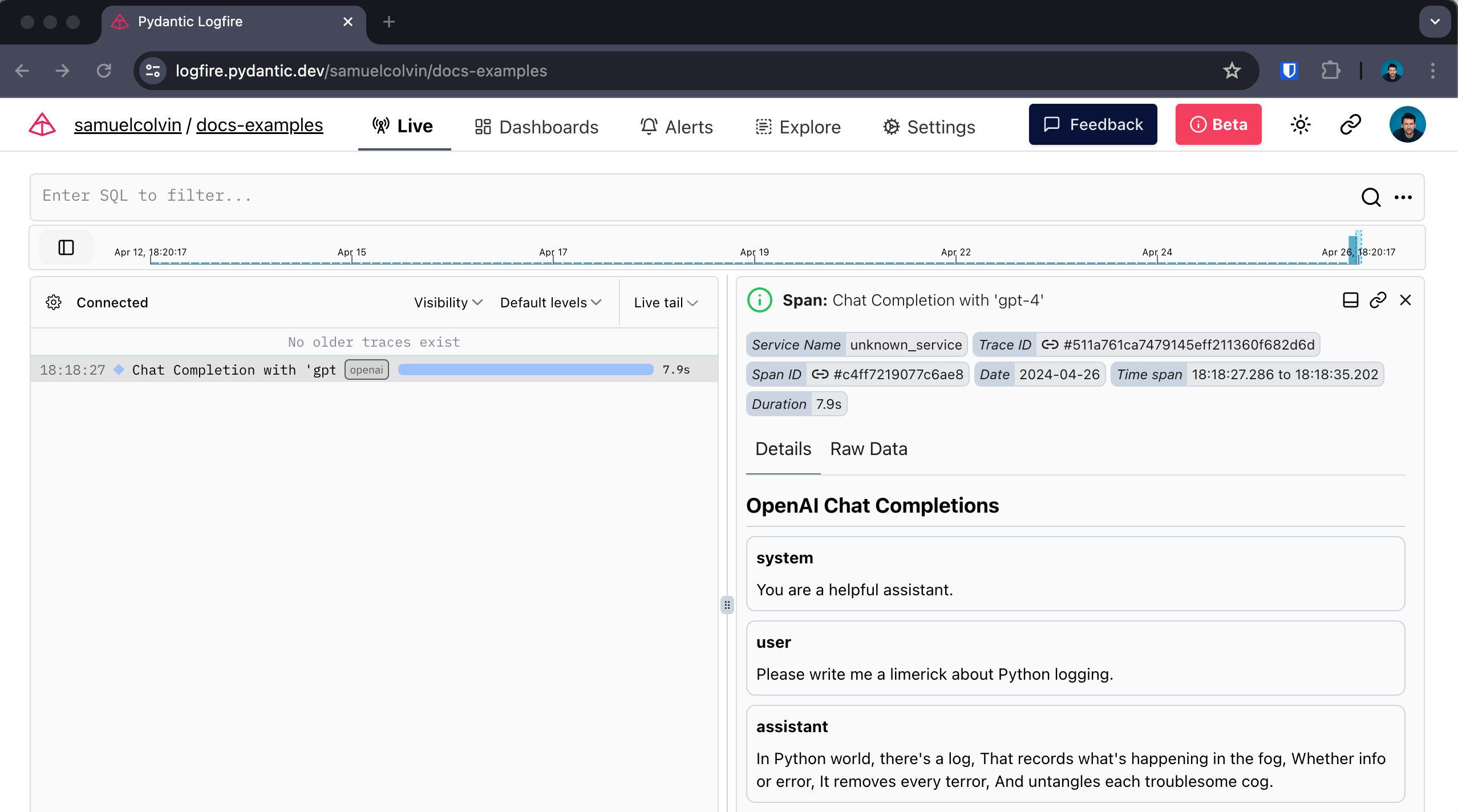
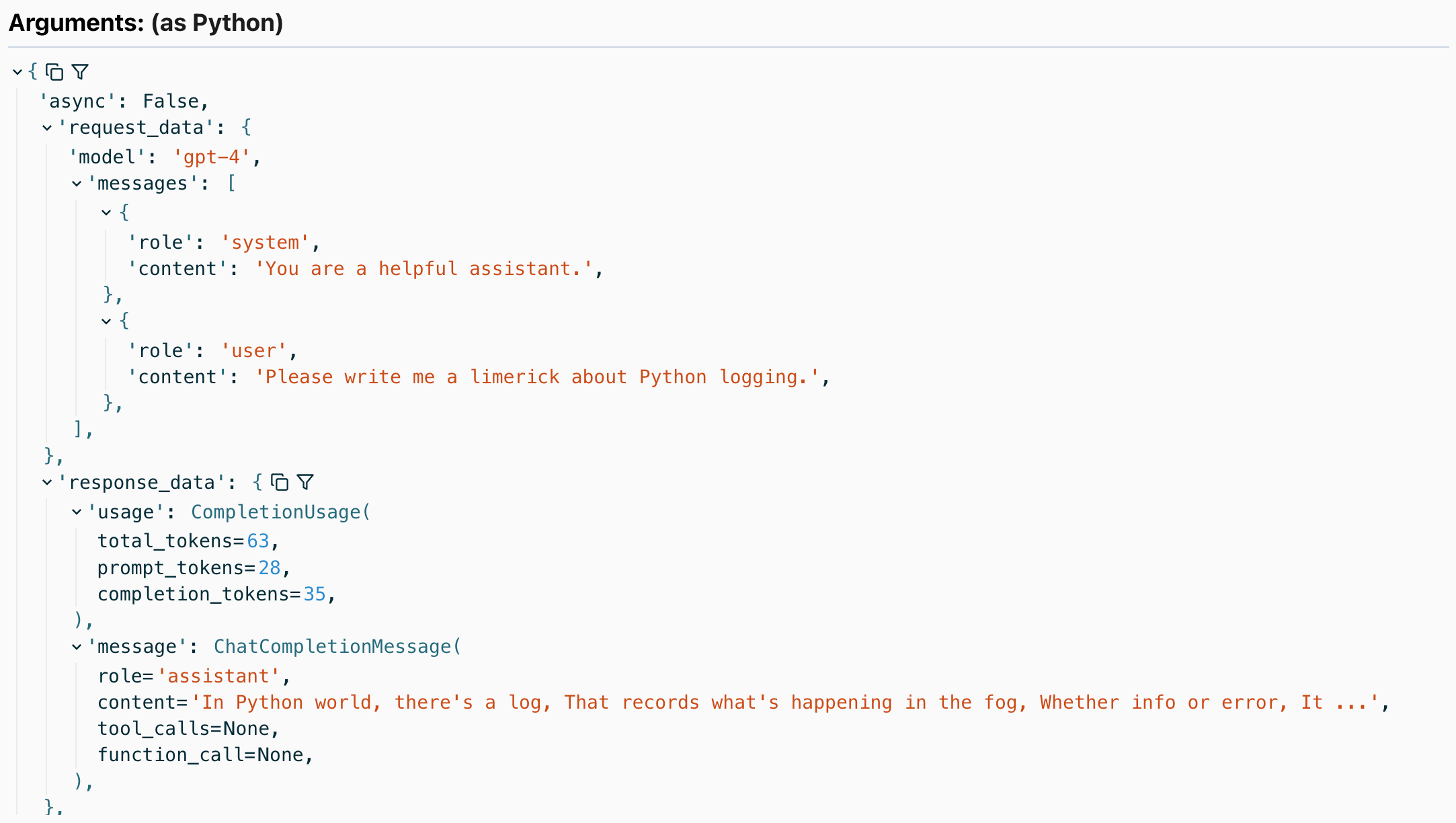
Run your program, then open your project in the Logfire web app and go to the Live view. Within a few seconds you should see a span for the OpenAI call. Click it to read the conversation and see the token count and duration.
Not seeing your model calls in Logfire? Check these first:
logfire.configure()runs beforelogfire.instrument_openai(). Configure the connection first, then instrument.- You instrument the client you actually call.
instrument_openai()with no argument covers all clients; if you pass a specific client, make sure it’s the one making the request. - Your Logfire write token is set. In local development, run
logfire projects use <your-project>; in production, set theLOGFIRE_TOKENenvironment variable. See Getting Started. - Your OpenAI call succeeded. If the call itself fails (for example, a missing or invalid
OPENAI_API_KEY), check the span for the recorded exception.
Logfire uses semantic convention version 2 by default. If your queries or dashboards still depend
on the legacy request_data and response_data attributes, emit both formats while you migrate:
import logfire

logfire.configure()
logfire.instrument_openai(version=[1, 2])
The following OpenAI methods are covered:
client.chat.completions.create: with and withoutstream=Trueclient.completions.create: with and withoutstream=Trueclient.embeddings.createclient.images.generateclient.responses.create
All methods are covered with both openai.Client and openai.AsyncClient.
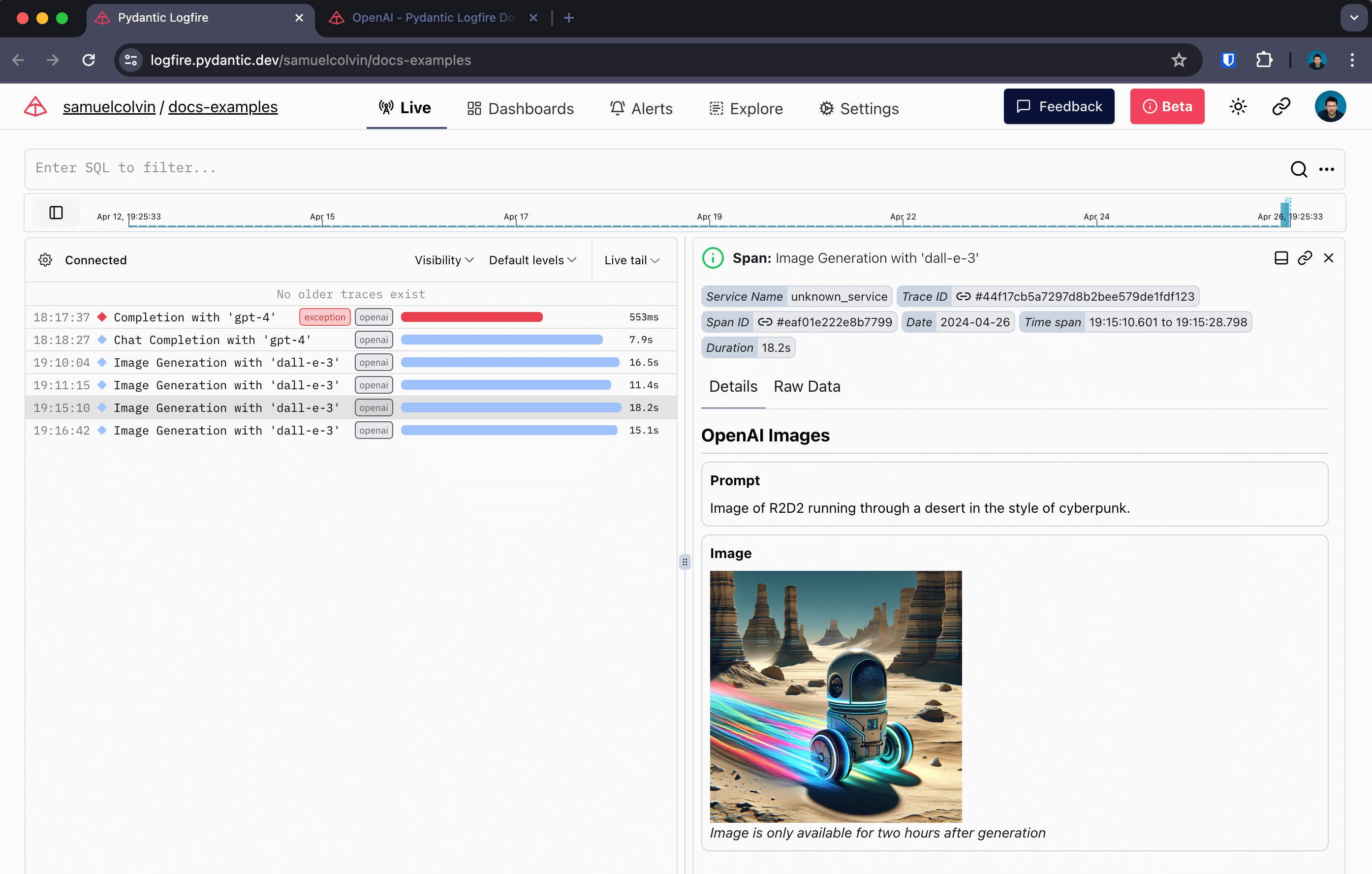
For example, here’s instrumentation of an image generation call:
import base64
from pathlib import Path

import openai

import logfire


async def main():
    client = openai.AsyncClient()
    logfire.configure()
    logfire.instrument_openai(client)

    response = await client.images.generate(
        prompt='A watercolor painting of a friendly robot reading a book in a sunlit library.',
        model='gpt-image-2.5-sunburst',
    )
    # gpt-image-2.5-sunburst returns the image as base64-encoded data
    image_bytes = base64.b64decode(response.data[0].b64_json)
    Path('robot.png').write_bytes(image_bytes)


if __name__ == '__main__':
    import asyncio

    asyncio.run(main())
Gives:
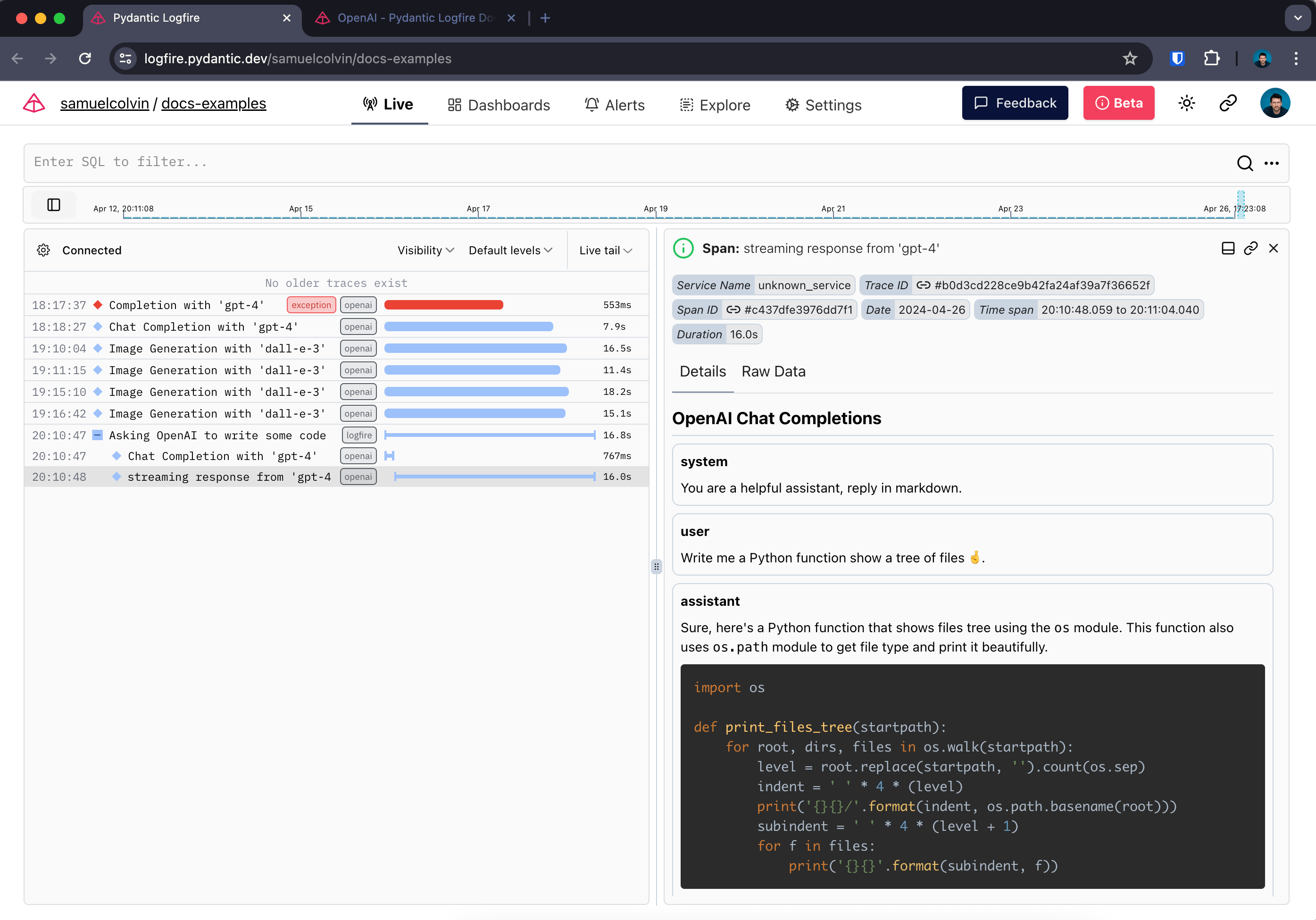
When instrumenting streaming responses, Logfire creates two spans: one around the initial request and one around the streamed response.
Here we also use Rich’s Live and Markdown types to
render the response in the terminal in real time.
import openai
from rich.console import Console
from rich.live import Live
from rich.markdown import Markdown

import logfire

client = openai.AsyncClient()
logfire.configure()
logfire.instrument_openai(client)


async def main():
    console = Console()
    with logfire.span('Asking OpenAI to write some code'):
        response = await client.chat.completions.create(
            model='gpt-4',
            messages=[
                {'role': 'system', 'content': 'Reply in markdown.'},
                {'role': 'user', 'content': 'Write Python to show a tree of files.'},
            ],
            stream=True,
        )
        content = ''
        with Live('', refresh_per_second=15, console=console) as live:
            async for chunk in response:
                if chunk.choices[0].delta.content is not None:
                    content += chunk.choices[0].delta.content
                    live.update(Markdown(content))


if __name__ == '__main__':
    import asyncio

    asyncio.run(main())
Shows up like this in Logfire:
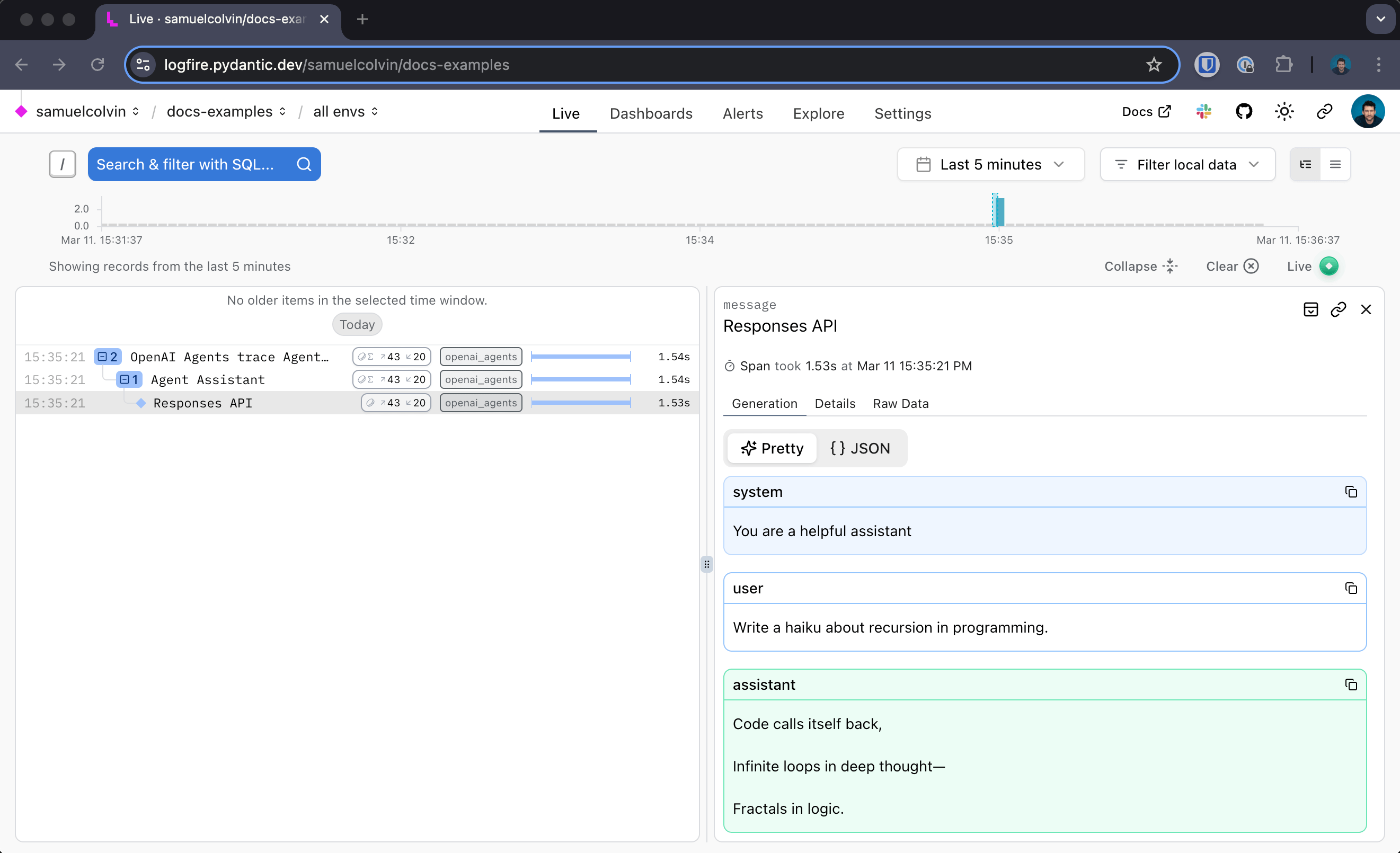
Logfire also instruments the OpenAI “agents” framework, so you can see each step an agent takes and every tool it calls as nested spans in one trace. OpenAI Agents runs also appear in the specialized Agents view; the framework coverage guide shows which details each view adds.
from agents import Agent, Runner

import logfire

logfire.configure()
logfire.instrument_openai_agents()

agent = Agent(name='Assistant', instructions='You are a helpful assistant')

result = Runner.run_sync(agent, 'Write a haiku about recursion in programming.')
print(result.final_output)
For more information, see the
instrument_openai_agents() API reference.
Which shows up like this in Logfire:
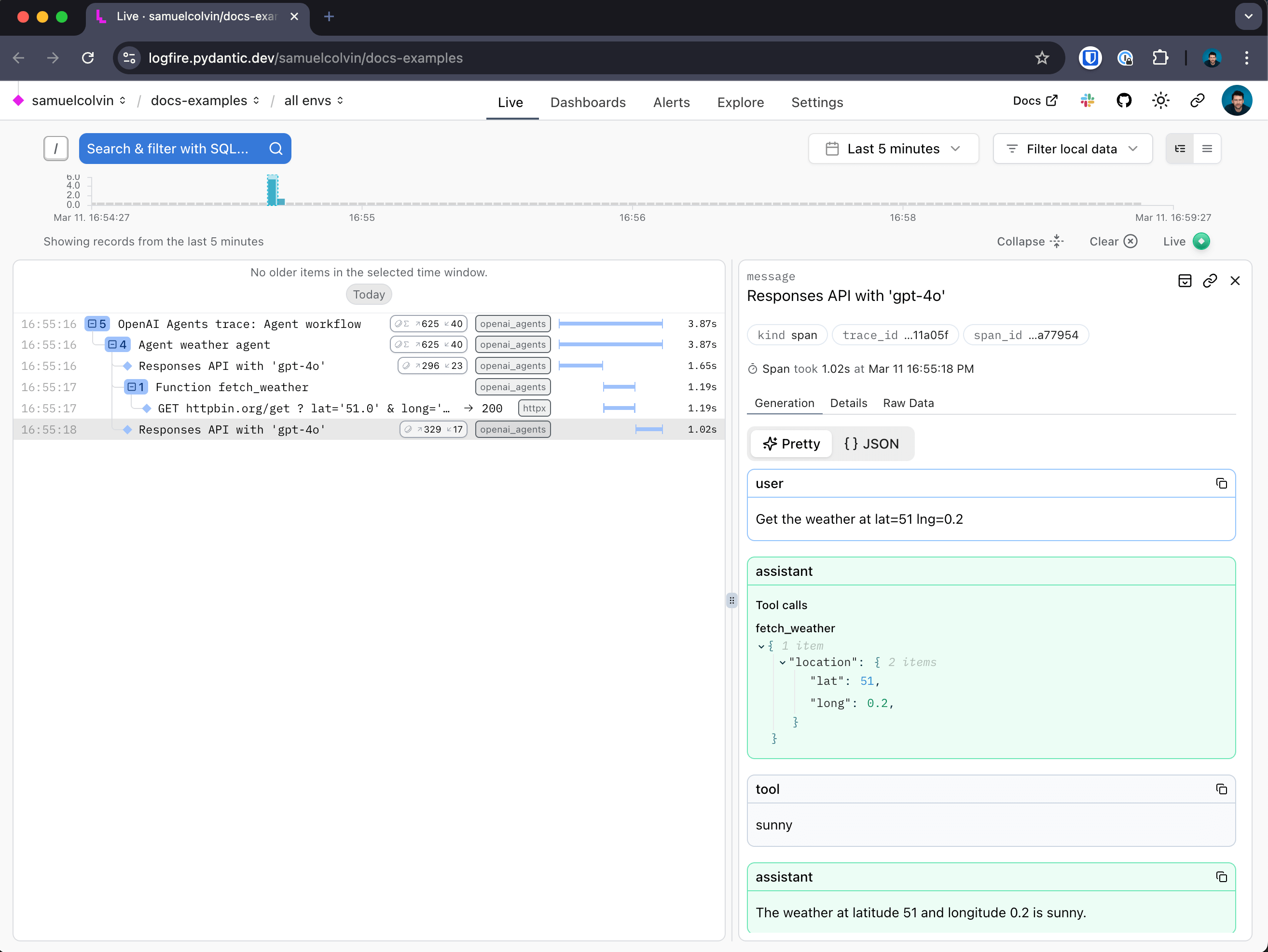
In this example we add a function tool to the agent:
from agents import Agent, RunContextWrapper, Runner, function_tool
from httpx import AsyncClient
from typing_extensions import TypedDict

import logfire

logfire.configure()
logfire.instrument_openai_agents()


class Location(TypedDict):
    lat: float
    long: float


@function_tool
async def fetch_weather(ctx: RunContextWrapper[AsyncClient], location: Location) -> str:
    """Fetch the weather for a given location.

    Args:
        ctx: Run context object.
        location: The location to fetch the weather for.
    """
    r = await ctx.context.get('https://httpbin.org/get', params=location)
    return 'sunny' if r.status_code == 200 else 'rainy'


agent = Agent(name='weather agent', tools=[fetch_weather])


async def main():
    async with AsyncClient() as client:
        logfire.instrument_httpx(client)
        result = await Runner.run(agent, 'Get the weather at lat=51 lng=0.2', context=client)
    print(result.final_output)


if __name__ == '__main__':
    import asyncio

    asyncio.run(main())
We see spans from within the function call nested inside the agent spans:
- API reference:
logfire.instrument_openai()·logfire.instrument_openai_agents()