Annotate an agent run
Review an agent interaction in context, then save a verdict, comment, and tags that explain what it got right or wrong.
An agent run is one end-to-end invocation of your agent, including its messages, model calls, and tool calls. A run annotation is a deliberate verdict from someone you trust to judge quality, such as a domain expert reviewing whether an answer is accurate, safe, or on-topic. It records the reviewer’s judgment and the context behind it.
Use this direct workflow when you are investigating one run or a small sample in context. Design Partner customers participating in early access can use an annotation queue for a systematic batch of interactions.
Use annotations for a considered review of an interaction. Use scores and other live evaluation results to record signals from your application, including end-user feedback.
| What you want to record | What to use | Example |
|---|---|---|
| A trusted reviewer’s judgment against a rubric (shared criteria for judging quality) | Human annotation | A domain expert marks an answer Fail and explains which policy it misinterpreted. |
| An end user’s reaction to an answer | Score recorded as a live evaluation result | A user gives an answer a thumbs-down or a low helpfulness rating. |
| An automated check of production traffic | Live evaluation result | An evaluator checks whether the answer cites a source. |
The distinction is the purpose of the feedback, not whether a human supplied it. Annotations capture a reviewer’s judgment against your team’s criteria. End-user feedback captures someone’s experience with your application. For feedback such as thumbs-up/down or satisfaction ratings, record a score as a live evaluation result rather than an annotation.
Annotations become comparable only when reviewers use the same rule. Before you start, write one sentence that defines what a pass means. For example, you might define a pass as: “The answer resolves the customer’s question without inventing details.” Use the Comment field to record the evidence that supports your verdict.
- In the Logfire web UI, open Annotations under AI Evaluations.
- Under Agents, select the agent whose runs you want to review.
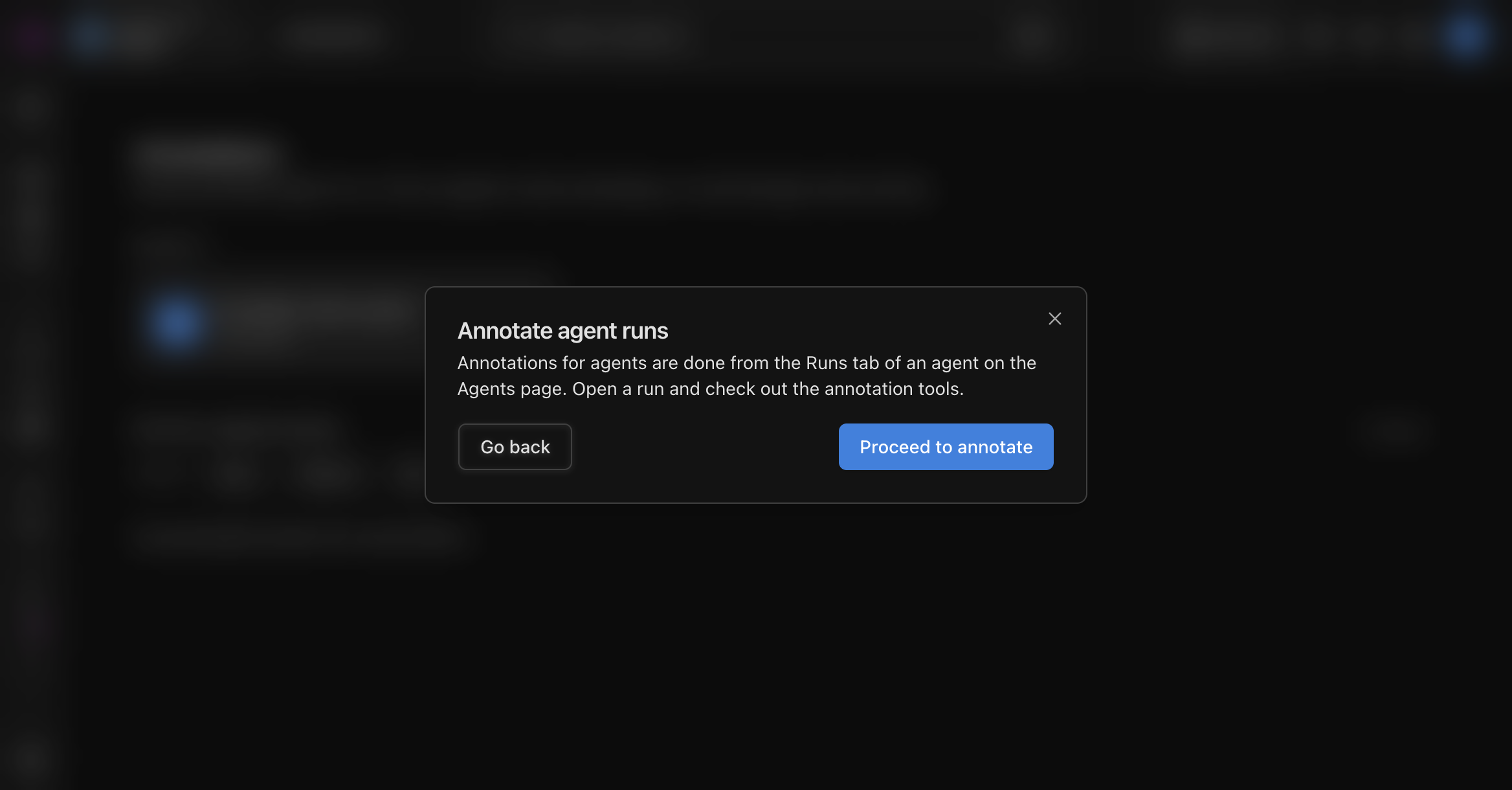
- Select Proceed to annotate. Logfire takes you to that agent’s Runs tab, where you can inspect the interaction before recording your judgment.
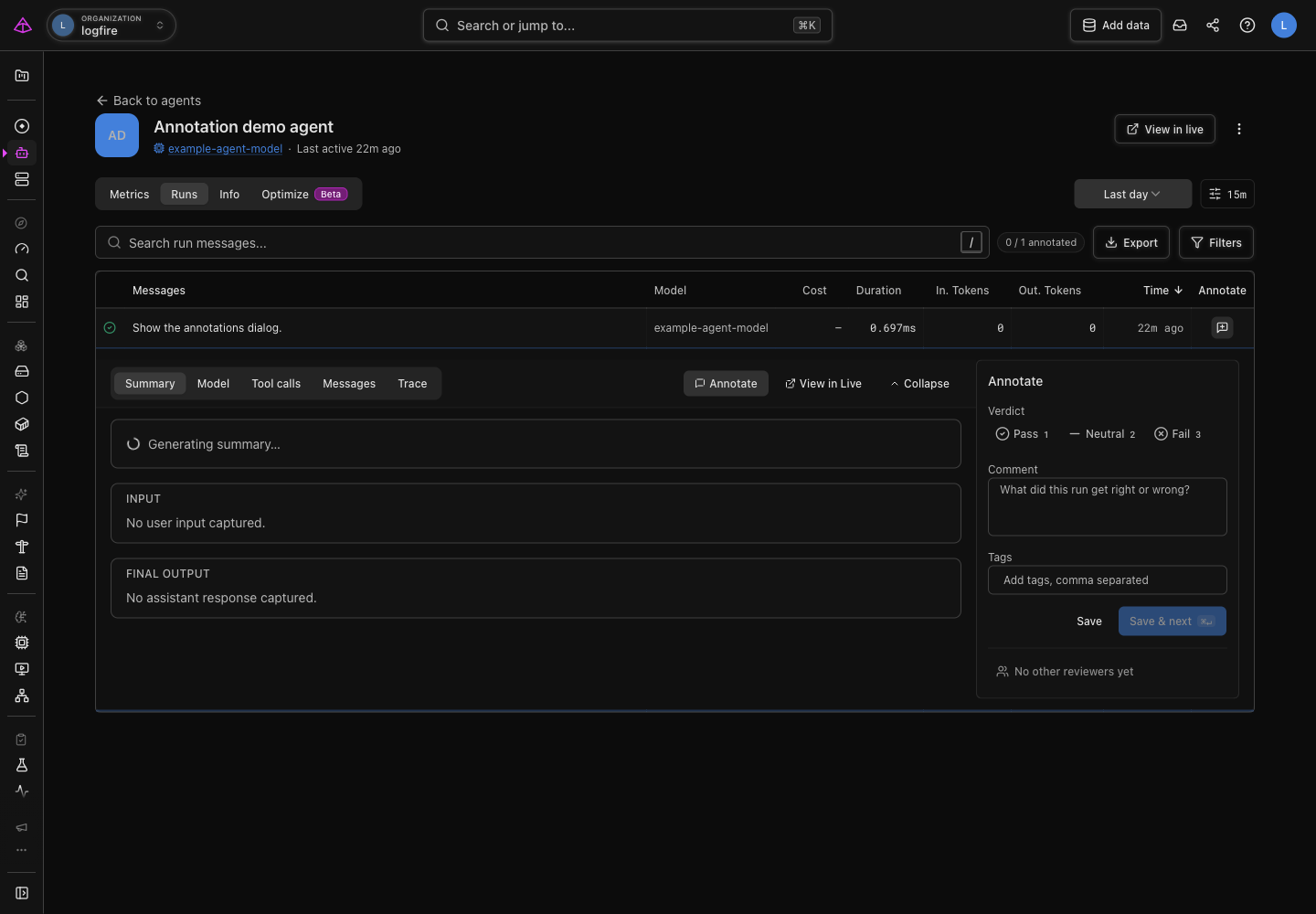
- Find the run you want to review. Select the row to inspect its input, final output, model calls, tool calls, and trace. Select Annotate to open the annotation panel. To open the panel directly, select Add annotation in the run’s row.
Choose a verdict using the criterion your team agreed on, then add enough context for someone else to understand the decision:
- Pass: the run met the criterion you are reviewing.
- Neutral: the run is neither clearly good nor clearly bad, or does not have enough information for a pass or fail.
- Fail: the run did not meet the criterion you are reviewing.
Use Comment to state the evidence you found in the run. Add Tags to group related reviews, such as hallucination, tone, or tool-error. Select Save to store the annotation, or Save & next to continue through the remaining runs.
Two more fields appear once a verdict says something went wrong. Both are optional.
- Category appears for a Neutral or Fail verdict. Pick the failure mode from the list:
hallucination,wrong tool,off topic,refused,format error, orslow. Using a consistent category is what lets you group failures later instead of reading every comment. - Expected output appears for a Fail verdict, and stays visible once it has content. Write the answer the agent should have given. This is the field that turns a failing run into a reusable test case, so write it out in full rather than describing it.
On an agent’s Runs tab, select Export annotations to download the saved annotations as a JSON Lines file (annotations.jsonl, one JSON object per line). Each line carries the run’s trace and span IDs, agent name, verdict, category, expected output, comment, tags, the reviewer’s email, and the timestamps.
The export covers the runs currently in the table and respects its verdict, category, and tag filters. Filter to the failures you care about first, then export. An empty file usually means the filters exclude every saved annotation.
Use the file to seed a dataset, so the runs your team marked Fail become the cases your next experiment has to pass.
After you save, the Runs tab’s annotated count increases and the run shows its annotation. Return to Annotations to see the saved review in Recent annotations, where you can filter by verdict.
The agent needs recorded runs in the selected time range. Send or wait for an agent interaction, then adjust the time range on the agent’s Runs tab if needed.
Open the interaction from Agents > Runs. Run annotations are attached to complete agent runs and are not available from the generic Live view.
- Human review: understand how direct review and annotation queues support evaluation work.
- Manage datasets: turn exported annotations into repeatable test cases.
- Run an evaluation: compare a fixed dataset against your scoring criteria.
- Live Evaluations: score production traffic automatically, then use annotations for the cases that need human review.