Control AI Gateway spending
Every Gateway plan, including Personal, includes per-key, organization-wide, per-project, and per-member spending limits. You do not need spending policies or Early Access to use them. Start with a key or organization limit to control one application’s usage or your organization’s combined usage.
These limits apply to requests routed through Gateway, not calls made directly to your provider. Built-in providers also draw from a prepaid balance; adding balance does not raise a spending limit, and raising a limit does not add balance.
- Open AI Engineering → Gateway → API Keys, check the selected organization, and select the key you want to limit.
- Click Edit. Under Spending Limits, enter a Daily, Weekly, Monthly, or Total limit in whole US dollars, then click Save Changes. You can also set these limits when creating a key.
- Return to the key’s details and check Usage & Spending Limits to confirm the saved values and current spending.
Leave a field empty for no limit at that level. A limit of 0 blocks requests; it does not mean unlimited. The total limit covers the key’s lifetime and does not reset with a new day, week, or month. Admins can manage project keys; members can manage their own personal keys.
You need organization-admin access to change organization-wide limits.
- Open AI Engineering → Gateway → Spending, check the selected organization, and stay on Overview.
- Under Usage and limits, click Edit limits. Enter a Daily, Weekly, or Monthly limit in whole US dollars and click Save limits.
- Check Usage and limits to confirm the saved limits alongside the organization’s current spending.
This budget is shared across the organization, not granted separately to each key. For example, a $100 monthly organization limit and a $20 monthly key limit restrict that key to $20 while it also contributes to the shared $100 budget. Reaching either applicable limit blocks further requests until that window resets or an admin changes the limit.
For finer control without spending policies, set per-project and per-member limits on the same Spending page. Open Projects or Members, then click Edit limits on a row. You can also select a project and use Edit limits under Usage and limits. Both offer daily, weekly, and monthly limits.
A spending policy does nothing until you attach it to an organization, project, member, or API key. Use Block to reject requests after a limit is reached, or Alert only to record an overage without stopping requests. Policies work alongside the included limits; they do not replace them, upstream quotas, or the built-in balance.
You need organization-admin access to manage spending policies.
-
Open AI Engineering → Gateway → Spending Policies, check the selected organization, and click New Spending Policy. Spending shows usage charts; it is a separate tab.
-
Give the policy a name. Under Budgets, choose a Provider and Model, or leave them at All providers and All models.
-
Enter at least one Daily, Weekly, or Monthly dollar limit. Choose Block or Alert only. Add another row only when a different provider or model needs a different limit.
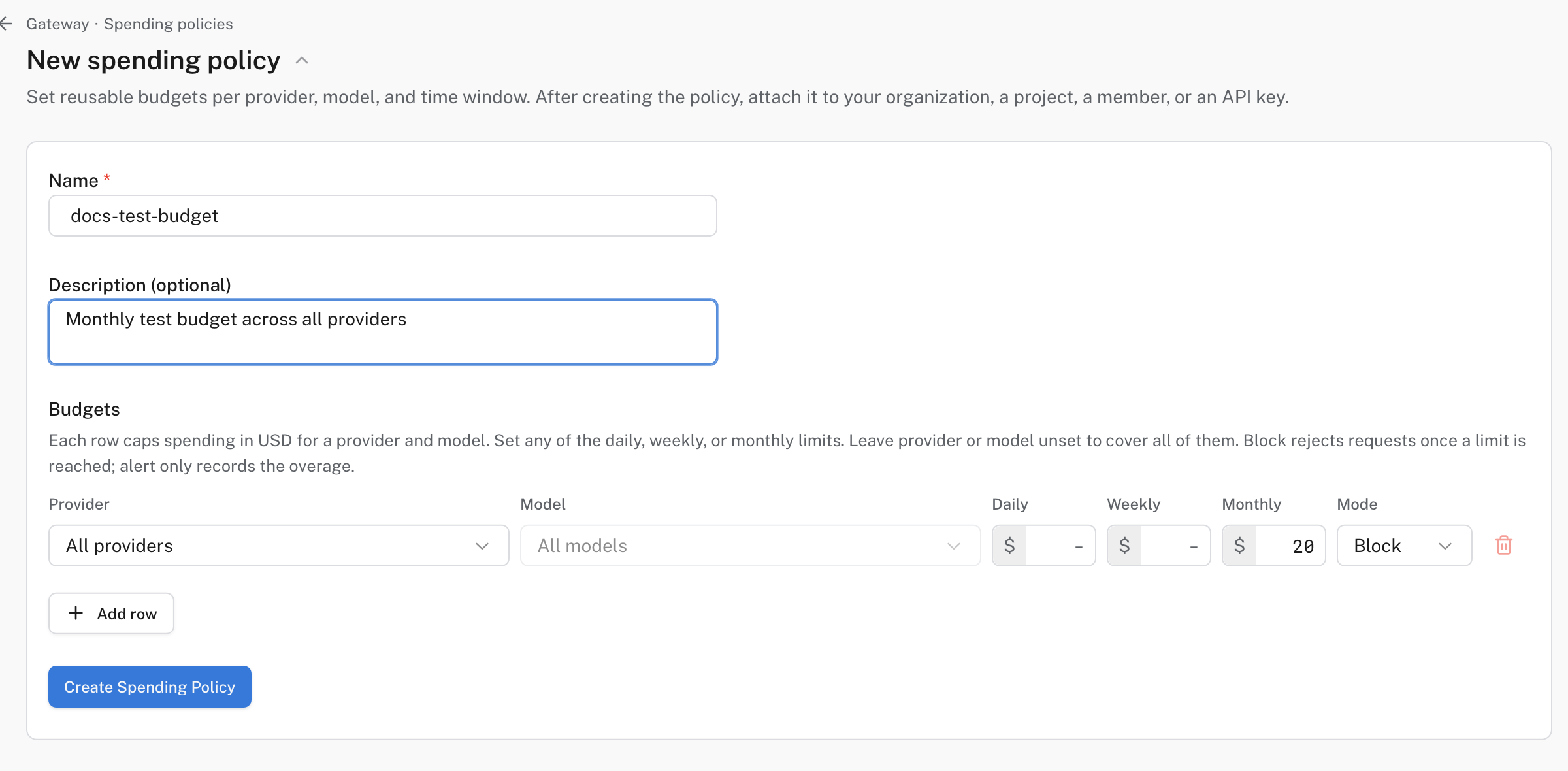
A $20 monthly budget in Block mode, before attaching the policy.
-
Click Create Spending Policy. In the policy list, click Attach. Choose Whole organization, A project, A member, or An API key under Applies to.
-
Choose whether the target shares one budget or gets a separate budget Per key or Per user, where available. Review the description of the chosen split, then click Attach policy. A shared organization budget is different from the same dollar limit granted independently to every key.
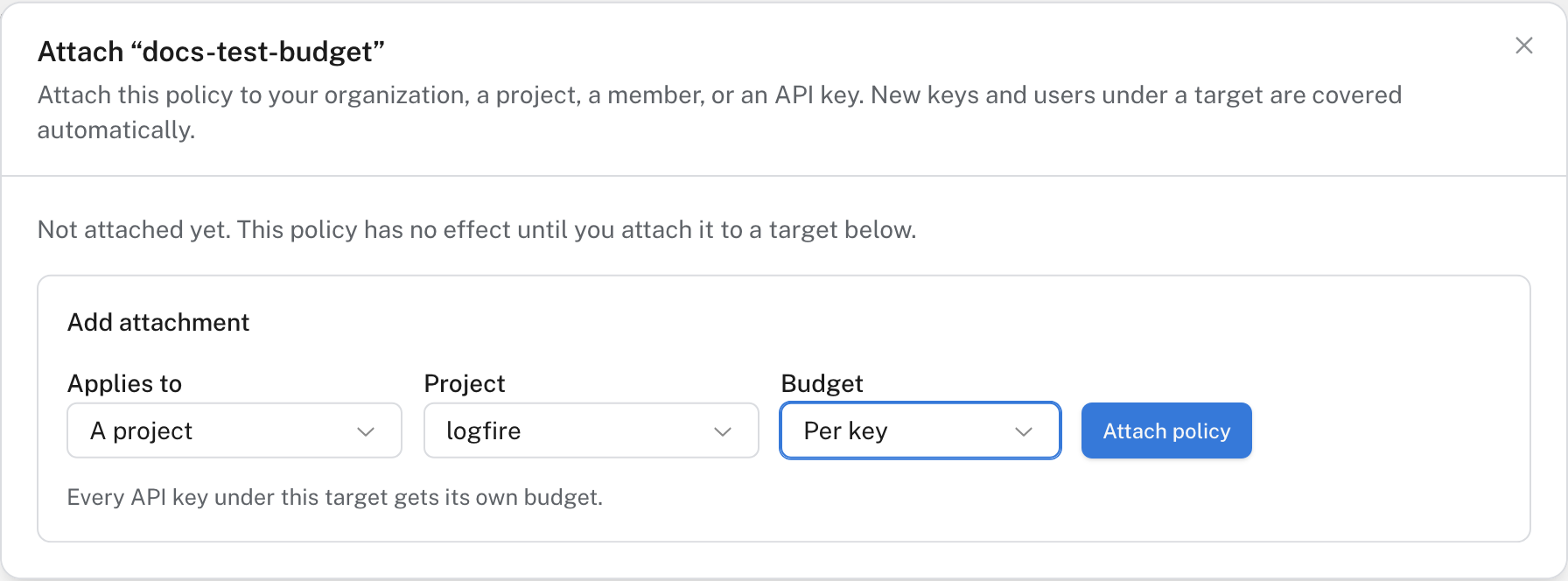
This project attachment gives each key its own budget. A shared budget would pool their spending instead.
New keys and members under an attached target can inherit its policy. Review any exceptions you configure for an organization or project attachment.
Back on Spending policies, confirm the Attached to value. Send a small test request, then inspect Spending usage for the relevant project, member, or key. For a blocking rule, test with a deliberately low limit in a non-production environment and confirm that subsequent requests are rejected; restore the intended limit afterward.
Watch the advanced AI Gateway spending controls tutorial.
- Policy has no effect: confirm it is attached to the right target and that the provider, model, time window, and budget split match the request.
- Requests still succeed over budget: check whether the rule is Alert only rather than Block, and which target’s budget the request uses.
- Requests stop before the policy limit: check key, member, project, and organization limits, other attached policies, upstream quotas, and (for built-in providers) the prepaid balance.
To set up the first route and credential, return to your first Gateway request.