Find and compare metrics without SQL
Find and compare the metrics your project receives without writing SQL. A metric is a number tracked over time, like requests per second or CPU load. Use the Metrics Explorer to search metric names, preview recent activity, and compare values across attributes such as service.name or k8s.node.name.
Open the Metrics Explorer by clicking Metrics in the project sidebar. The catalog includes every supported metric the project has received. Recently active and the catalog previews use the last hour. After you open a metric, the time picker controls its chart and attribute comparisons.
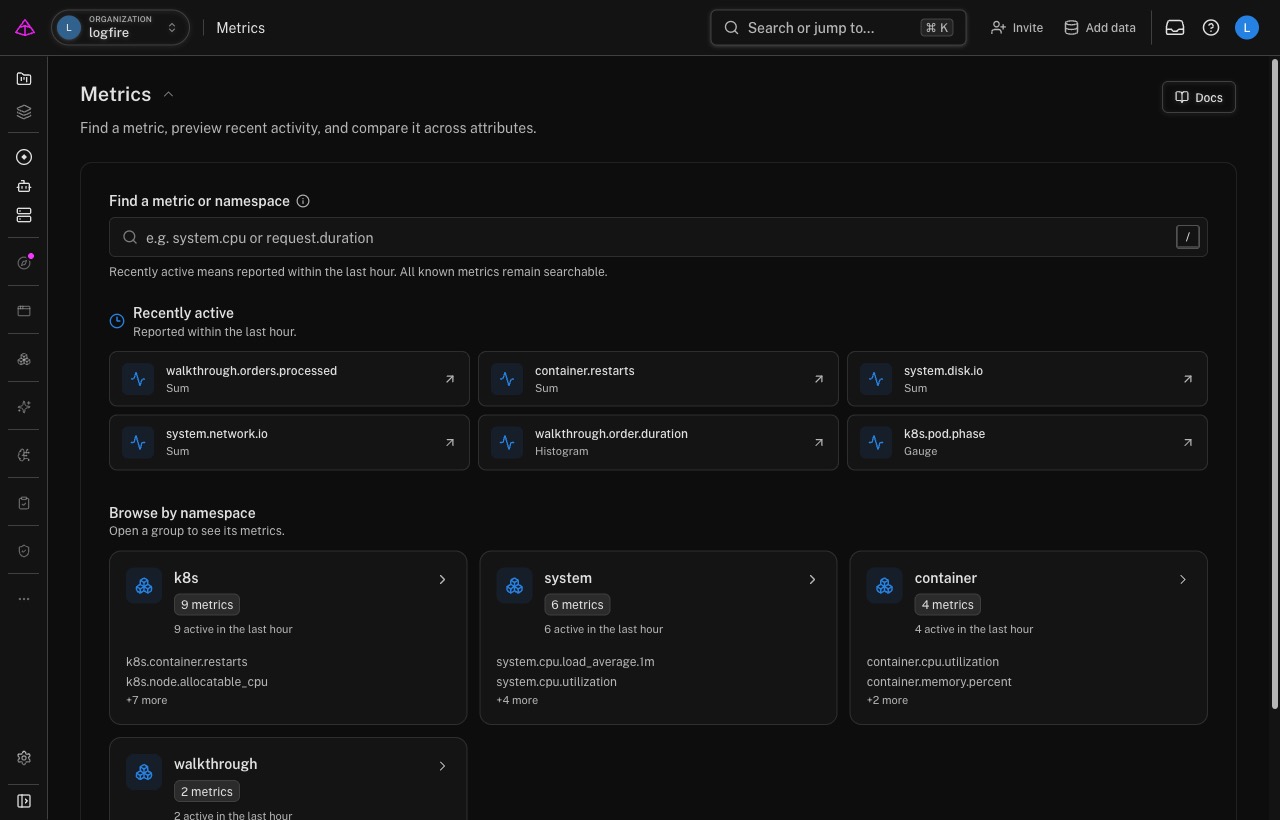
The search box matches both metric names and namespaces. Use Recently active to open a metric reported within the last hour, or browse the namespace cards below it. Metrics without a recent sample remain searchable.
A namespace is the prefix before the first dot in a metric name. http.server.duration lives under http, system.cpu.utilization lives under system, and k8s.pod.cpu.usage lives under k8s. A metric without a dot, such as requests_total, appears under Everything else. This grouping comes from the metric name and requires no separate configuration.
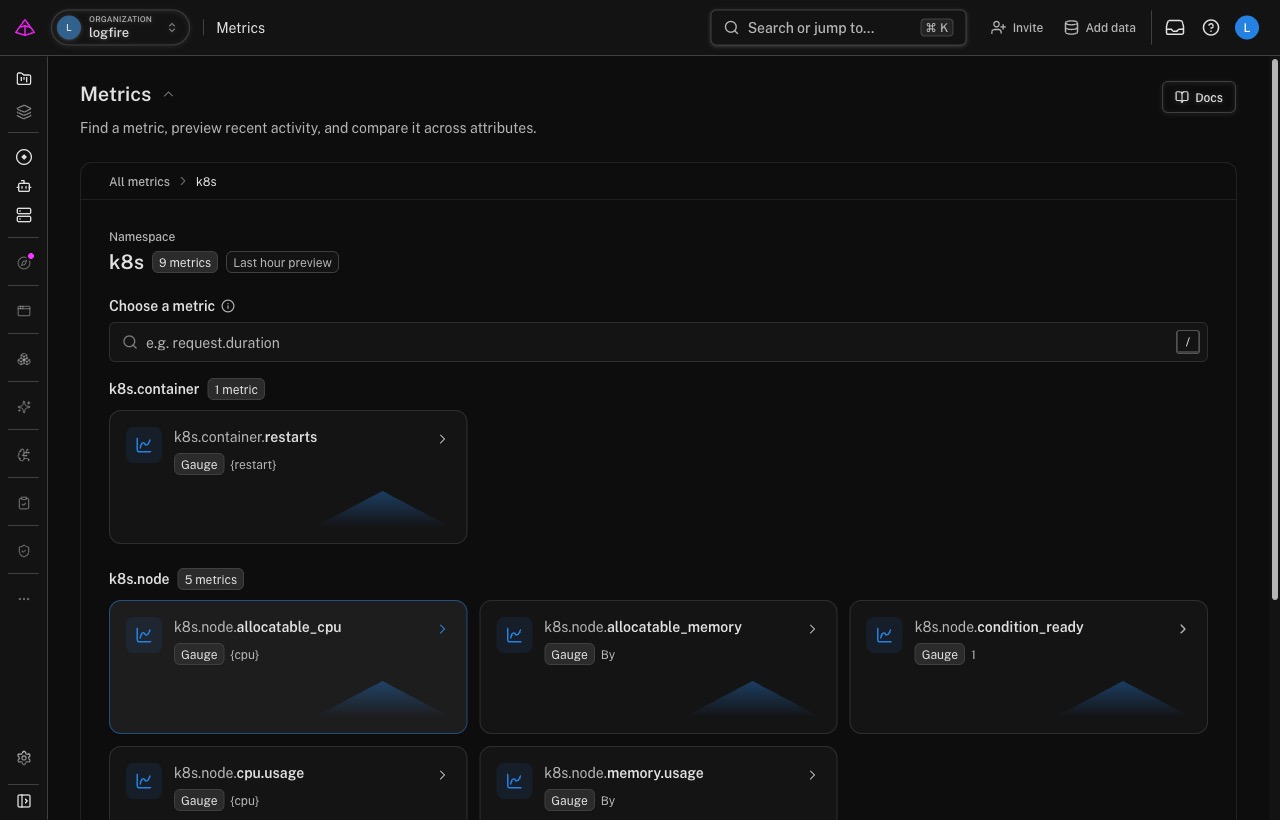
Opening a namespace shows each metric’s type, unit, and a small preview of its last hour. A metric without a recent sample shows No activity in the last hour instead. Search within the namespace when the list is long. Large namespaces may be divided by the next part of the metric name, such as k8s.container and k8s.node, so related metrics stay together.
Opening a metric shows the time picker, type, aggregation, chart interval, and overall values. The interval is chosen automatically from the selected time range. Change the aggregation to switch between calculations such as average, sum, minimum, maximum, or count.
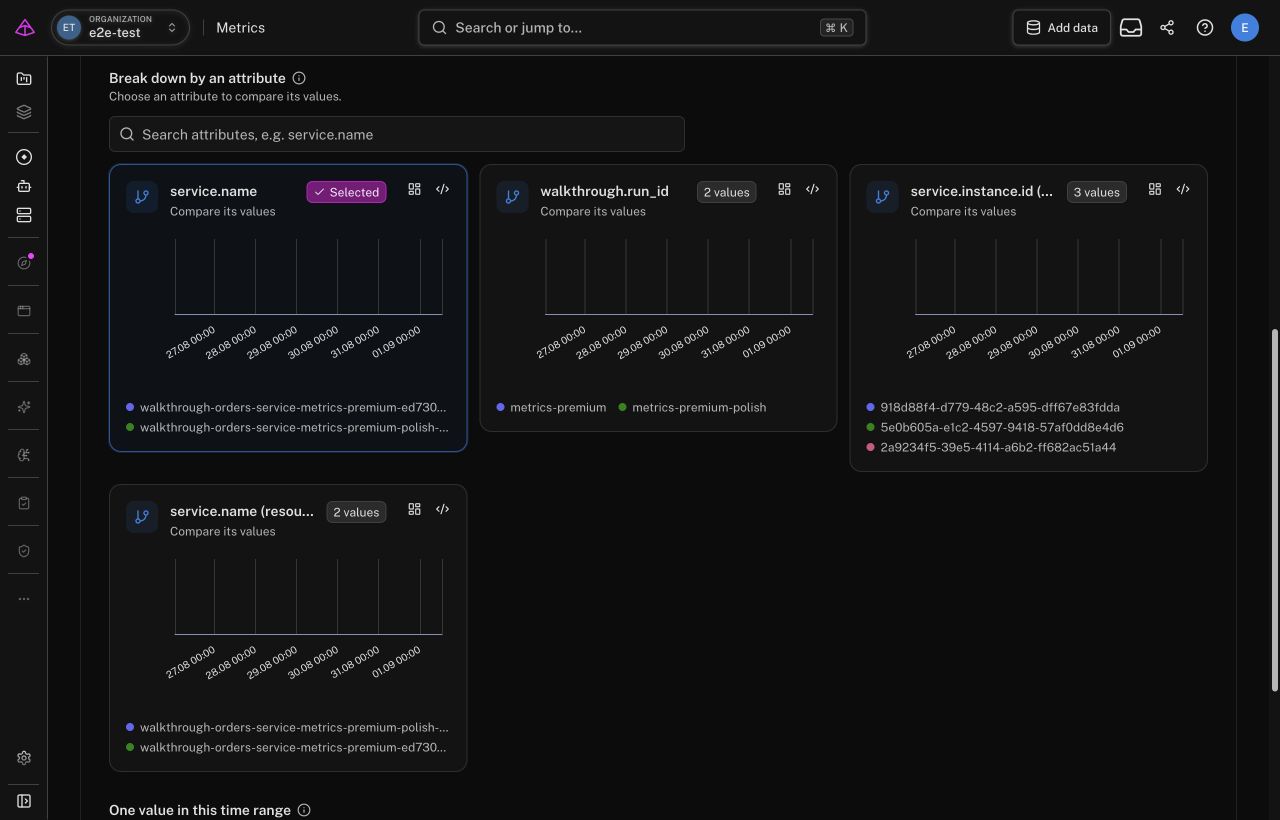
An attribute is a piece of context attached to a metric, such as a service, endpoint, or Kubernetes node. The Break down by an attribute section previews how the metric differs across each attribute’s values. Each card shows a small chart and the number of values found in the selected time range. Attributes that have only one value are listed separately because they do not produce a useful comparison.
Search the attributes when the list is long. Select an attribute card to make that comparison active. The URL updates so you can share the same view. Select Overall or Remove breakdown to return to the metric without a breakdown.
Each chart provides two actions:
- Add to dashboard saves the chart to a dashboard.
- View SQL shows the exact query behind the chart. From that dialog, copy the SQL or open it in SQL Workbench for further editing.
The metric kind determines which calculations are available. The dropdown starts with a suitable default for each kind:
| Metric kind | What it represents | Default | Available calculations |
|---|---|---|---|
| Gauge | A value that can rise or fall | avg | avg, sum, min, max, count, p50, p95, p99 |
| Sum | A total that only increases (counter), or a value that can increase and decrease (up-down counter) | sum | avg, sum, min, max, count, p50, p95, p99 |
| Histogram | A distribution stored in fixed buckets | avg | avg, sum, min, max, count |
| Exponential histogram | A distribution whose bucket sizes grow exponentially | avg | avg, sum, min, max, count |
p50, p95, and p99 are percentiles: for example, p95 is the value at or below which 95% of measurements fall.
These are the four metric kinds the Metrics Explorer supports. Logfire does not store Summary metrics sent over the OpenTelemetry Protocol (OTLP), the standard wire format Logfire uses to receive data. A Summary carries pre-computed quantiles instead of buckets. If a request also contains supported metrics, Logfire stores those metrics, drops the summaries, and reports a partial success. If every metric in the request is a Summary, the request fails. Logfire records the dropped summaries in your project as a logfire ingest error. Summaries most often come from Prometheus scrapes forwarded through the OpenTelemetry Collector’s prometheus receiver. Send a histogram instead and calculate percentiles at query time. See Summary metrics are not supported.
The Metrics Explorer covers discovery and common comparisons. Use SQL Workbench when you need custom filtering, calculations, joins, or more series than a preview chart shows. Open View SQL on a chart, then select Open in SQL Workbench to continue without rebuilding the query.
The columns used by the Metrics Explorer live on the metrics table. See the full schema in the SQL reference.
The Metrics Explorer reads from the supported OpenTelemetry metrics you’re already sending to your Logfire project. OpenTelemetry (OTel) is the open industry standard for collecting traces, metrics, and logs. Logfire accepts the metric kinds listed above from OpenTelemetry-compatible SDKs and collectors. There is no separate metric pipeline. If you instrument your application with the Python SDK, the TypeScript SDK, or the OpenTelemetry Collector, each supported metric appears in the catalog within a minute or two of its first sample.
Common sources include:
| Source | Namespace | Example metric |
|---|---|---|
System metrics (SDK) or hostmetricsreceiver (Collector) | system | system.cpu.utilization, system.memory.usage, system.network.io |
| Cloud metrics | varies by provider | AWS aws.*, GCP gcp.*, Azure azure.* |
| FastAPI / Django / Flask / Starlette | http | http.server.request.duration (histogram) |
| HTTP clients (HTTPX, Requests, AIOHTTP) | http | http.client.request.duration |
Kubernetes (kubeletstatsreceiver) | k8s | k8s.pod.cpu.usage, k8s.node.memory.working_set |
| GenAI spans / metrics | gen_ai | gen_ai.client.operation.duration, gen_ai.client.token.usage |
| Custom SDK metrics (no dot) | Everything else | Whatever you emit with logfire.metric_* |
The Everything else section catches metrics whose name has no namespace prefix. For example, logfire.metric_counter('requests_total') appears there, while logfire.metric_counter('hello.requests') creates the hello namespace.
To add a namespace to the catalog, emit a counter from the Python SDK:
pip install logfire
export LOGFIRE_TOKEN=<your write token from project Settings → Write tokens>
import logfire

logfire.configure()
logfire.metric_counter('hello.requests').add(1)
Refresh the Metrics page. hello.requests appears in Recently active, and hello appears as a namespace. The full Python SDK metric API is in Add Metrics.
| Symptom | Likely cause |
|---|---|
| Metric appears in the catalog but the chart is empty | The metric has no samples in the selected time range. Widen the time picker. |
| Custom metric lands in Everything else instead of its own namespace | The metric name has no dot (e.g. requests_total instead of app.requests.total). The grouping is structural: give the name a dotted prefix to create a namespace. |
| One metric never appears in the catalog while others from the same source do | It is a Summary metric, a type the OpenTelemetry spec marks legacy and Logfire does not store. Check for a logfire ingest error record naming the metric, and see Summary metrics are not supported. |
| The page shows no namespaces | The project hasn’t received any metric samples yet. If you’re sending only spans or logs, no namespaces will appear here. |
Two metric sources show up under system.* with overlapping series | The SDK’s system-metrics integration and an OpenTelemetry Collector running hostmetricsreceiver are both running on the same host. See the double-counting note. |
| An attribute card shows fewer series than its value count | Preview charts limit the number of series. Open View SQL, then continue in SQL Workbench for a complete high-cardinality breakdown. |
- Add application metrics when the catalog does not yet contain the signal you need.
- Build a dashboard to keep the charts your team checks regularly in one place.
- Write a query in SQL Workbench when you need custom filters, joins, or calculations.