Logfire SDK CLI: SDK Command Line Interface Guide
Logfire comes with a CLI used for authentication and project management:
usage: logfire [-h] [--version] [--base-url BASE_URL | --region {us,eu}]  ...

The CLI for Pydantic Logfire.

options:
  -h, --help           show this help message and exit
  --version            show the version and exit

global options:
  --base-url BASE_URL  the base URL for self-hosted Logfire instances (e.g.,
                       http://localhost:8080)
  --region {us,eu}     the region to use

commands:

    auth               Authenticate with Logfire.
    clean              Remove the contents of the Logfire data directory.
    inspect            Inspect installed packages and recommend packages that
                       might be useful.
    whoami             Show user authenticated username and the URL to your
                       Logfire project.
    projects           Project management for Logfire.
    read-tokens        Manage read tokens for a project
    prompt             Creates a prompt to be used with your favorite LLM. The
                       prompt assumes you are using Logfire MCP.
    info               Show versions of logfire, OS and related packages.
    run                Run Python scripts/modules with Logfire instrumentation

See https://logfire.pydantic.dev/docs/reference/cli/ for more detailed
documentation.
You need to be authenticated to use the Logfire.
To authenticate yourself, run the auth command in the terminal:
logfire auth
You will be prompted to select a data region (EU or US). To specify this
via the cli instead of interactively, use logfire --region eu auth or logfire --region us auth
Then you will be given the option to open logfire in your browser:
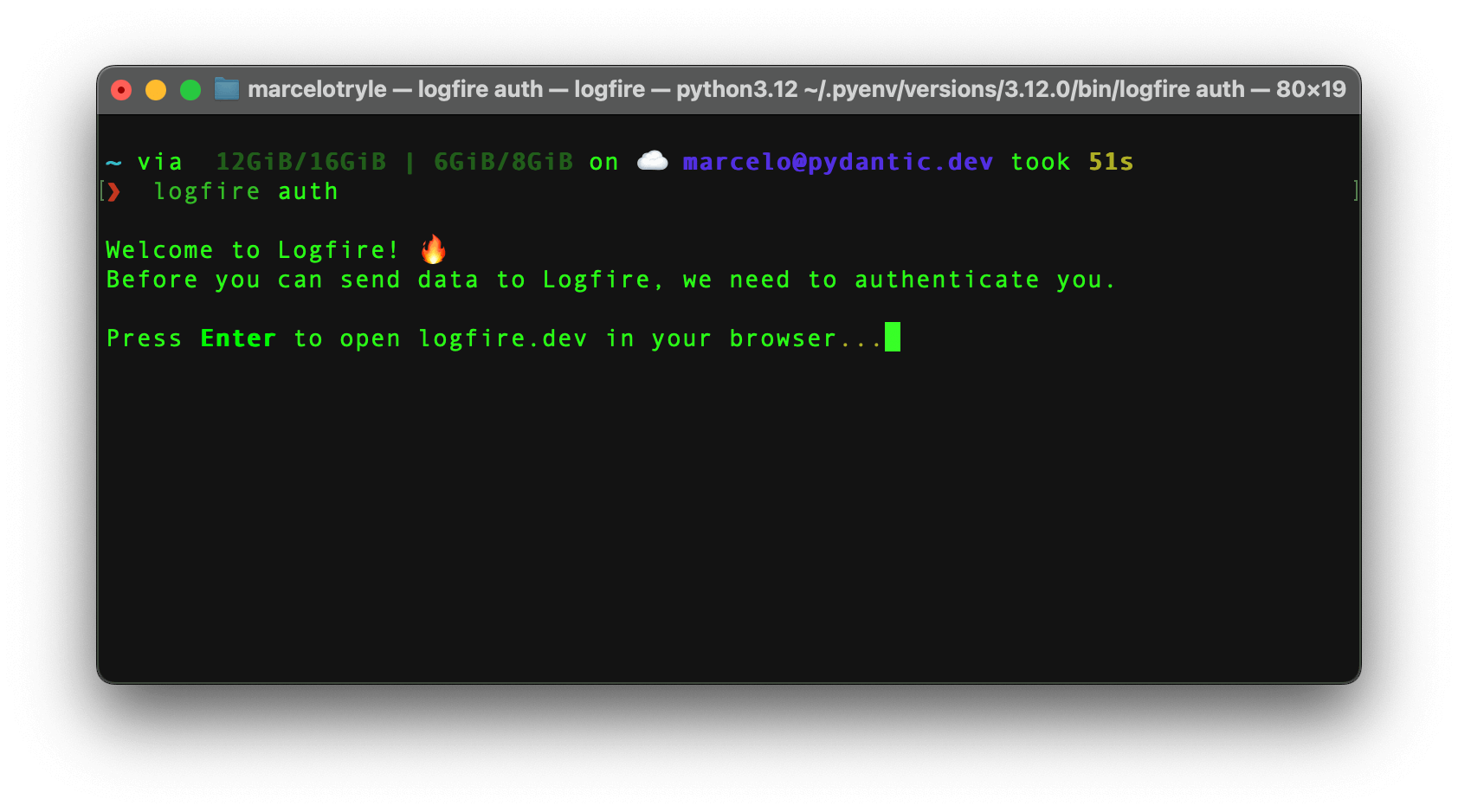
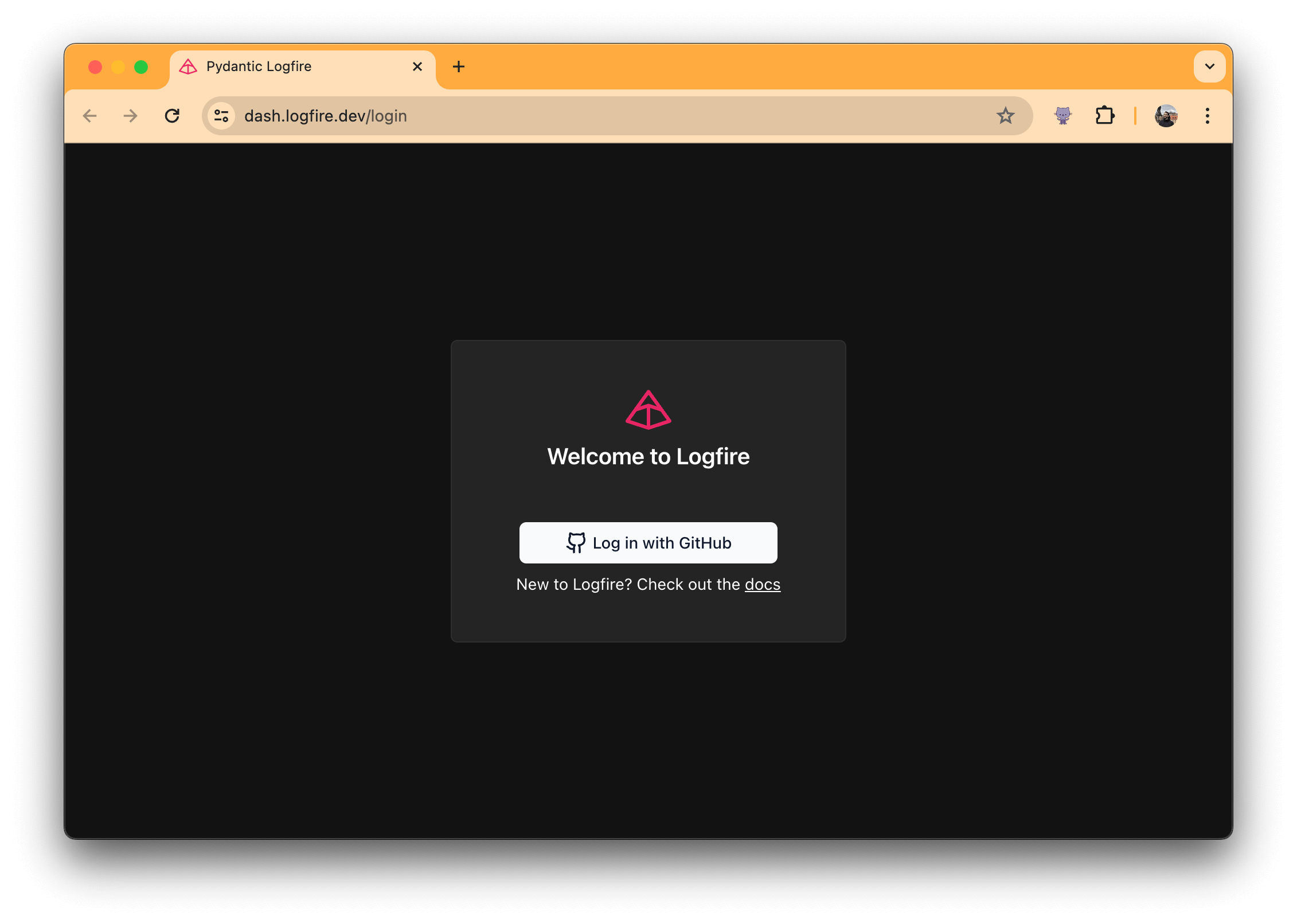
After pressing "Enter", you will be redirected to the browser to log in to your account.
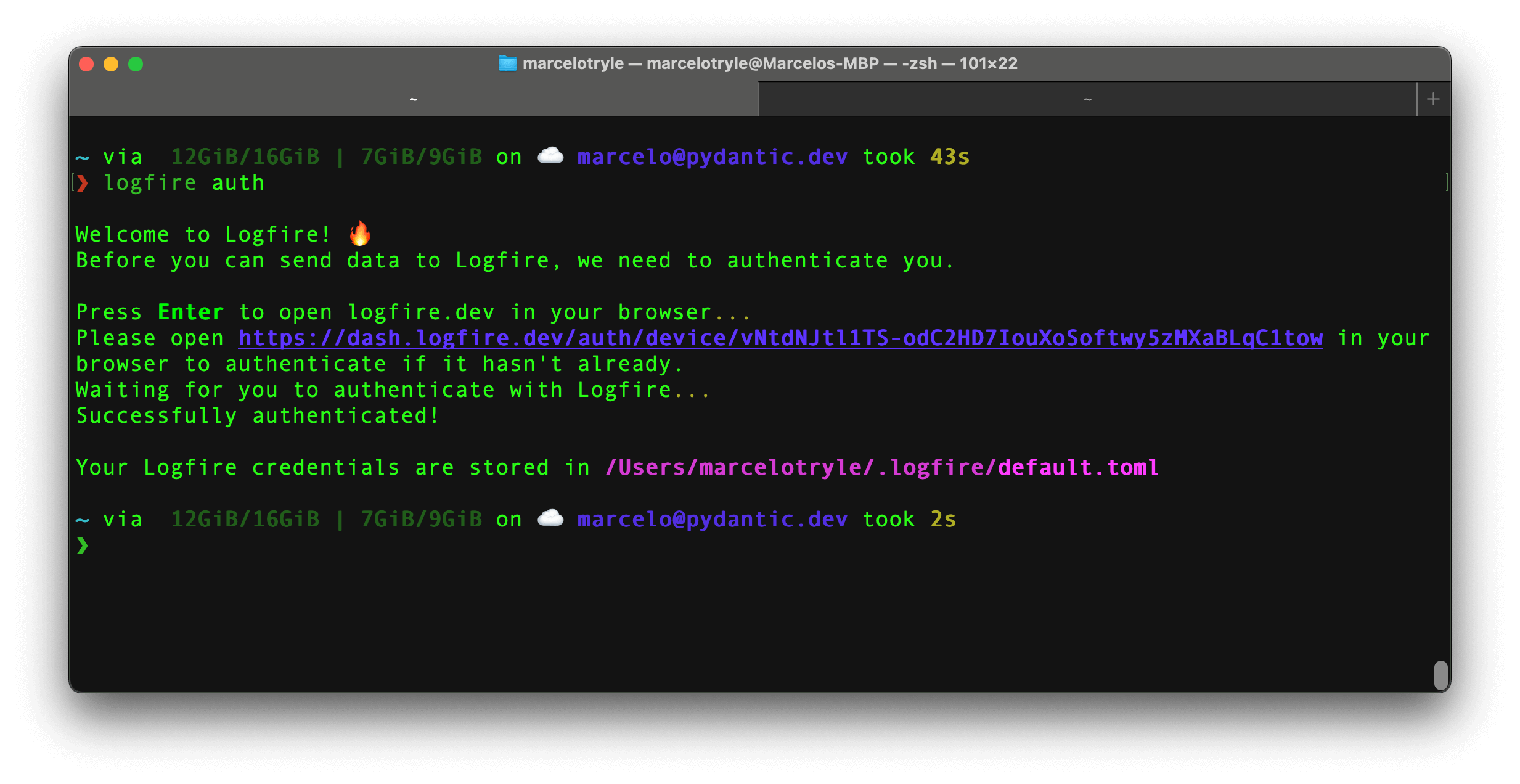
Then, if you go back to the terminal, you’ll see that you are authenticated! 🎉
To log out and remove the locally stored credentials, run:
logfire auth logout
To switch accounts in one region, log out of that region, then authenticate again:
logfire --region us auth logout
logfire --region us auth
For a self-hosted instance, use the same --base-url value in both commands instead of --region.
To clean most the files created by Logfire, run the following command:
logfire clean
The clean command doesn’t remove the logs, and the authentication information stored in the ~/.logfire directory.
To also remove the logs, you can run the following command:
logfire clean --logs
The gateway command runs a local OAuth proxy for the Logfire AI Gateway and can launch supported AI coding tools with short-lived credentials.
Install the optional dependencies before using it:
uv add "logfire[gateway]"
pip install "logfire[gateway]"
poetry add "logfire[gateway]"
Launch a supported integration through the proxy:
logfire gateway launch claude
You can also run only the proxy and configure a tool manually:
logfire gateway serve
Use --device-flow if browser callback authorization is not available, or pass --region eu / --region us before gateway to select the Logfire region.
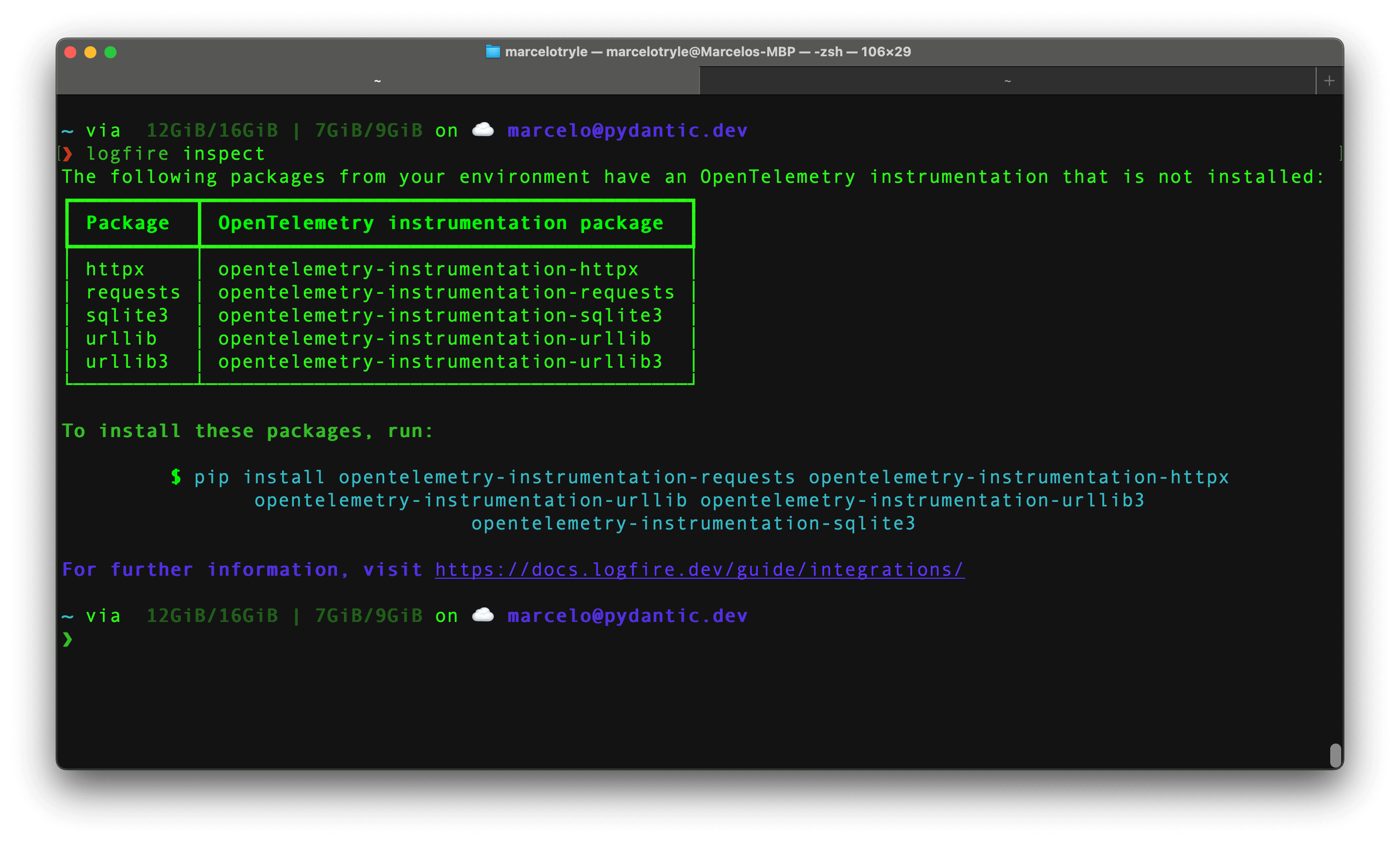
The inspect command is used to identify the missing OpenTelemetry instrumentation packages in your project.
To inspect your project, run the following command:
logfire inspect
This will output the projects you need to install to have optimal OpenTelemetry instrumentation.
To print the versions of logfire, your operating system, and related (OpenTelemetry) packages (useful when reporting a bug) run:
logfire info
To show the currently authenticated user and the URL of the current Logfire project, run:
logfire whoami
If you have one or more tokens configured (e.g. via the LOGFIRE_TOKEN environment variable), this shows the project each token belongs to instead.
To check the projects you have access to, run the following command:
logfire projects list
You’ll see something like this:
❯ logfire projects list
┏━━━━━━━━━━━━━━┳━━━━━━━━━━━━━━━━┓
┃ Organization ┃ Project        ┃
┡━━━━━━━━━━━━━━╇━━━━━━━━━━━━━━━━┩
│ Kludex       │ backend        │
│ Kludex       │ worker         │
└──────────────┴────────────────┘
To use an already created project, run the following command:
logfire projects use <project-name>
For example, to use the backend project, you can run:
logfire projects use backend
To create a new project, run the following command:
logfire projects new <project-name>
Follow the instructions, and you’ll have a new project created in no time! 🥳
To see what telemetry has actually reached a project, run:
logfire projects status
Project  my-org/orders
         https://logfire-us.pydantic.dev/my-org/orders

 Service         | Records | Last seen
-----------------|---------|---------------------------------
 orders-web      | 87      | 2026-08-19T01:01:29.717170+00:00
 orders-worker   | 84      | 2026-08-19T01:01:29.716577+00:00
One row per service, so a partly-instrumented system shows up as one: if you instrumented a web app and a worker but only the web app appears, the worker is not reporting.
This needs a saved read token — see below — and reports the last hour. Write credentials
(projects use/new) are not required: a saved read token already records which project
it belongs to, so read-tokens --project ORGANIZATION/PROJECT_NAME create --save on its
own is enough. If this directory IS linked to a project, the saved token must match it.
Add --json for machine-readable output.
To create a read token for a project and print it to stdout, run:
logfire read-tokens --project <org>/<project> create
Because the token is printed to stdout, this composes well with other tools, e.g. configuring the Logfire MCP server:
claude mcp add logfire -e LOGFIRE_READ_TOKEN=$(logfire read-tokens --project <org>/<project> create) -- uvx logfire-mcp@latest
To store the token in the data directory rather than printing it, use --save:
logfire read-tokens create --save
With no --project, this uses the project the current directory is linked to. The token is written to .logfire/read_token.json, readable only by you, in the same gitignored directory that already holds your write credentials — and it is never printed, so it cannot end up in your terminal history, a CI log, or a coding agent’s transcript.
logfire projects status uses this token. A saved token expires after 30 days; run the command again to replace it.
To run a Python script or module with Logfire instrumentation enabled automatically for all installed packages that have an available OpenTelemetry instrumentation, run:
logfire run script.py
# or run a module, forwarding any arguments after it:
logfire run -m my_module --my-arg
# or run an installed Python console command:
logfire run pytest tests/
Console commands are resolved from the selected Python environment’s installed
console_scripts metadata, which maps each command name to the Python function
that runs it. This keeps automatic instrumentation in the same
Python process on macOS, Linux, and Windows, including platforms where package
installers generate native launcher executables.
By default a summary box is printed to stderr showing which packages were instrumented; disable it with --no-summary. Use --exclude to skip instrumenting specific packages:
logfire run --exclude sqlalchemy,fastapi script.py
To generate a prompt for an LLM to investigate an issue in your project (assuming the Logfire MCP server is configured), run:
logfire prompt "why are my requests slow?"
Use --claude, --codex, or --opencode to verify (and set up) the MCP configuration for the respective coding tool, --update to replace an existing Logfire MCP server configuration, and --project <org>/<project> to select the project.