Send your first AI Gateway request
The Gateway Connect tab gives you a working request for your region, provider, model, and project. You can use your existing SDK. You need a Logfire organization with a project.
This flow is available on every Gateway plan, including Personal. Per-key and organization-wide spending limits are included too. Advanced controls have separate plan and Early Access requirements.
-
Open AI Engineering → Gateway → Connect and check that the selected organization is the one you want to use.
-
If Gateway is not enabled, ask an organization admin to choose Enable recommended setup. This enables Gateway, configures telemetry and recommended protections, and creates a first API key.
-
Open Connect and select a provider under Connect through. A direct provider is enough for a first request; you can add an endpoint later.
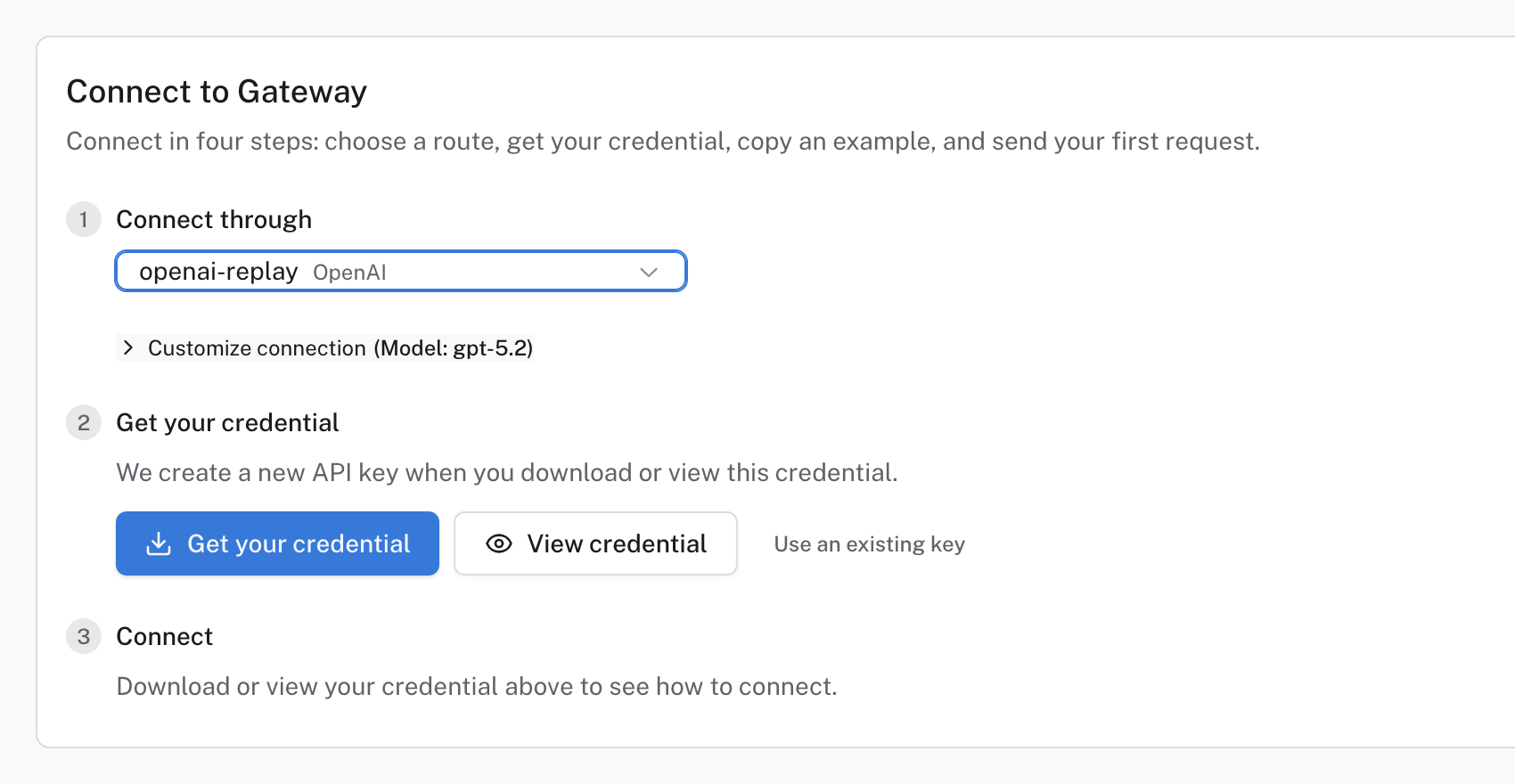
Connect after selecting an OpenAI-compatible provider.
If Connect offers no route, ask an organization admin to choose Add a payment method to activate built-in providers or Add your own provider to bring your own key. If it says Built-in provider access needs activation, ask an admin to use Providers to activate a built-in provider or add a BYOK provider.
If you only want to observe calls sent directly to a model provider, instrument your application instead. The Gateway sits in the request path and forwards each call to the provider.
- Click Get your credential to download the file, or View credential to copy it. Connect can create a key for the current project or use an existing one. For another project, open that project’s API Keys page first.
- Under Connect, copy the prompt for your AI coding agent or a snippet for your SDK. Use Customize connection if you need another model. The snippet supplies your region’s URL and selected route.
- Keep the Gateway API key in a local environment variable or secret manager, not source control. It is different from an upstream BYOK provider key. A snippet generated after you reveal a key may contain its plaintext value; do not commit or share it. The coding-agent prompt uses a local credential file rather than putting the key in chat.
- Run the snippet or, for a chat model, use Try in playground. The first request may incur upstream model charges or draw from your built-in prepaid balance.
For an OpenAI-compatible route in the US region, the chat-completions URL has this shape:
https://gateway-us.pydantic.dev/proxy/<route>/chat/completions
For an EU organization, use https://gateway-eu.pydantic.dev/proxy instead. Do not substitute a URL from another region; Connect supplies the correct one. Routes can be provider slugs or endpoint slugs. The URL path and SDK depend on the provider’s API format, so use the generated snippet rather than assuming every provider speaks OpenAI’s API.
For a key created in this Connect session, the page shows Waiting for your first Gateway request until that key is used. You can also open Gateway → Overview for usage and, if telemetry is enabled, open the selected Logfire project to inspect the trace. Gateway telemetry can include request and response content; review your protections and telemetry settings before sending sensitive production data.
- No providers available: ask an organization admin to activate a built-in provider or add your own. A provider assigned to an endpoint must also be active.
- 401 or 403: check that you used a Gateway API key for the intended project, not your upstream provider key, and that the key has not expired.
- Model not listed: choose a model the selected provider serves, or enter its model identifier where the UI allows it. Model availability and pricing can differ by provider.
- No pricing data: a BYOK provider with Require pricing data enabled rejects unpriced requests. Add a price in provider settings, choose a priced model, or change that setting if you accept requests without a known price. This setting is separate from whether the upstream provider charges you.
- No trace: check that Gateway telemetry is enabled for the project in Gateway → Settings. A successful request does not imply telemetry was configured.
Next, set included spending limits, add an endpoint for failover, or protect request data.