Add your own provider to AI Gateway
Use an existing model-provider account with Gateway. Your provider bills you directly; you do not need to activate Logfire’s built-in providers.
You need organization-admin access and a credential for a supported provider. Set any access and spending limits you want at that provider; Logfire stores the credential to forward requests.
-
Open AI Engineering → Gateway → Providers, check the selected organization, and click New BYOK provider (or Create BYOK provider if the list is empty). From an empty Connect tab, you can also click Add your own provider.
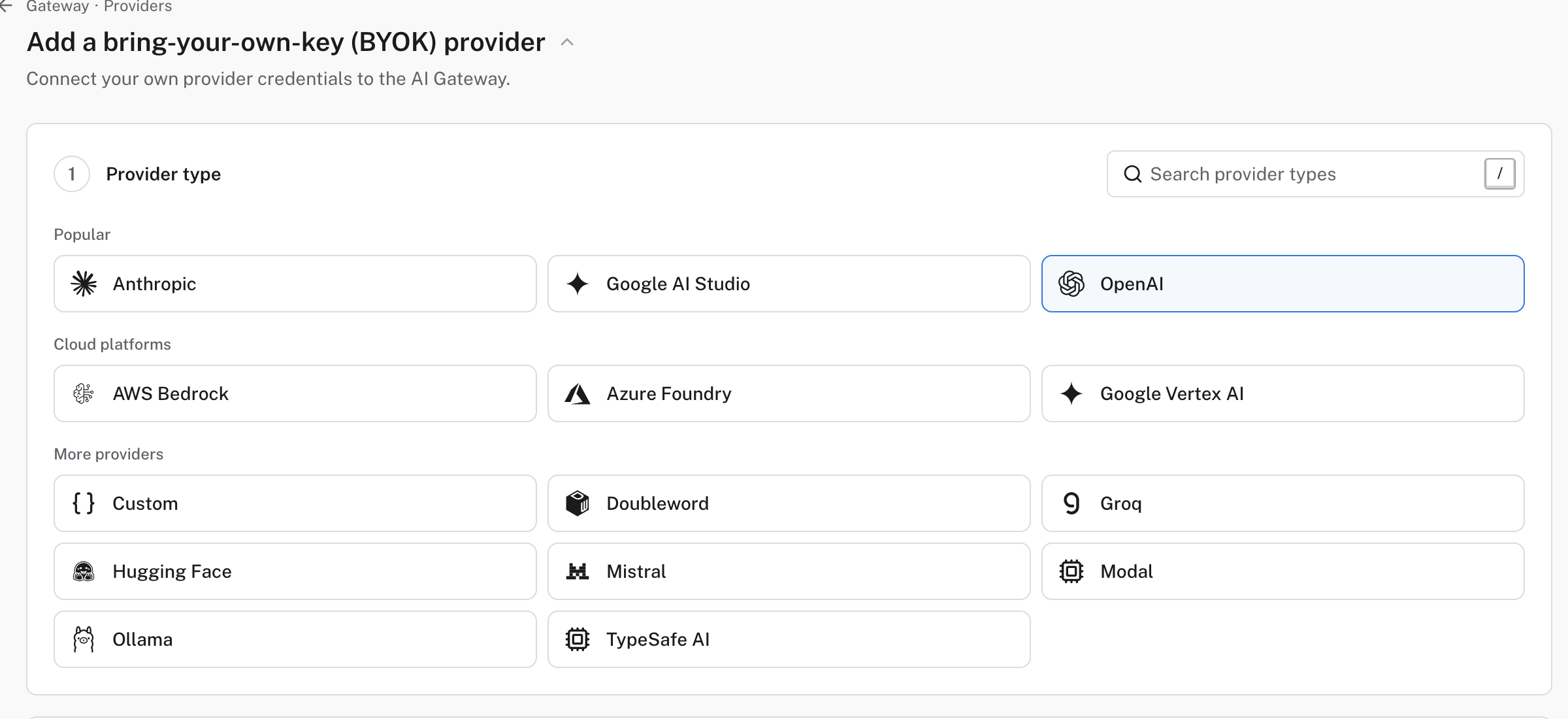
The picker also has a search field for other provider types.
-
Choose a Provider type. Use a named provider when possible; select a custom OpenAI- or Anthropic-compatible provider only if your plan permits custom endpoints.
-
Under Connect provider, enter the credential and any vendor-specific endpoint details. The default base URL is filled in for providers that have one.
-
Click Test & continue. This asks the provider for its models using the supplied configuration. A successful check confirms this connection test, not that every model or future request will work. If the check is unsupported or unavailable, the form offers Continue without a passing check; do that only if you can verify the route with a real request afterward.
-
Under Name your provider, choose a route name (slug), the URL segment after
/proxy/. By default, Add provider and create endpoint creates an endpoint with the same slug. Under Advanced options, you can assign the provider to an existing endpoint or change its base URL if your plan permits it. Changing the base URL returns you to the connection check; repeat or skip that check for the new configuration before adding the provider. -
Save, then open Connect, select the new route, and send a test request.
The provider’s credential is different from the Gateway API key that your application sends to Logfire. Never put the upstream provider credential in a Gateway request or a public client.
On Providers, confirm the new provider is active. On Endpoints → your endpoint → Routing, confirm that it is assigned and Available for routing. The route’s Connect snippet should then target its slug.
- If the connection test fails, recheck the provider type, base URL, credential permissions, and the provider’s own model-listing API. A credential can be valid but lack permission to list models. If you changed the base URL in Advanced options, run the check again.
- If the test passes but inference fails, check the model identifier, upstream account quota, and the provider’s error. Test & continue is not an inference test.
- If Connect says the endpoint has no active providers, confirm that the provider is active on Providers and Available for routing on the endpoint’s Routing tab.
- If a model is unavailable because pricing is required, set a custom price for it, or see first-request troubleshooting.
- If a model is rejected with
403, check its access setting on the provider’s Models tab.
For one stable URL across multiple providers, configure an endpoint.