Protect AI Gateway requests
Gateway Guardrails can detect sensitive values before a request reaches a model provider. Choose what to detect, where the protection applies, and whether to observe, flag, redact, or block matches. Calls that bypass Gateway are not inspected.
Start with a prebuilt secret or personal-data template. Test it with non-sensitive sample text before enforcing it broadly.
You need organization-admin access to configure protections.
-
Open AI Engineering → Gateway → Guardrails → Protections, check the selected organization, and choose New protection. From an endpoint with no guardrails, Create guardrail takes you to the same flow.
-
Under Start with, choose Prebuilt protection. Select a Template, such as an API-key or email-address detector.
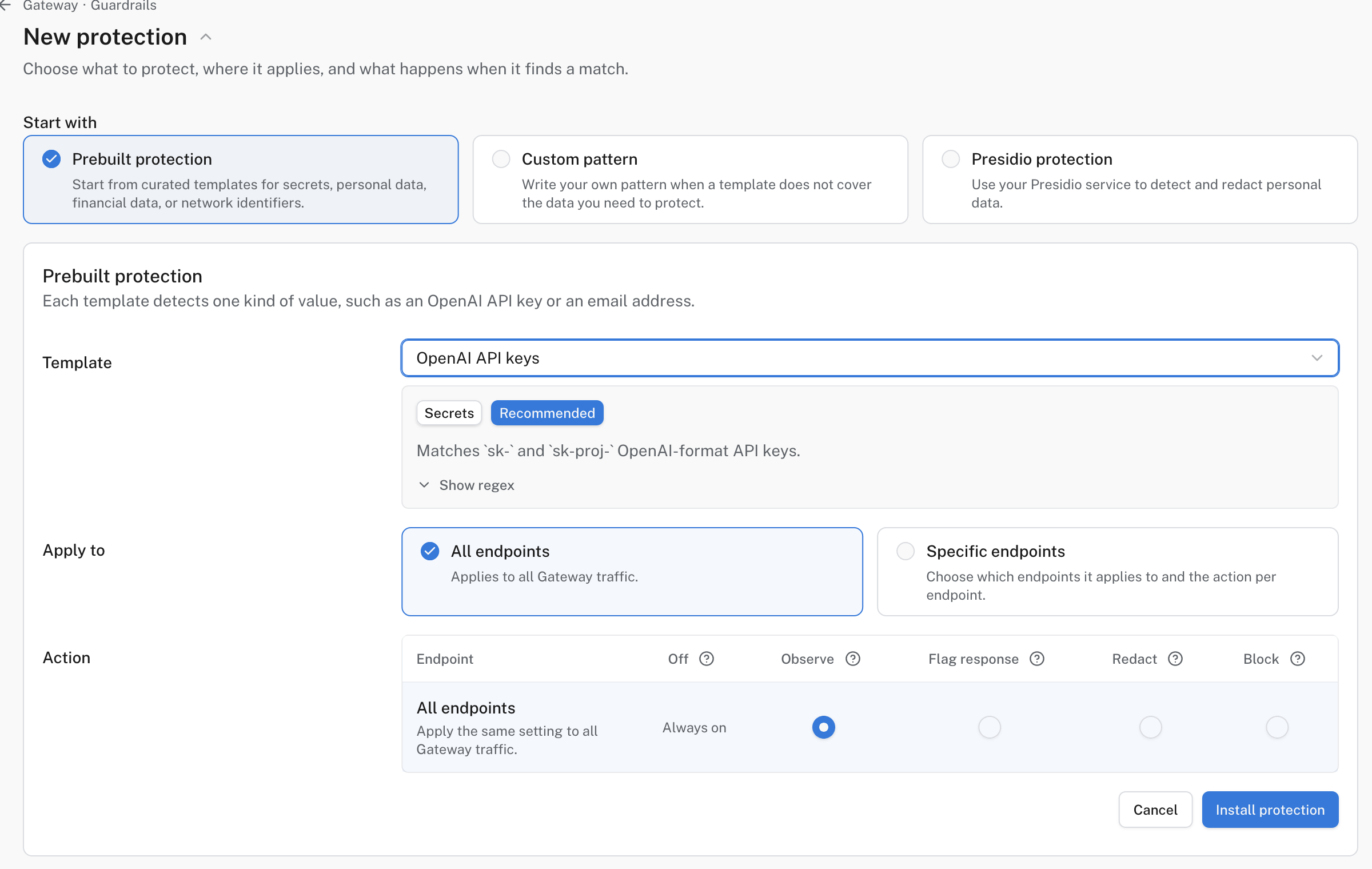
A prebuilt API-key detector in Observe mode across all endpoints.
-
Under Apply to, select All endpoints or Specific endpoints. If you choose specific endpoints, select the action for each one; Off means this protection does not run there.
-
Under Action, choose what should happen on a match:
Action Result Observe Record the match in telemetry; forward the request unchanged. Flag response Forward unchanged and mark the response as flagged. Redact Replace the matched value before forwarding. Block Reject the request before it reaches the provider. -
Click Install protection. Return to Guardrails to confirm its target and action. On Endpoints → your endpoint → Guardrails, check that it applies to the route you will call.
Enable recommended setup may already have installed recommended protections. Review their actions and targeting before sending real user data. A protection in Observe or Flag response mode does not stop a secret reaching the upstream provider.
If no prebuilt template covers your data, Custom pattern accepts a regular expression and offers sample previews.
For Presidio protection on Enterprise Cloud or self-hosted Logfire, first run a Presidio service reachable from your Gateway. Hosted Logfire requires a public HTTPS domain; localhost, private IPs, and HTTP are rejected. Self-hosted Logfire can use a private endpoint reachable from the Gateway deployment, but use HTTPS for production. Private HTTP is suitable only for trusted development networks without bearer authentication and with synthetic test data: prompt content is unencrypted in transit.
- In New protection, select Presidio protection, then click New connection beside Connection.
- Enter a name, the service-root base URL (not
/analyze), and, if needed, a bearer token. Click Test and enable to verify the Presidio endpoints before using the connection. - Choose the Entity type to detect. Under Advanced, you can set a confidence threshold and decide whether to allow or block requests if Presidio is unavailable.
Start with a narrow detector and an Observe action, inspect its matches, then move to Redact or Block where supported. A broad regular expression can alter ordinary prompts or reject legitimate requests. Do not paste real credentials or personal data into the test samples.
Send a test request through an endpoint where the protection applies. Use a synthetic sample that should match and another that should not. Redact should replace the match, and Block should reject the matching request. Observe and Flag response leave the prompt unchanged; enable Gateway telemetry to inspect those matches in the project’s trace. For Flag response, inspect response headers if your client does not display them.
A flagged response includes the x-pydantic-gateway-guardrails-flagged header.
Watch the AI Gateway data-loss prevention tutorial.
If nothing happens, check Apply to and the endpoint’s Guardrails tab, whether the detector matches your input, the chosen action, and whether a Presidio connection is enabled. Protections aimed at one endpoint do not automatically cover another.
Next, set spending limits or add an optimization.