Optimize AI Gateway requests
An optimization adds an instruction to matching Gateway requests. It can encourage shorter replies, change tool-use behavior, or apply another prompt rule without editing each application. Optimizations affect model input and may change output, cost, and behavior, so test them on a non-production route first.
You need organization-admin access to create optimizations and change their targeting.
-
Open AI Engineering → Gateway → Optimizations, check the selected organization, and click New optimization. From an endpoint with no optimizations, Create optimization opens the same catalog.
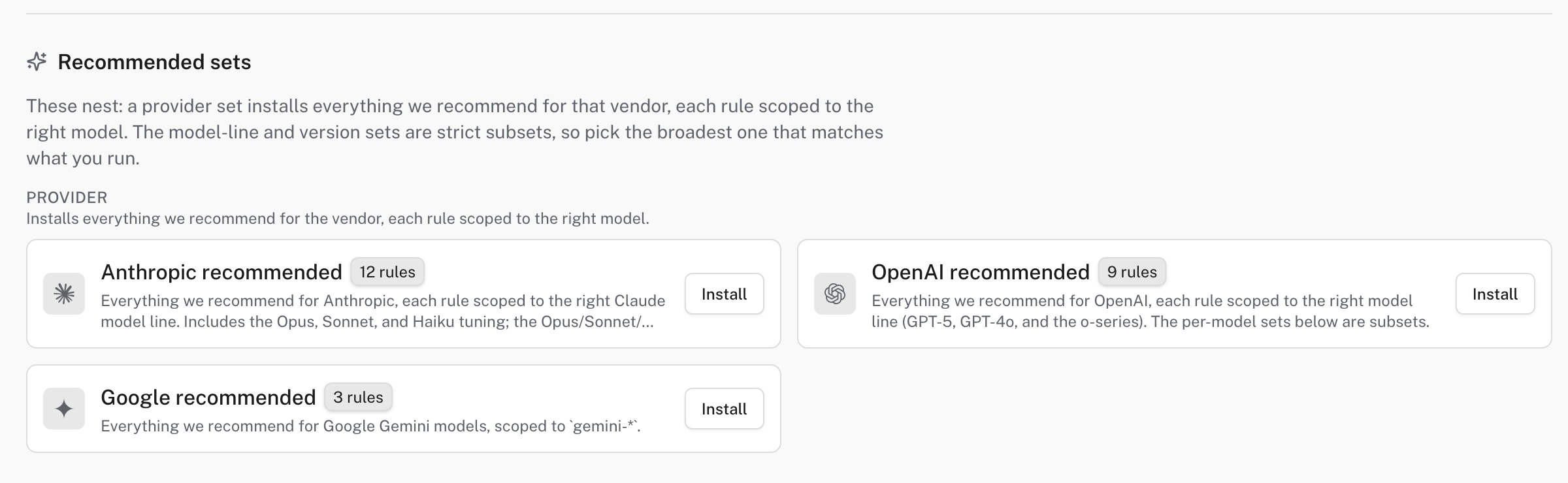
Provider-specific sets in the New optimization catalog.
-
On New optimization, choose a Recommended set for your provider or model, or an individual rule. Check the set’s scope before installing: for example, the Google recommended set is for Google Vertex AI, not every route that serves a Gemini model. Provider sets contain model-scoped rules; a model-line or version set is a narrower subset. Install the broadest set that matches what you actually run, rather than stacking overlapping sets without a reason.
-
In the install panel, review the rules, continue to endpoint selection, choose the endpoints that should use them, and confirm. A rule with no endpoint binding does not run.
-
Open the rule and review its Targeting. Narrow it to a model or agent where appropriate.
To write your own rule, choose Custom rule on New optimization, give it a name and Instruction, then set its targeting. Advanced settings include a trigger pattern, message roles, priority, failure mode, and an Observe or Transform action. Observe is useful for testing match behavior without modifying the request; Transform injects the instruction into matching requests.
Send the same small test prompt through an endpoint with and without the optimization. Confirm its binding under Endpoints → your endpoint → Optimizations. If Gateway telemetry is enabled, inspect the request’s trace and the optimization’s usage to confirm a match. A difference in the model’s prose alone is not proof of which rule ran.
Watch the AI Gateway optimizations tutorial.
If the optimization appears but does not change the request, first check its action: Observe records a match but does not inject the instruction; choose Transform when you want to modify requests. Then check that the rule is enabled, bound to the endpoint, and that model, agent, message role, and optional trigger pattern all match. If a model provider rejects the transformed prompt, disable the rule and test it in a narrower scope before re-enabling it.
Use Guardrails for sensitive-data detection and blocking. Optimizations change instructions; they are not a data-loss-prevention control.