Control AI Gateway model access and pricing
Choose which models your applications can call through each Gateway provider, and track costs at your own rates. Each provider has a Models tab where you allow or block models, add fine-tuned or unlisted models, and, on a bring-your-own-key (BYOK) provider, override the price Gateway uses to calculate cost. Built-in providers support access settings only.
You do not need the Models tab to send requests: every model a provider serves is allowed until you change it. Access settings apply to every request routed through that provider, whichever API key or gateway endpoint the request uses. You need organization-admin access to change them.
-
Open AI Engineering → Gateway → Providers, check the selected organization, click Edit on a provider, and open the Models tab. The list shows each model the provider serves, with its access and price.
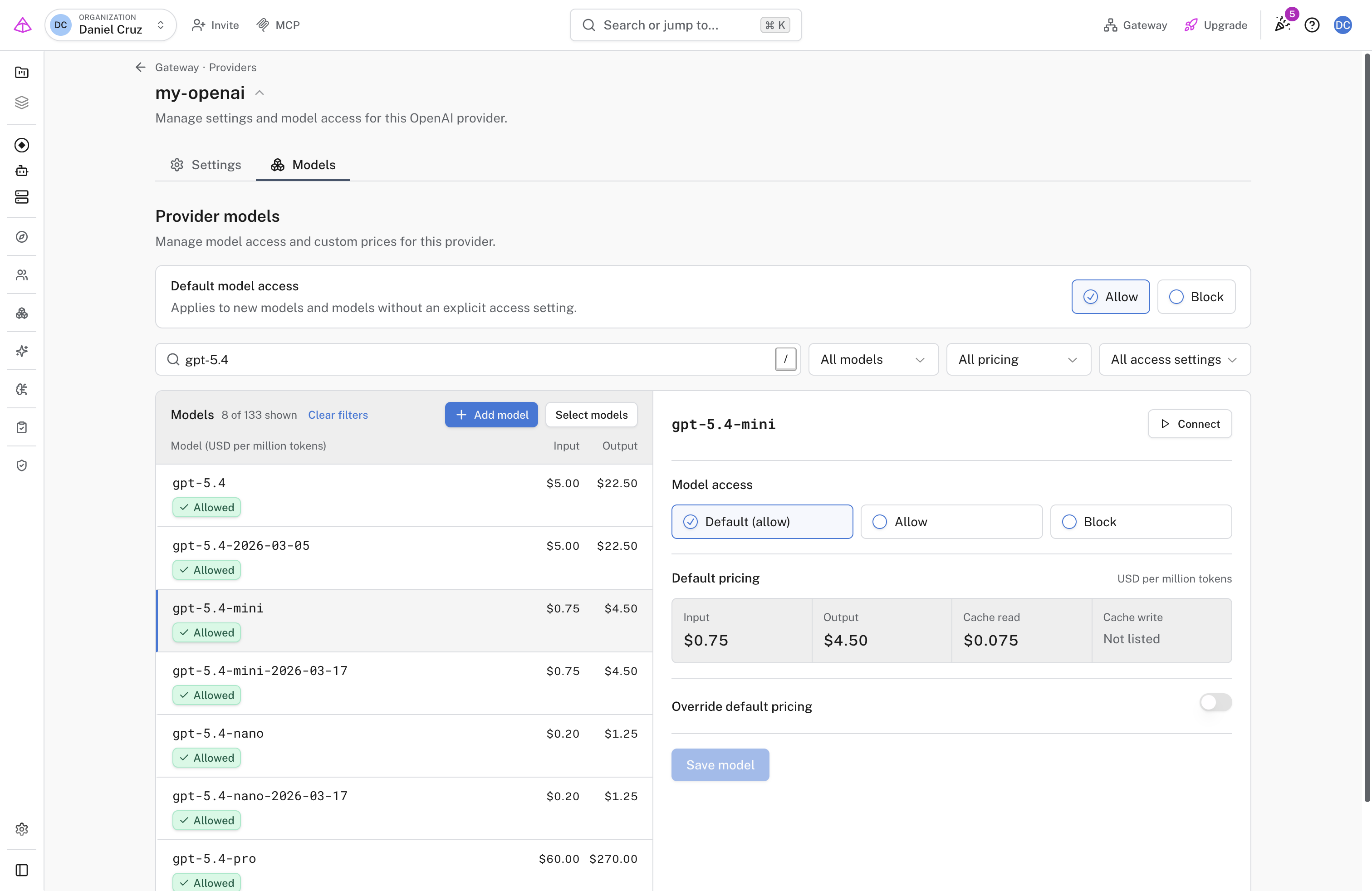
Every model follows Default model access until you give it its own setting.
-
Select a model. Under Model access, choose Allow or Block, then click Save model. The first option, for example Default (allow), removes the model’s own setting so it follows the default again. To change several models at once, click Select models.
Default model access applies to models without their own setting, including models the provider adds later. Allow, the default, permits every model you have not blocked. Block permits only the models you allow, which turns the list into an allow-list.
A request for a blocked model fails with 403:
Access to model `gpt-5.4-mini` is disabled for this provider. An organization admin can change this under Gateway → Providers → Models.
If the provider doesn’t list a model, such as your own fine-tuned model, add it by ID.
-
On the Models tab, click Add model. Enter the Model ID exactly as your application sends it, for example
ft:gpt-4.1-mini-2025-04-14:acme::support-v2. -
Choose Model access. On a BYOK provider, turn on Set pricing to enter prices, as described in the next section.
-
Click Add model. The model appears in the list with a Custom model label.
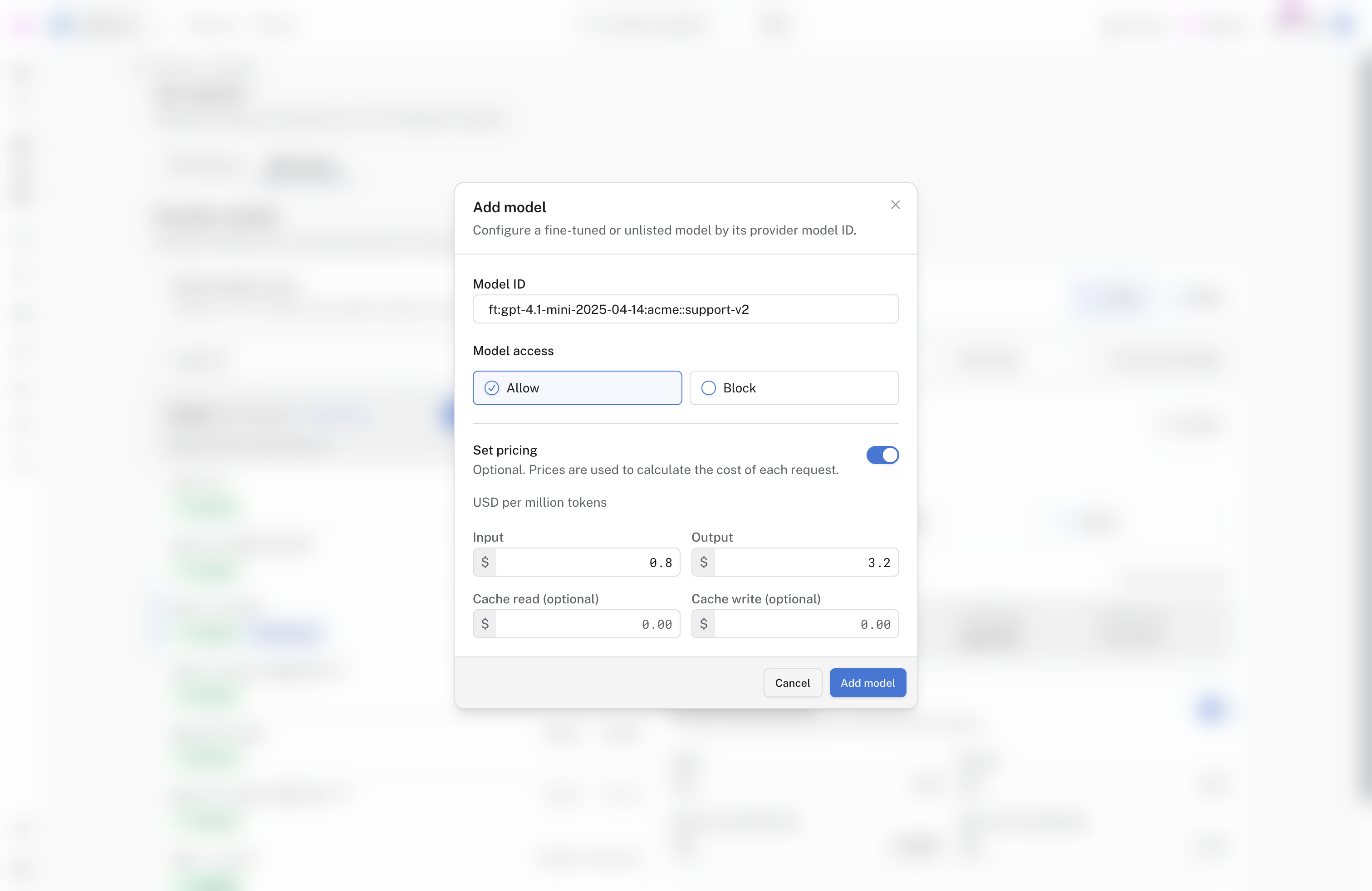
A fine-tuned model with its own prices. Without a price, Gateway can’t calculate the model’s cost.
Gateway calculates each request’s cost from its token counts and a price in USD per million tokens. By default it uses the catalog price from Gateway’s model catalog. That cost counts toward spending limits and policies. A custom price replaces the catalog price for one model on one provider. Use it when you pay a negotiated rate or when the catalog has no price for the model. It changes only the cost Gateway records; your provider still bills you directly.
-
Select a model. Default pricing shows its catalog price, if any.
-
Turn on Override default pricing, or Set pricing when there is no catalog price.
-
Enter Input and Output prices. Cache read and Cache write price tokens served from or written to the provider’s prompt cache; they are optional, and empty values use the input price.
-
Click Save model. The model shows a Custom price badge.
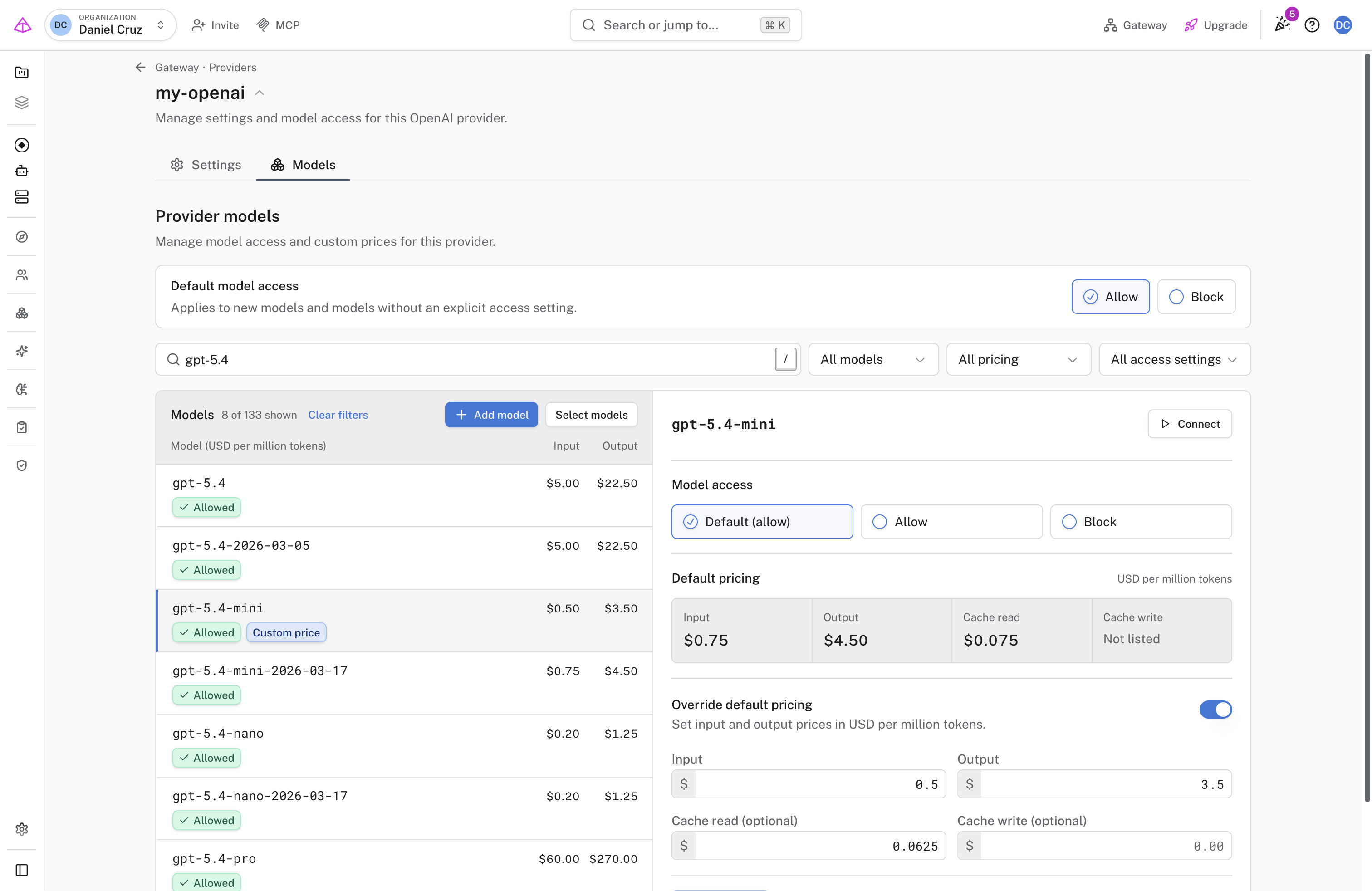
A custom price on
gpt-5.4-mini, replacing the catalog price shown under Default pricing.
If the provider answers with a dated version of the model you requested, such as gpt-5.4-mini answered as gpt-5.4-mini-2026-03-17, a custom price on gpt-5.4-mini also applies. If both names have a custom price, the dated name’s price applies. If the provider answers with a name that is not a dated version, such as claude-3-7-sonnet-latest answered as claude-3-7-sonnet-20250219, Gateway uses the custom price of the model in the response, or its catalog price if it has none.
To return to the catalog price, turn the override off and click Save model. Built-in providers always use the catalog price.
Open Playground from the sidebar, choose the provider and model, and send a short message. The Playground needs a project API key; if it shows project key required, click Create project key first.
- An allowed model answers. A blocked model still appears in the model list, but the request returns the
403error above. - For a custom price, send a request, then open AI Engineering → Gateway → API Keys, select the key you used, and check Usage & Spending Limits. The cost should match your price, not the catalog price. The cost estimate shown in the Playground uses catalog prices, so don’t use it to check a custom price.
- A model is rejected unexpectedly: check the model’s own setting, then Default model access. With the default set to Block, every model you have not allowed is rejected, including newly released ones.
- A blocked model still works: check which provider handled the request. Settings are per provider, so an endpoint can still reach the model through another provider.
- No pricing data error: the provider has Require pricing data turned on in its Settings tab and the model has no price. Set a custom price, or turn that setting off.
- Batch or file requests fail with
403: on a BYOK provider that blocks any model, Gateway rejects requests whose model it can’t read, such as requests it passes through without parsing. - A custom price is ignored: check which model the response reports. The Playground shows it under each reply. If it is not the model you requested or a dated version of it, set the price on the reported model ID.
- Costs look wrong: prices are per million tokens. Check whether cache prices are set; empty ones use the input price.
To cap what the allowed models can spend, set spending limits.