Manage sandbox profiles
Give sandbox sessions a reusable configuration that you can select when you run code. A profile belongs to one project and has its own ID. A profile also controls which shared files its sessions can use. A session is a group of related interactions, such as successive Workbench code runs.
You need access to Agent Sandboxes and permission to manage profiles in the project. Members with read-only access can inspect the list but cannot change it. Open AI Runtime > Agent Sandboxes > Profiles.
- Select Create profile.
- Enter a Profile name, such as
Analysis. - Select Save profile.
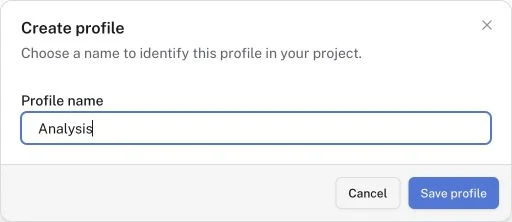
Example profile name.
The list shows the profile name and creation time after the save succeeds. Open the profile’s … menu and select Copy profile ID when you need its ID in an application. Use Search profiles to find a name across the full list. Sort by Newest first, Oldest first, or Name A–Z. Use Previous and Next if the list spans several pages.
Select Use profile beside the profile to open the Workbench with it selected. You can also choose it from the Workbench’s Profile selector before the session starts.
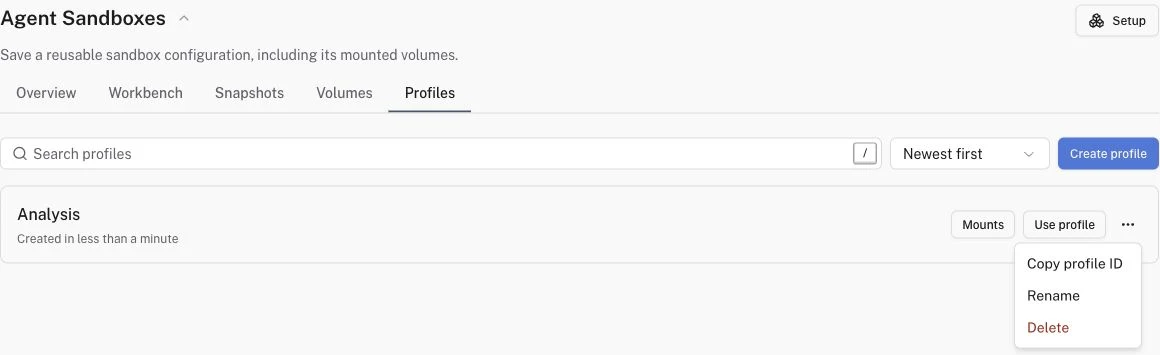
Example list with one profile.
Once a session starts, its profile selection stays fixed. To choose another, select Switch profile and confirm End session and switch profile. Save any Python state you need before you switch. The Workbench keeps a separate draft, history, and saved-session reference for each profile in this browser. Select Continue session or Load session to restore Python state. Selecting a profile alone does not restore variables.
If Mounts is available, select it beside the profile.
Choose a volume, a mount path such as /data, and Read only or Read and write access.
Select Mount volume.
Use Edit mount to change its path or access. Changes apply when the profile next accesses a volume.
See Share files between sessions for a complete example.
Open the profile’s … menu, select Rename, update Profile name, then select Save profile. Renaming preserves the profile ID, so callers that use that ID keep the same profile identity.
To delete a profile, open its … menu and select Delete. Check the name in the confirmation, then select Delete profile.
Find the saved name in Profiles and use Copy profile ID to check its ID. Select Use profile and check that the Workbench selects that profile before you run code.
- Create, Rename, or Delete is unavailable. Ask your project administrator to check your profile permissions.
- The profile no longer exists. Refresh the list and choose a current profile. If the Workbench reports that the selected profile was deleted, Run without a profile starts an unprofiled session. The No profile selector option chooses an unprofiled session before it starts.
- The list or save fails. Use Retry where shown, or retry the save. Check the refreshed list before you create a duplicate.
Run code in the Workbench to use the selected profile.