Manage saved sandbox snapshots
Find a saved sandbox state and continue its work, or remove snapshots you no longer need. A snapshot is a saved copy of Python variables, functions, and other interpreter state at one moment. It does not contain your browser’s editor draft or command history.
You need access to Agent Sandboxes and permission to read the project’s snapshots. Deletion also requires permission to manage the project’s sandboxes. Run code in the Workbench or save a Python client session to create saved state. Open AI Runtime > Agent Sandboxes > Snapshots.
- Enter part of a snapshot ID or upload ID in Search snapshots.
- Use the status filter to show saved snapshots, uploads, or objects awaiting cleanup.
- Sort by creation time or size. The Created and Size column headings also change the sort order.
- Choose List view or Card view. Use Previous and Next to browse more results.
Search and sorting apply across the project inventory, including snapshots on other pages. The list shows each snapshot’s size, creation time, and expiry time.
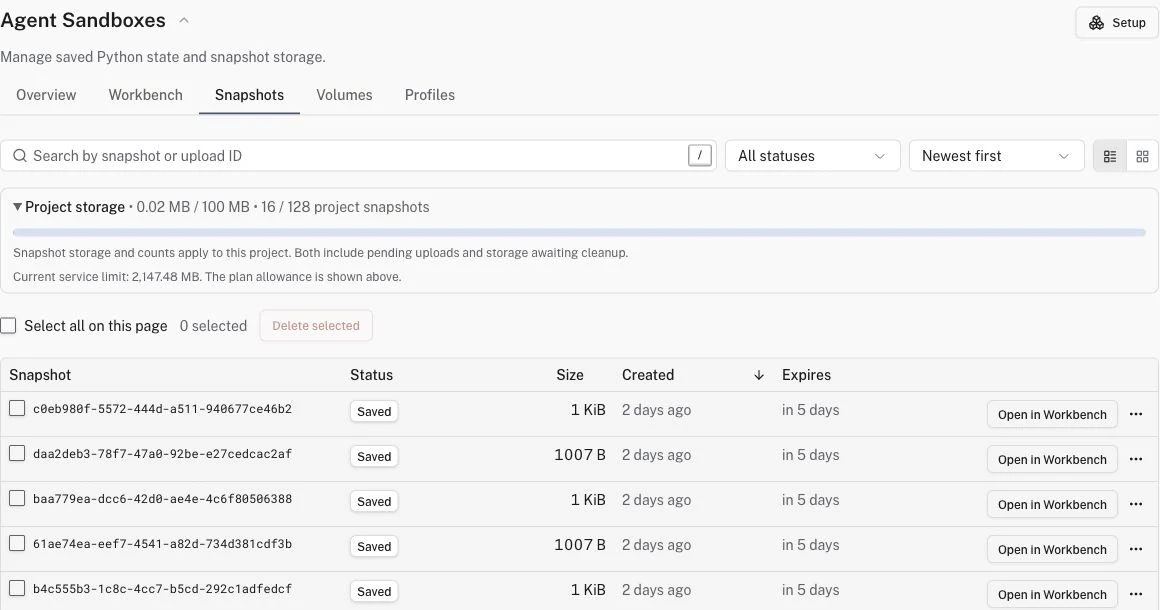
- Find a snapshot with Saved status.
- Select Open in Workbench on its row or card.
- Check the selected snapshot and profile in the Load session dialog, then select Load session.
Opening the Workbench does not restore the snapshot until you confirm the load. If you already have an open session, choose Save current and load to keep its current state first. Your draft and history stay in this browser. Mounted volume files keep their current contents. See Load a saved session for the complete flow.
For one snapshot, open its … menu and select Delete snapshot. A snapshot that cannot be opened has a Delete button instead. To delete several, select their checkboxes and choose Delete selected. Select all on this page selects only the saved snapshots on the current page. Review the confirmation before you delete them.
Deletion can show Cleanup pending until Logfire removes the stored objects. The project’s snapshot count and stored bytes decrease after cleanup finishes. Pending uploads and objects awaiting cleanup count toward both the byte and snapshot-count limits. If a bulk deletion partly fails, retry only the snapshots that still show a failure.
The Project storage summary shows this project’s plan allowance and snapshot count. Open it to inspect the current service limit when it differs from the plan allowance. Each project has its own byte and snapshot-count limits. Snapshots in another project do not use this project’s allowance.
Save the Workbench reuse example, where total is 42.
Find its snapshot and select Open in Workbench.
Load it and run total. It should return 42.
- No snapshots match. Clear the search and status filter. Check the project, then save a Workbench session if it has no saved state.
- Load is unavailable. Uploads and objects awaiting cleanup cannot be loaded. Choose a snapshot with Saved status.
- Storage does not decrease after deletion. Check for Cleanup pending. Storage stays charged until cleanup finishes.
- A snapshot cannot be restored. It may have expired, been deleted, or come from an incompatible runtime. Keep your draft and choose another snapshot.
Run code in the Workbench to continue from saved state, or share files between sessions.