Share files between sandbox sessions
Keep files between sandbox sessions and share them with sessions that use the same profile, a named session configuration.
A volume stores files separately from Python memory.
A mount gives a profile access to a volume at a path such as /data.
You need access to Agent Sandboxes and permission to manage the project’s volumes and profiles.
Create a profile such as Analysis before you add a mount.
- Open AI Runtime > Agent Sandboxes > Volumes.
- Select Create volume, enter a Volume name such as
Shared reports, then select Create volume. - Open Profiles and select Mounts beside
Analysis. - Choose
Shared reportsunder Volume and enter/dataunder Mount path. - Choose Read and write under Access, then select Mount volume.
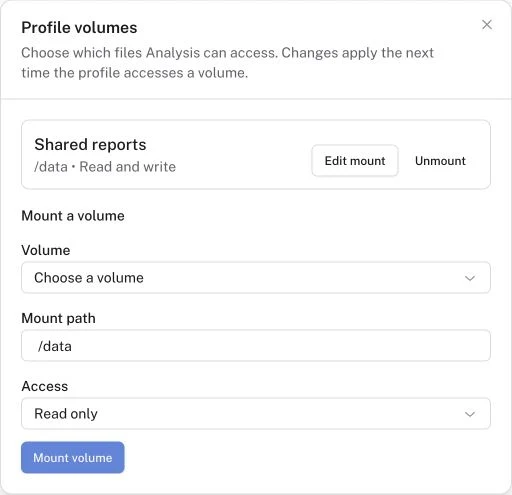
Use Read only when a session should read files without changing them. Use Search volumes and the sort control to find a volume by name in a longer list.
Close the mount dialog and select Use profile beside Analysis.
The Workbench is the browser editor for sandbox code.
In the Workbench, run:
from pathlib import Path

Path('/data/shared.txt').write_text('shared volume bytes')
The result is 19, the number of characters written.
Then run:
from pathlib import Path

Path('/data/shared.txt').read_text()
The result is 'shared volume bytes'.
Other sessions that use this profile can read the same file.
Open Profiles > Mounts again. Select Edit mount, change the path or access, then select Save changes. Changes apply when the profile next accesses a volume. Select Unmount to remove the profile’s access without deleting the volume’s files.
To delete the stored files, open the volume’s … menu in Volumes and select Delete volume. Check the name in the confirmation before you continue.
Check that the profile’s mount list shows /data with Read and write access.
Run the write and read examples, then read the file from a new session with the same profile.
It should return 'shared volume bytes'.
- Volumes or Mounts is missing. Check that you use Logfire Cloud. Self-hosted Logfire deployments do not include hosted volumes.
- A write fails. Check that the session uses the correct profile and that the mount allows Read and write access.
- A file is missing. Check the mount path. An unmounted or deleted volume is unavailable to the session.
Manage profiles to control which sessions share files, or manage saved snapshots to restore Python state.