Run code in the Workbench
Try Python in your project’s sandbox and read the result without installing a client. Each submission runs in the same session until you reset it or load another saved session. A session is a group of related interactions, which here can share Python variables.
You need access to Agent Sandboxes and permission to run code in the project. Open AI Runtime > Agent Sandboxes > Workbench. If the project shows Enable Agent Sandboxes, ask a project manager to enable it first. If you want a named profile, create one before you start the session. Check what sandbox code can do if your code uses imports or features beyond the examples below.
-
If the Profile selector is available, choose a profile or No profile.
-
Enter this expression in the Python editor:
sum([12, 18, 30]) -
Select Run code. You can also press ⌘+Enter on macOS, Ctrl+Enter on Windows and Linux, or Shift+Enter.
-
Read the result below the editor. The expression returns
60.
Run this code, then submit total as a separate run:
total = 42
print('Saved total')
#> Saved total
The first run prints Saved total. The second returns 42.
After a successful run, the Workbench clears the editor for the next command.
The transcript shows the newest run first, with its result, printed output, or Python error.
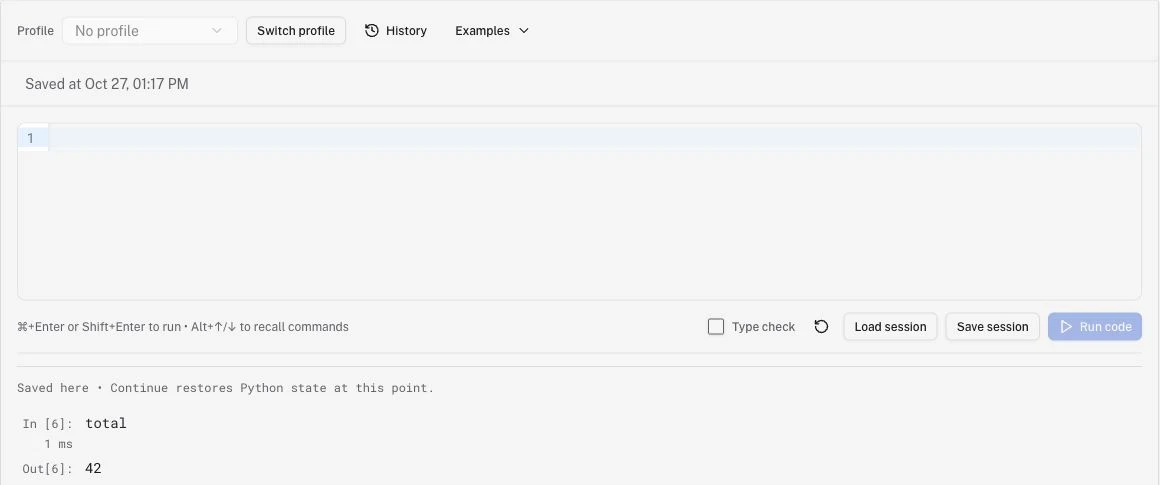
A checkpoint is a saved copy of Python state. It includes the variables from the completed run.
Select History to find an earlier command and load it into the editor. Loading a command does not run it. Review it before you select Run code. Use Examples to load a sample instead. Press Alt+↑ or Alt+↓ in the editor to recall commands. For long output, select Show more. The copy control copies the full output, including text hidden by Show less.
Select Type check beside Run code to check the submitted code before it executes.
For example, total: int = 'wrong' reports an assignment error instead of changing total.
The rejected code stays in the editor so you can fix it.
The setting stays selected for later runs. Changing it does not reset the session.
The Workbench automatically saves Python state after completed runs. Logfire keeps this saved state for 7 days. It counts toward the project’s snapshot storage limits. You can also select Save session before you leave. Wait for Saved at and the Saved here marker before you rely on that checkpoint.
The browser keeps your draft and up to 50 finished runs for the current account, project, and profile. Reloading or returning to the page restores this local history. The Workbench does not execute the old code again.
- Reload the page or return to the Workbench.
- Select Continue session to restore the saved Python state.
- Run
total. It returns42if your checkpoint includes the assignment above.
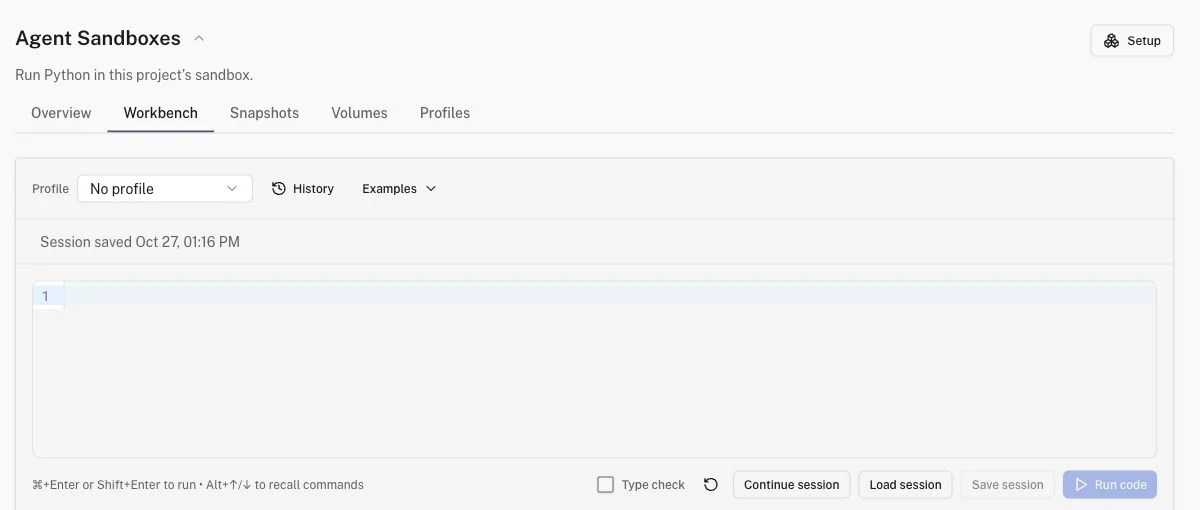
Run code stays unavailable until continuation succeeds or you reset the session. Another browser does not inherit this browser’s draft or history. To restore a saved Python state there, use Load session.
- Choose the profile whose current volume access the session should use, or No profile. If the selector is locked, use Switch profile first.
- Select Load session beside Save session.
- Search for the saved snapshot by its ID, then select it.
- Select Load session in the dialog.
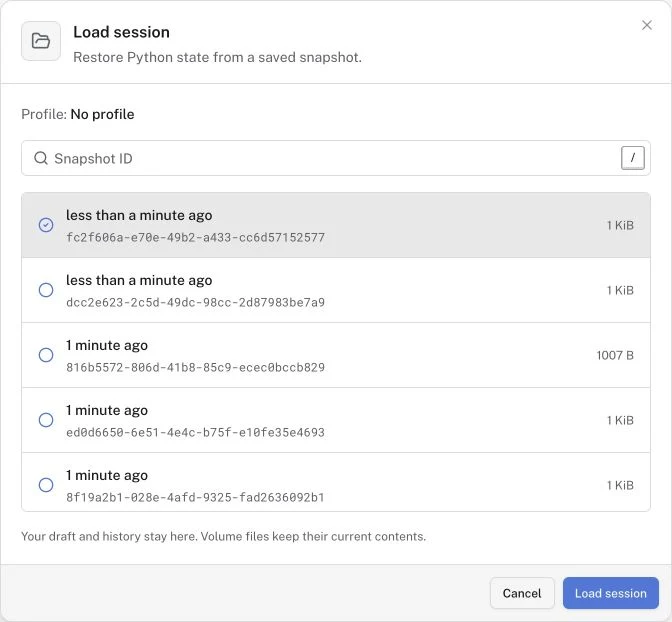
If a session is already open, choose Save current and load to keep a checkpoint before you replace its Python state. Choose Load without saving only if you do not need the current state. If the save fails, the Workbench stops the load so you can retry.
A snapshot restores Python variables and functions. It does not replace your browser draft or history. Mounted volume files keep their current contents. You can also start this flow from Open in Workbench on the Snapshots tab.
To clear the variables, transcript, and local continuation, open Reset session, then confirm Reset session. You cannot undo this reset. Your editor code and saved snapshots stay unchanged. Use the Snapshots tab to delete saved Python state from server storage. To choose another profile during a session, select Switch profile and confirm End session and switch profile. Each profile has its own browser draft and history. Save any state you need before you switch.
Check that the sum returns 60 and that total returns 42 in the same connected session.
Reload, select Continue session, and run total again to check your saved state.
Use Overview to inspect recorded activity after a run.
- Run code is unavailable. Check the displayed connection or permission message. Retry after the sandbox becomes available.
- A variable is missing. Check whether you continued the right checkpoint and selected the right profile. A reset starts with no variables.
- Saving or continuation fails. Keep the draft and retry the failed action. A failed save keeps the previous checkpoint. A deleted or expired snapshot cannot be restored.
- The connection fails after submission. The code may have run without a result reaching the browser. Inspect activity before you repeat code with side effects.
Connect an application to submit code from your own program.